> For the complete documentation index, see [llms.txt](https://docs.flowlity.com/llms.txt). Markdown versions of documentation pages are available by appending `.md` to page URLs; this page is available as [Markdown](https://docs.flowlity.com/strategy/tactical.md).
# Tactical
Simulate a new buffer level on a group of products, check the impact on stock and supply, then validate and apply it.
The Tactical module lets you test a change of buffer level on a group of products before you apply it. You see the impact on inventory, stock coverage, zero stock days and the supply plan over the coming months, then validate the scenario and send it to Flowlity.
In the sidebar, go to **Strategy** > **Tactical**. You need the tactical simulation permission to see it.
{% hint style="info" %}
On [Flowlity Lite](/flowlity-lite.md), the Tactical module is a paid add-on and is switched off by default. Ask your Customer Success Manager to activate it.
{% endhint %}
## How a scenario works
A scenario goes through three steps, shown by a badge at the top of the page:
1. **Simulate**: you change buffer levels and save the simulation. The badge shows how many products have changes.
2. **Validate**: you lock the scenario. The badge shows **Changes under validation** and buffer levels can no longer be edited.
3. **Apply**: you send the scenario to Flowlity. The badge shows **Waiting for next calculation** until the next supply plan calculation takes the new buffer levels into account.
## How to simulate a new buffer level
{% stepper %}
{% step %}
### Select the products
Filter the list with the search, **Tags**, **Suppliers**, sites, **Buffer level**, **Stock coverage** or **Zero stock days**, then tick the products to change.
{% endstep %}
{% step %}
### Open the buffer level editor
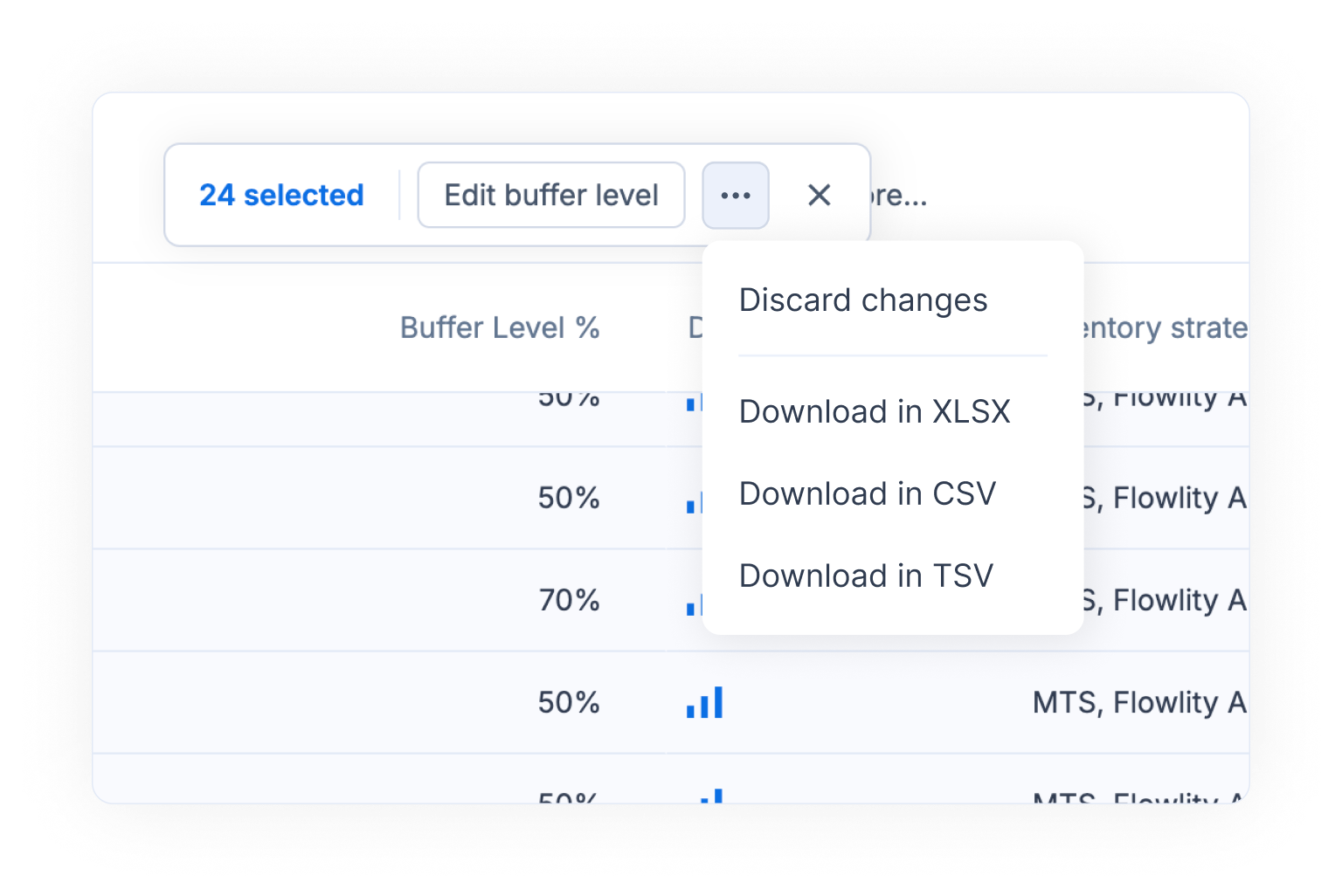
In the bar that appears, click **Edit buffer level**.
{% endstep %}
{% step %}
### Set the new buffer level
Next to **Apply to all Buffer Level:**, choose:
* **Adjust by**: raise or lower the current buffer level of every product by the same percentage, for example -10%.
* **Exact value**: give every product the same buffer level, with the field or the slider.
You can also change the buffer level of one product directly in the table.
{% endstep %}
{% step %}
### Simulate and save
Click **Simulate** to compute the impact, and read the chart. Click **Save** to keep the simulation, or **Discard changes** to drop it.
{% endstep %}
{% endstepper %}
## How to compare the impact on stock and supply
{% stepper %}
{% step %}
### Pick what the chart shows
Above the chart, choose the source: **Inventory level**, **Stock coverage**, **Zero stock days**, **Supply plan** or **Demand plan**. The chart sums up the products of the list.
{% endstep %}
{% step %}
### Pick the unit
For inventory, supply and demand, choose a value, a quantity, or any unit of your products, for example pallets. Only products that have this unit are included.
{% endstep %}
{% step %}
### Show the table
Switch from **Graph** to **Graph and Table** to read the figures month by month, with the **Actual simulation** and the **New simulation** side by side.
{% endstep %}
{% step %}
### Set your objectives
In the **Objective** row of the table, enter the targets you want to reach, then click **Save** at the top of the page. The chart shows them next to the projection.
{% endstep %}
{% endstepper %}
## How to validate and apply a scenario
{% stepper %}
{% step %}
### Validate the scenario
When the simulation is saved, click **Validate** at the top of the page and confirm. After validation, buffer levels can no longer be modified.
{% endstep %}
{% step %}
### Apply it to Flowlity
Click **Apply** and confirm. The simulated values become the active values of the products.
{% endstep %}
{% step %}
### Check the status
The badge shows **Waiting for next calculation**. The new buffer levels are taken into account at the next calculation of the supply plan.
{% endstep %}
{% endstepper %}
## How to discard a simulation or a validation
{% stepper %}
{% step %}
### Open the menu
At the top right of the page, click the three-dot button next to **Validate** or **Apply**.
{% endstep %}
{% step %}
### Choose what to undo
* **Discard validation** unlocks a validated scenario so you can edit it again.
* **Delete Simulated Data** removes all simulated values from the products.
Confirm to finish.
{% endstep %}
{% endstepper %}
## How to export the results
{% stepper %}
{% step %}
### Select the rows
Tick the products you want in the file.
{% endstep %}
{% step %}
### Download the table
In the bar that appears, open the three-dot menu and choose **Download in XLSX**, **Download in CSV** or **Download in TSV**. The file includes the initial and the simulated buffer levels.
{% endstep %}
{% endstepper %}
## How to filter products with advanced tag logic
{% stepper %}
{% step %}
### Open the advanced tag filter
Click **Tags**, then open the **Advanced** tab.
{% endstep %}
{% step %}
### Combine your conditions
Add conditions on tag categories and link them with "and" or "or", for example products that are (Blue or Red) and Large. The list and the chart update to the matching products.
{% endstep %}
{% endstepper %}
## Good to know
* **Edited Only**: turn on this filter to see only the products with simulated changes.
* **Open planning**: hover a product and click **Open planning** to check its plan in the Planning module.
* **Lite and full simulation**: in the Lite simulation mode, zero stock days are estimated and may lack precision. Ask your Customer Success Manager about the **Full simulation mode**.
* **Mass strategy changes**: to change other strategy parameters on many products, use the bulk actions of the Demand and Planning product lists.
## Related
* [Safety stock settings](/concepts/concepts/buffer-policies.md): what the buffer level changes.
* [Inventory strategies](/concepts/concepts/inventory-strategies.md): the other levers of your stock policy.
* [Planning](/inventory-and-supply/planning.md): check the supply plan of each product.