> For the complete documentation index, see [llms.txt](https://docs.flowlity.com/llms.txt). Markdown versions of documentation pages are available by appending `.md` to page URLs; this page is available as [Markdown](https://docs.flowlity.com/revenue-optimization/promotions/create-forecast-events.md).
# Create and apply forecast events
Add forecast events and past demand adjustments from Demand or Promotions, one by one or from a CSV file.
Add a known change in demand (a promotion, a large order, a disruption) to the forecast of one or many products, or correct a past period that does not reflect normal demand.
### Before you start
* You need the right to edit events on your site.
* Decide the period, the products and the expected impact, in % or in units.
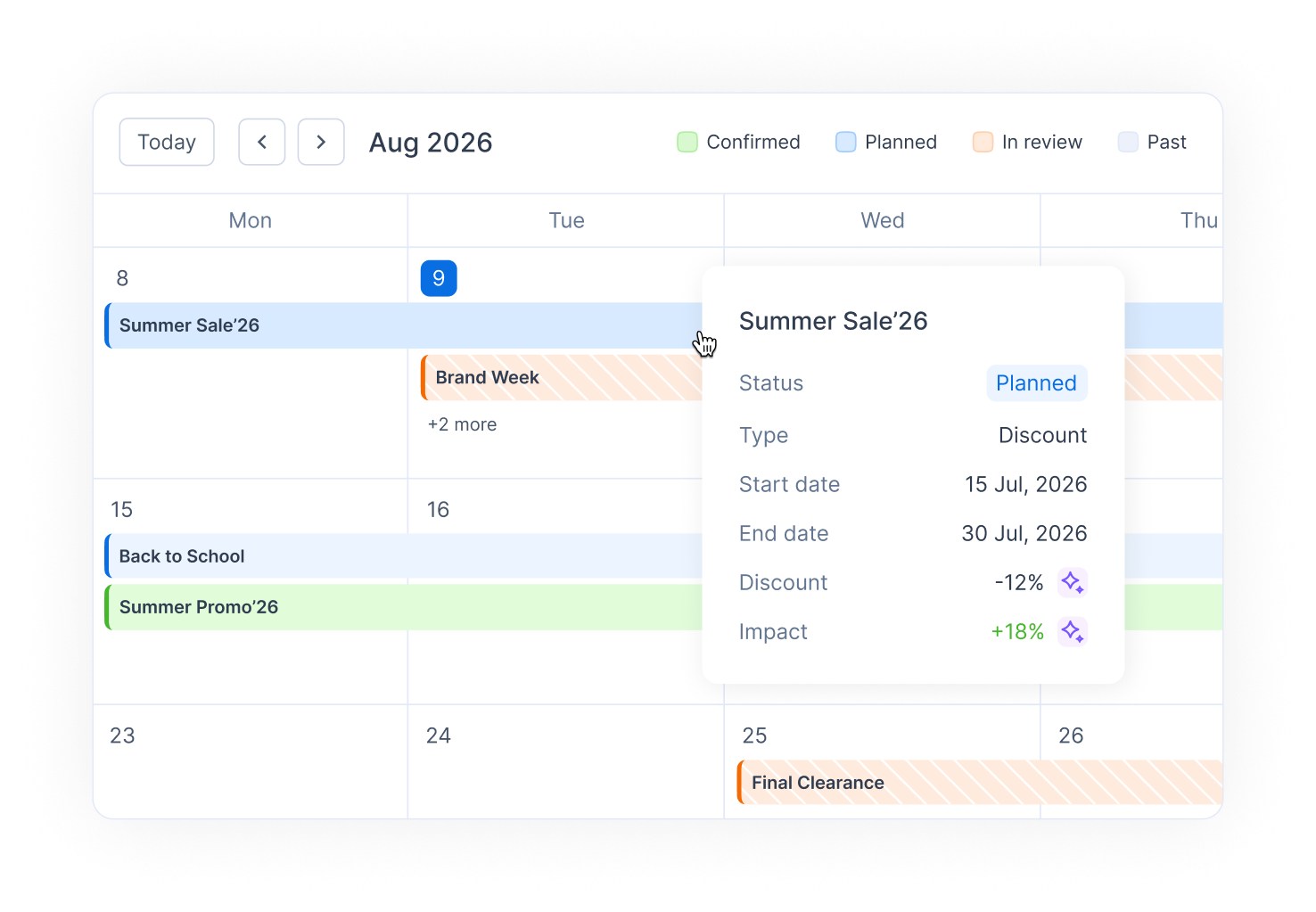
* Forecast events you create are confirmed straight away. Promotions count only once **Confirmed**: **Planned** and **In review** promotions do not change the final forecast.
* To choose customers, your site needs the customer axis.
## How to add an event to one product
{% stepper %}
{% step %}
### Open the product in Demand
In **Demand management** > **Demand**, click the product. You can also open several products with **View Aggregated Details**.
{% endstep %}
{% step %}
### Start a new event
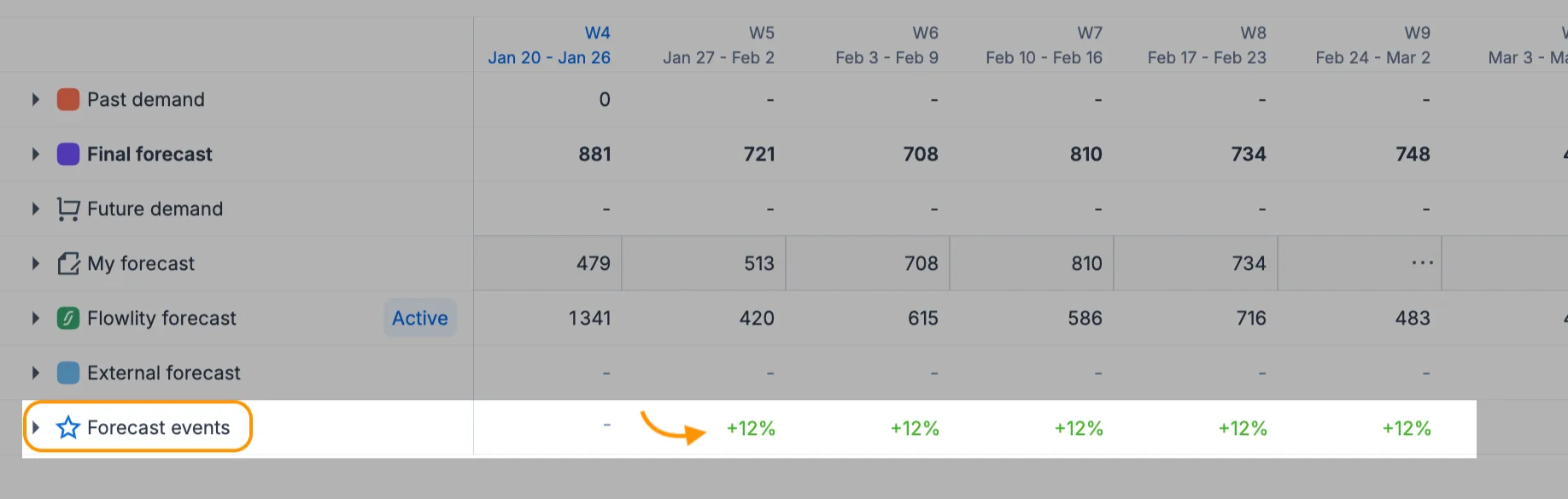
In the **Forecast events** row of the table, hover a future period and click **+**. You can also click **+** under a future period of the chart and choose **Create new forecast event**.
{% endstep %}
{% step %}
### Create it or pick an existing one
In **Add forecast event**, stay on **Create new** to build the event, or open **Select from existing** to link the product to an event that already exists.
{% endstep %}
{% step %}
### Fill in the event
Enter the **Name**, the **Start date** and **End date**, and the **Impact on forecast** in % or in units. The products are prefilled. Under **Apply event for**, choose **All customers** or **Specific customers**.
{% endstep %}
{% step %}
### Click Create
The event appears in the **Forecast events** row and the **Final forecast** changes for its period, except on periods where you entered **My forecast** and on products whose **Forecast source** is set to **External forecast**.
{% endstep %}
{% endstepper %}
## How to add an event to many products
{% stepper %}
{% step %}
### Select the products
In the Demand list, tick the products, or tick a whole group.
{% endstep %}
{% step %}
### Choose the action
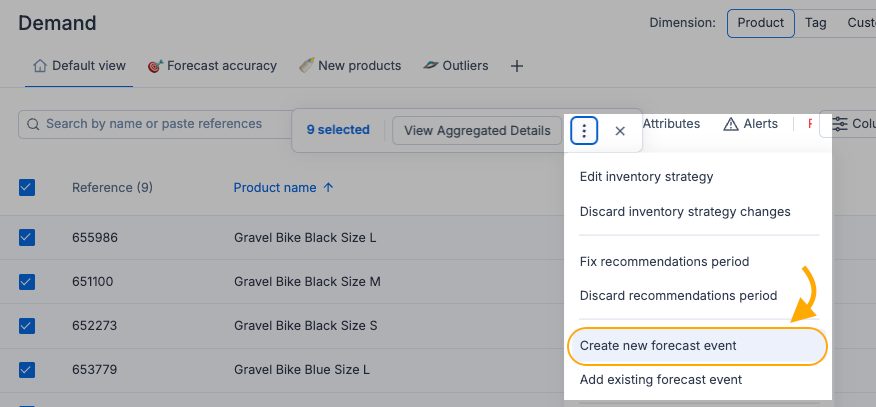
Click **⋮** > **Create new forecast event**, or **Add to existing forecast event** to link them to an event you already have.
{% endstep %}
{% step %}
### Fill in and confirm
Fill in the event as for one product, then confirm.
{% endstep %}
{% endstepper %}
## How to create a forecast adjustment in Promotions
{% stepper %}
{% step %}
### Open Promotions
In the sidebar, go to **Revenue optimization** > **Promotions** and click **Create new**.
{% endstep %}
{% step %}
### Choose the type
In **Settings**, enter the **Name**, set **Type** to **Forecast adjustment** for a plain impact with no promotion computation, and choose the **Start date** and **End date**. Enter the **Impact on forecast** and click **Continue**.
{% endstep %}
{% step %}
### Select the scope
In **Select scope**, pick the products, then click **Save**.
{% endstep %}
{% endstepper %}
For promotion types and their statuses, see [Promotions](/revenue-optimization/promotions.md).
## How to import events from a CSV file
{% stepper %}
{% step %}
### Start the import
In **Promotions**, click **Import**.
{% endstep %}
{% step %}
### Upload the file
In **Upload file**, drop your CSV file. Click **Download example CSV** if you need the expected format.
{% endstep %}
{% step %}
### Map the columns
In **Map columns**, match each column of your file to a Flowlity field. Map one impact column only: **Impact on forecast (%)** or **Impact on forecast (units)**. Under **Apply to:**, choose **Current site only** or **All sites of the company**. Under **Promotions status:**, choose **In review** or **Confirmed**.
{% endstep %}
{% step %}
### Review and import
In **Review & validate**, check the rows. Rows with errors are skipped: click **Download errors** to fix them, then **Re-upload file**. Click the import button, which shows how many events will be created.
{% endstep %}
{% step %}
### Undo if needed
If something went wrong, click **Revert import** on the last screen. Events that already existed are kept.
{% endstep %}
{% endstepper %}
## How to correct a past period
{% stepper %}
{% step %}
### Open the product in Demand
Click the product in the Demand list.
{% endstep %}
{% step %}
### Add the adjustment
Click **+** under a past period of the chart and choose **Add past demand adjustment**.
{% endstep %}
{% step %}
### Enter the corrected demand
Enter a name, the **Start date** and **End date**, and the **Past demand value**. A day can hold only one adjustment. Click **Save**.
{% endstep %}
{% endstepper %}
The corrected value replaces the demand of that period in **Cleaned past demand**. The forecast takes it into account at the next computation.
## How to edit or delete an event
{% stepper %}
{% step %}
### Open the event
In the **Forecast events** row, hover a period and click the event. You can also click the event on the chart.
{% endstep %}
{% step %}
### Change it
In **Edit forecast event**, change the fields and click **Save**, or click **Delete** to remove it. Changes apply to every product linked to the event.
{% endstep %}
{% endstepper %}
You can change the dates of an event that is already in the past, for example to put it on the right weeks.
## How to check the impact
{% stepper %}
{% step %}
### Check the Demand table
Read the **Forecast events** row for the impact per period, then the **Final forecast**.
{% endstep %}
{% step %}
### Check for overlaps
In **Promotions**, switch to the **Calendar** view to see your events month by month and spot overlaps.
{% endstep %}
{% endstepper %}
{% hint style="info" %}
You can also ask the Co-planner to create a forecast event for you, in plain language.
{% endhint %}
### Result
The event is listed in Promotions, its impact shows in the **Forecast events** row of every linked product, and the **Final forecast** includes it for its period, except where the final forecast comes from **My forecast** or the **External forecast**.
### Related pages
* [Forecast events and demand adjustments](/concepts/concepts/forecast-events.md)
* [Promotions](/revenue-optimization/promotions.md)
* [Demand](/demand-management/demand.md)
* [Investigate and fix demand anomalies](/demand-management/demand/investigate-demand-anomalies.md)
* [Demand forecasting explained](/concepts/concepts/demand-forecasting.md)