> For the complete documentation index, see [llms.txt](https://docs.flowlity.com/llms.txt). Markdown versions of documentation pages are available by appending `.md` to page URLs; this page is available as [Markdown](https://docs.flowlity.com/revenue-optimization/promotions.md).
# Promotions
Plan your promotions and forecast events, see them on a calendar, import them from a file, and decide when they change the forecast.
The Promotions module is where you manage every event that changes your demand forecast: promotions (price discounts, catalogs, featured placements) and forecast adjustments. You create them, review them, and decide when they start to count in the final forecast.
In the sidebar, go to **Revenue optimization** > **Promotions**. The module is available to all users.
## Event types
When you create an event, you choose its **Type**:
* **Forecast adjustment**: an impact you enter yourself, with no promotion computation behind it. Use it for any known change in demand: a store opening, a tender, a one-off order.
* **Price discount**: a promotion based on a price reduction.
* **Catalog**: the products are featured in a catalog or a promotional leaflet.
* **Featured placement**: the products get more visibility through a premium placement.
* **Other**: any other type of promotional activity.
Forecast events you create from the Demand module also appear here, with the type **Forecast adjustment**, and so do the events created by the [Co-planner](/ai-and-automations/co-planner.md).
## Statuses
Promotions move through statuses, shown as tabs above the list:
* **Planned**: an idea for later, not under review yet. Shown for visibility only.
* **In review**: being prepared. Shown for visibility only. A new promotion starts here.
* **Confirmed**: validated. Its impact is included in the final forecast.
* **Past**: the end date is before today, whatever the status.
Only **Confirmed** events change the final forecast. A forecast adjustment is confirmed as soon as you save it.
## How to create a promotion
{% stepper %}
{% step %}
### Open the creation dialog
In **Promotions**, click **Create new**. The **Create new promotion** dialog opens on the **Settings** step.
{% endstep %}
{% step %}
### Describe the promotion
Enter a **Name**, an optional description, and pick the **Type**.
{% endstep %}
{% step %}
### Set the impact on the forecast
Under **Impact on forecast**, choose how the uplift is set. See [How to set the impact](#how-to-set-the-impact-of-a-promotion) below.
{% endstep %}
{% step %}
### Set the period
Under **Period**, pick the **Start date** and the **End date**, then click **Continue**.
{% endstep %}
{% step %}
### Choose the products
On the **Select scope** step, choose **Manual selection** to pick products with the search and filters, or **Import from file** to load a list of product references. Click **Save**.
{% endstep %}
{% step %}
### Validate it when it is ready
The promotion is saved in the **In review** tab. It changes the forecast only once you validate it. See [How to make a promotion count in the forecast](#how-to-make-a-promotion-count-in-the-forecast).
{% endstep %}
{% endstepper %}
## How to set the impact of a promotion
{% stepper %}
{% step %}
### Pick the lift method
Under **Lift method**, choose:
* **Manual**: enter the expected uplift yourself, in **%** or in **Units**.
* **AI recommendation**: Flowlity computes the uplift when you save, from the type of promotion and your past demand.
{% endstep %}
{% step %}
### For a price discount, set the discount
With the **Price discount** type, you also set the **Price discount**: enter it in % (**Manual**), or let Flowlity recommend the discount that maximizes your revenue (**AI recommendation**). In that case the uplift is computed from the recommended discount.
{% endstep %}
{% step %}
### Change it later if needed
The impact stays editable. Open the row menu of the promotion, click **Edit**, change the values and save.
{% endstep %}
{% endstepper %}
## How to add a forecast adjustment
{% stepper %}
{% step %}
### Create the event
Click **Create new** and pick the type **Forecast adjustment**.
{% endstep %}
{% step %}
### Enter the impact and the period
Under **Impact on forecast**, enter the change in **%** or in **Units**, for example -30% during a store renovation. Set the **Start date** and **End date**, then click **Continue**.
{% endstep %}
{% step %}
### Choose the products and save
Select the products on the **Select scope** step and click **Save**. The adjustment is confirmed right away and applies to the final forecast.
{% endstep %}
{% endstepper %}
## How to make a promotion count in the forecast
{% stepper %}
{% step %}
### Find the promotion
Open the tab it is in: **Planned**, **In review** or **Confirmed**.
{% endstep %}
{% step %}
### Move it to the next status
Hover the row and use its action, or select several promotions and use the bar that appears above the list:
* **Review** moves a **Planned** promotion to **In review**.
* **Validate** moves an **In review** promotion to **Confirmed**. Its impact enters the final forecast.
{% endstep %}
{% step %}
### Step back if needed
**Discard** moves a promotion back one status: from **Confirmed** to **In review**, or from **In review** to **Planned**. Its impact leaves the final forecast.
{% endstep %}
{% endstepper %}
## How to see your promotions on a calendar
{% stepper %}
{% step %}
### Switch to the calendar
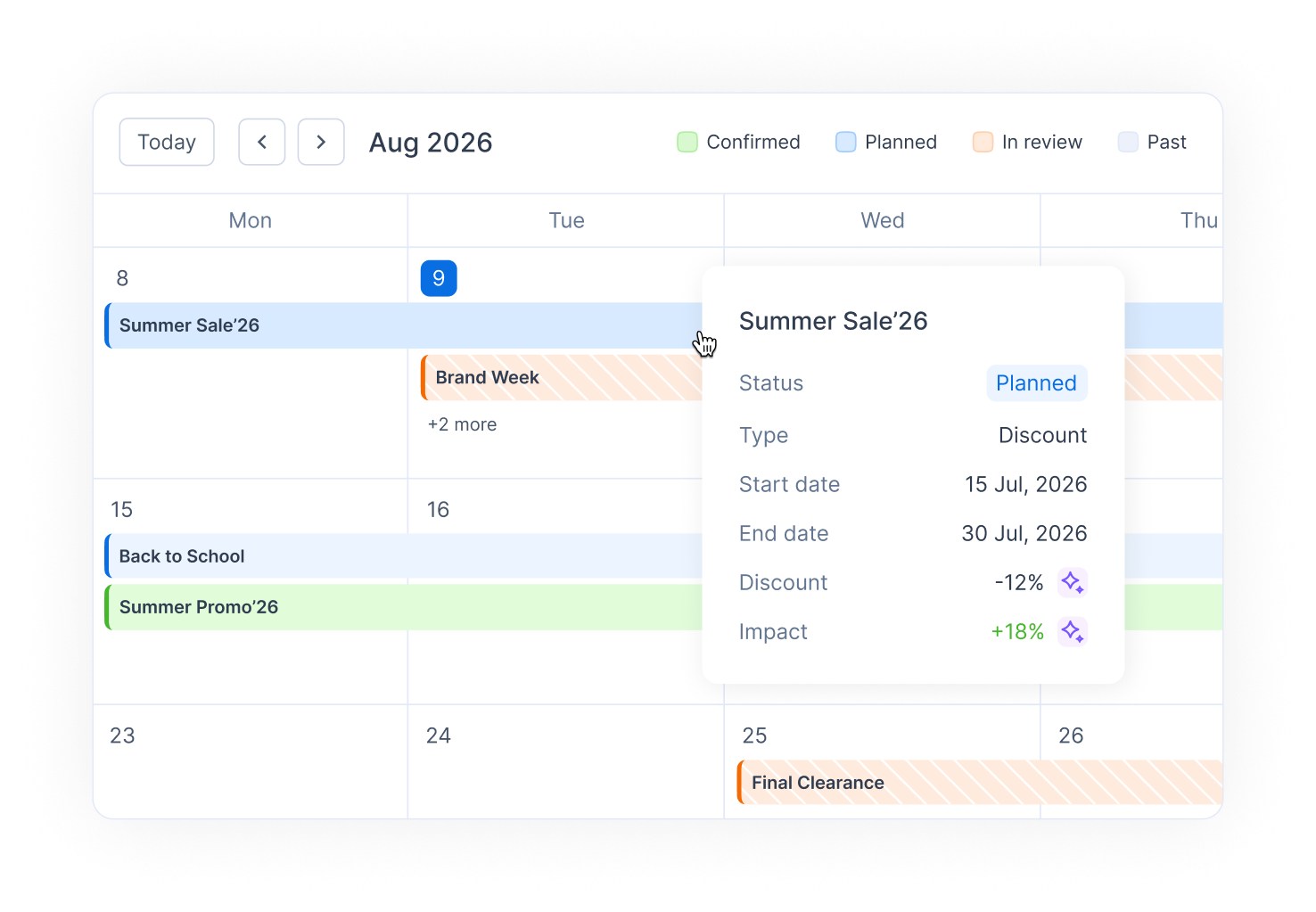
At the top of the page, click **Calendar**. Events show as bars on a monthly grid, colored by status. Click a status in the legend to hide or show it.
{% endstep %}
{% step %}
### Check an event
Hover a bar to see its status, type, dates, discount and impact. Click it to open the promotion.
{% endstep %}
{% step %}
### Change dates or create an event
Drag the start or the end of a bar to change the dates. To create a promotion that starts on a given day, hover the day and click **+**.
{% endstep %}
{% endstepper %}
## How to import promotions and forecast events from a file
{% stepper %}
{% step %}
### Open the import
In **Promotions**, click **Import**. On the **Upload file** step, click **Download example CSV** to get a file with the expected columns.
{% endstep %}
{% step %}
### Fill in the file
One row per product and event, with the **Product reference**, **Event name**, **Event type**, **Start date**, **End date**, and one impact column: **Impact on forecast (%)** or **Impact on forecast (units)**. For a price discount, add the **Price discount**. Write percentages as whole numbers: 12 means 12%.
Rows with the same event name, type and dates become one event.
{% endstep %}
{% step %}
### Upload and map the columns
Drop the CSV file in the upload area. On the **Map columns** step, match each column of your file to a Flowlity field.
{% endstep %}
{% step %}
### Choose where and how the events apply
Next to **Apply to:**, choose **Current site only** or **All sites of the company**. Next to **Promotions status:**, choose **In review** to check them first, or **Confirmed** to include them in the forecast as soon as they are imported. Forecast adjustments are always confirmed.
{% endstep %}
{% step %}
### Review and import
On the **Review & validate** step, check the rows. Rows with errors are skipped: click **Download errors** to see them, or **Re-upload file** after fixing them. Then click the import button, which shows the number of events (for example **Import 12 events**).
{% endstep %}
{% step %}
### Undo if needed
The last step sums up the events created and the products affected. If you made a mistake, click **Revert import**: the events it created are deleted.
{% endstep %}
{% endstepper %}
## How to review the products of a promotion
{% stepper %}
{% step %}
### Open the promotion
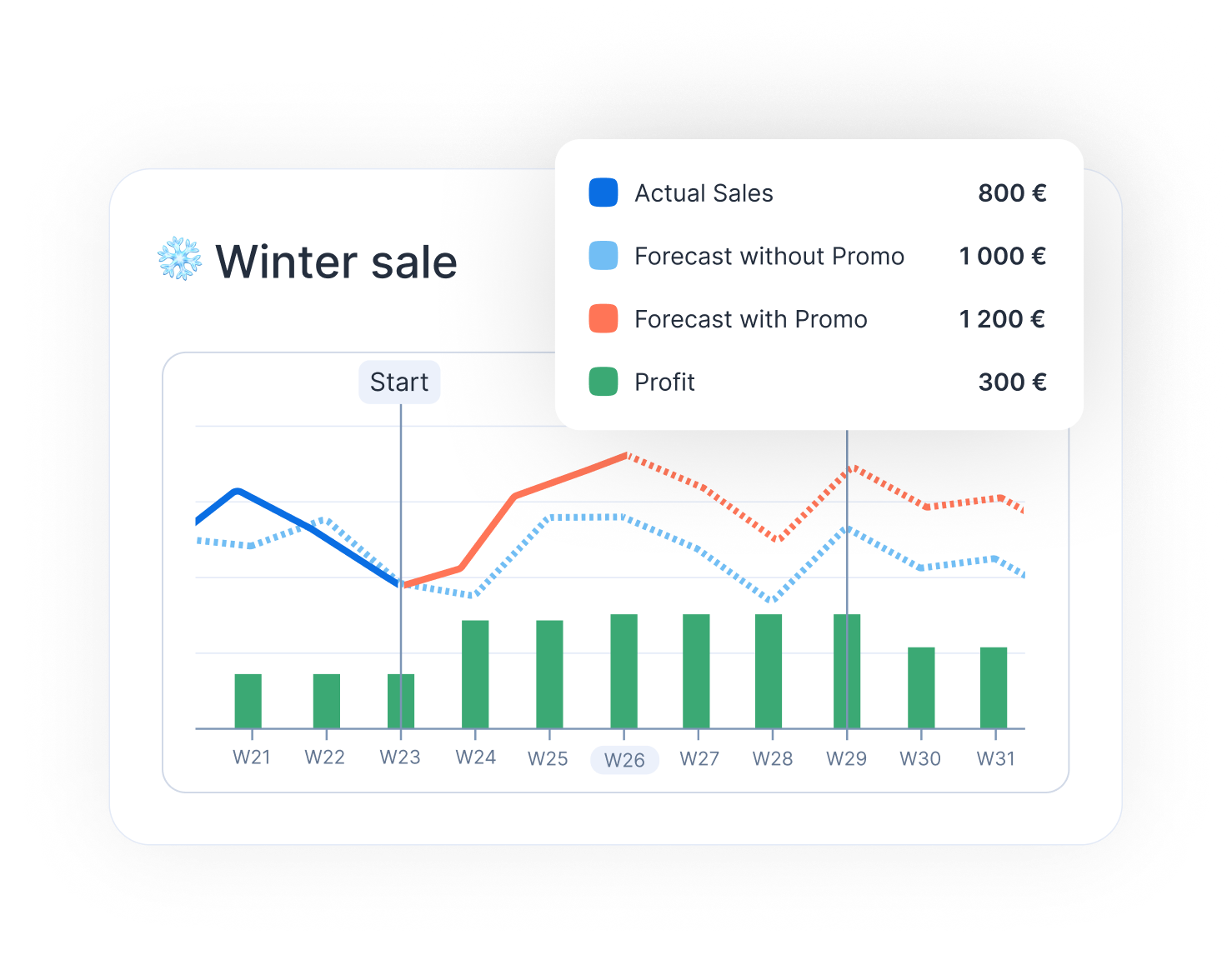
Click a promotion in the list. For promotions, the top of the page shows **Discount (Avg.)**, **Sales**, **Profit** and **Margin**, with and without the promotion, and a chart of the period.
{% endstep %}
{% step %}
### Find the products
Below, the table lists each product with its status. Search by reference or name, or filter by **Tags**, **Suppliers** or **Sites**. Use the columns settings to show prices, margins, stock or the next delivery date.
{% endstep %}
{% step %}
### Fine-tune a product
For a promotion that has not started, type a new value in **Impact on sales**, or in **Discount** for a price discount with Promotions premium. The KPIs show the simulated result. Click **Save** to keep the changes, or **Discard** to drop them.
{% endstep %}
{% step %}
### Include or exclude products
Select products and click **Validate** to include them in the forecast, or **Unvalidate** to take them out, without changing the rest of the promotion.
{% endstep %}
{% endstepper %}
## How to find and export promotions
{% stepper %}
{% step %}
### Filter the list
Use **Search by event or product name**, **Date range**, **Tags**, **Suppliers** and **Type**. Pick **Forecast adjustment** in **Type** to see only your forecast adjustments. Click **Deselect all** to clear the filters.
{% endstep %}
{% step %}
### Download the product lines
Open the row menu of a promotion, or select several, and choose **Download in XLSX**, **Download in CSV** or **Download in TSV**. The file lists the products of each promotion with their figures.
{% endstep %}
{% endstepper %}
## Good to know
* **Promotions premium**: the Promotions module is included for everyone. Price elasticity, the **AI recommendation** of the uplift and of the discount, and the price, margin and profit columns come with Promotions premium, sold together with the Pricing module. Without it, choose **Manual**. Ask your Customer Success Manager to activate it.
* **Started promotions**: the discount and impact of a promotion that has started can no longer be edited per product.
* **In the Demand module**: confirmed events show in the **Forecast events** row of each product. You can also create forecast events from there: see [Create and apply forecast events](/revenue-optimization/promotions/create-forecast-events.md).
* **From the Co-planner**: ask the [Co-planner](/ai-and-automations/co-planner.md) to create a promotion or a forecast adjustment in plain language, then check it here.
## Related
* [Create and apply forecast events](/revenue-optimization/promotions/create-forecast-events.md): add events from the Demand module.
* [Forecast events and demand adjustments](/concepts/concepts/forecast-events.md): how events change the forecast.
* [Pricing](/revenue-optimization/pricing.md): sales, profit and margin with and without promotions.
* [Demand](/demand-management/demand.md): see the impact of events on each product.