> For the complete documentation index, see [llms.txt](https://docs.flowlity.com/llms.txt). Markdown versions of documentation pages are available by appending `.md` to page URLs; this page is available as [Markdown](https://docs.flowlity.com/revenue-optimization/pricing.md).
# Pricing
Follow sales, profit and margin with and without promotions, find products that are not priced right, and test a discount on a product.
The Pricing module shows your catalog through a financial lens: sales, profit and margin, with and without promotions. Use it to see where promotions create value, where they cost you margin, and which products are not priced right.
In the sidebar, go to **Revenue optimization** > **Pricing**. The module works across sites: select several sites to review them together.
{% hint style="info" %}
Pricing is a paid module. If you do not see it in the sidebar, ask your Customer Success Manager to activate it.
{% endhint %}
## How to read your pricing KPIs
{% stepper %}
{% step %}
### Open the Pricing list
In the sidebar, go to **Revenue optimization** > **Pricing**. The list opens on the **Default view**, with the KPI tiles above the products.
{% endstep %}
{% step %}
### Choose the period
Click **KPIs** and pick a period: **Last month**, **Last quarter**, **Last 6 months**, **Last year**, **Next month**, **Next quarter**, **Next 6 months**, **Next year**, or a custom date range. The period applies to the tiles and to the KPI values of each product.
{% endstep %}
{% step %}
### Read the tiles
* **Sales**: sales value **Without promo** and **With promo**.
* **Sales under promotion**: the share of your revenue that comes from products sold under promotion (**Actual**), next to your **Target** when one is set.
* **Profit** and **Margin**: the same comparison, without and with promotions.
The tiles follow the filters of the list, so filter on a supplier or a family to see its figures.
{% endstep %}
{% step %}
### Include or exclude transport costs
On the **Profit** or **Margin** tile, use the **Transport.** toggle. Both tiles switch together, because margin is profit divided by sales.
{% endstep %}
{% endstepper %}
## How to find products that are not priced right
Price position compares your sales price with the prices found at your competitors. The **Fair interval** is the middle half of those prices. Your product is **Optimal** when its price sits inside it, **Underpriced** below it, and **Overpriced** above it.
{% stepper %}
{% step %}
### Show the Price position column
Open the columns settings at the top right of the list and turn on **Price position**. Each product shows a badge. Click it to see your price next to the **Market median** and the **Fair interval** of competitor prices.
{% endstep %}
{% step %}
### Filter on a price position
Click **More...**, choose **Price position**, then tick **Underpriced** or **Overpriced**.
{% endstep %}
{% step %}
### Save the list as a view
Click **+** next to the view tabs, give the view a name, and save it. Come back to it whenever you review prices.
{% endstep %}
{% endstepper %}
## How to analyze one product over time
{% stepper %}
{% step %}
### Open the product
Click a product in the list, then open the **Pricing** tab, next to **Demand** and **Planning**.
{% endstep %}
{% step %}
### Read the chart
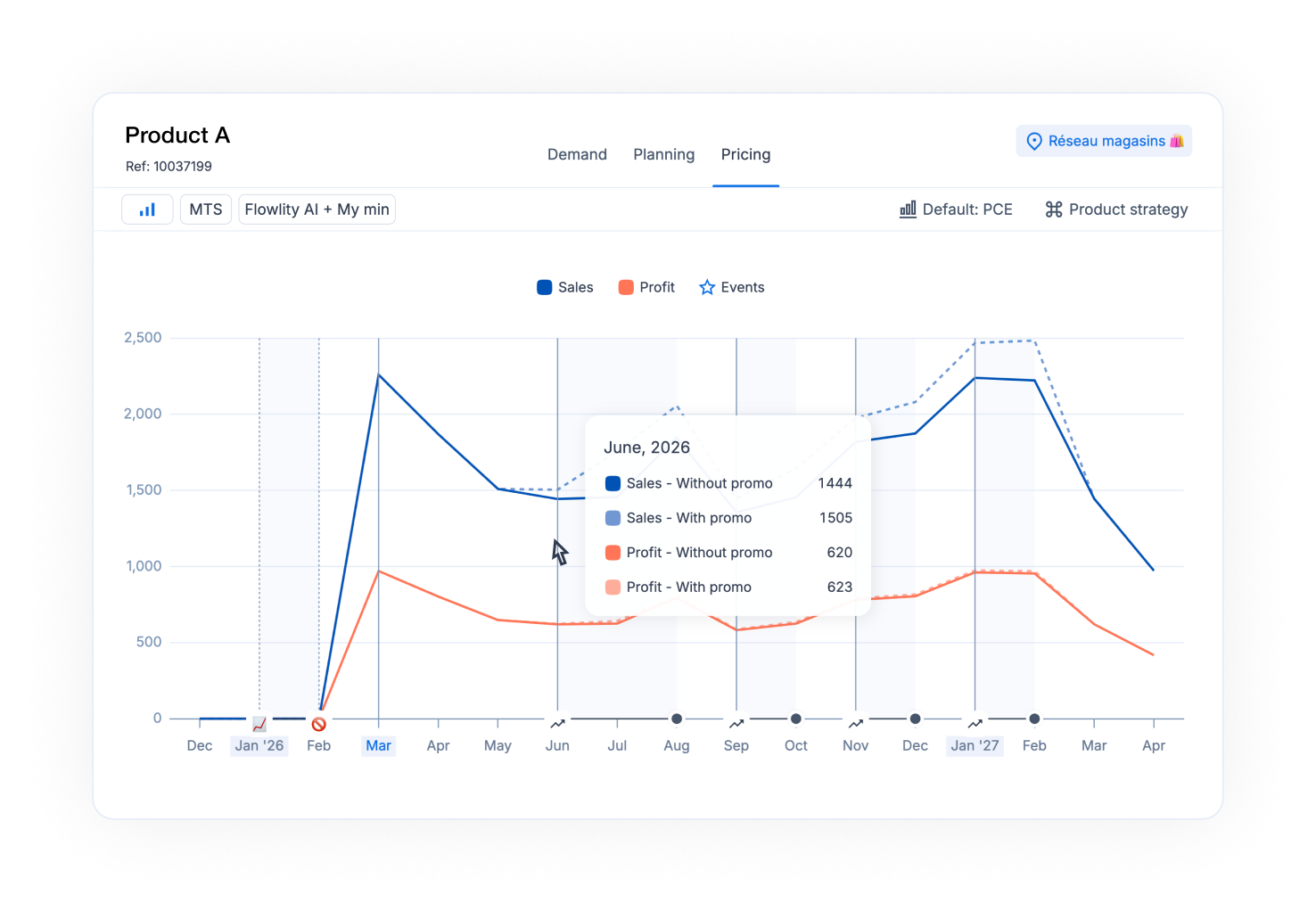
The chart shows **Sales** and **Profit** over time, without and with promotions. **Events** mark the periods with a promotion. Hover a period to see the values.
{% endstep %}
{% step %}
### Read the table
Below the chart, each period shows the **Price**, the **Original price**, the **Discount, %**, then **Sales**, **Profit** and **Margin %**, each split into **Without promo** and **With promo**.
{% endstep %}
{% endstepper %}
## How to test a discount on a product
{% stepper %}
{% step %}
### Open the Pricing tab of the product
Click the product in the list and open the **Pricing** tab. The simulation works on one product at a time.
{% endstep %}
{% step %}
### Enter a discount
In the **Discount, %** row, type a discount for the current period or a future one. Flowlity simulates the effect of that price on demand, then updates the **With promo** sales, profit and margin of the period.
{% endstep %}
{% step %}
### Compare and reset
Compare the simulated values with the **Without promo** row. Click **Discard changes** to go back to the original values. The simulation is not saved: use it to test a price before you plan a [promotion](/revenue-optimization/promotions.md).
{% endstep %}
{% endstepper %}
## How to set your sales under promotion target
{% stepper %}
{% step %}
### Open the company settings
Go to **Settings** > **Company**.
{% endstep %}
{% step %}
### Enter the target
In **Sales under promotion target (%)**, enter the share of revenue you want to make under promotion, for example 20. Click **Save**.
{% endstep %}
{% step %}
### Check it in Pricing
Back in **Pricing**, the **Sales under promotion** tile shows your **Target** next to the **Actual** share.
{% endstep %}
{% endstepper %}
## How to run a competitive price check
{% stepper %}
{% step %}
### Open the agent
In the Pricing list, click **Pricing research agent** at the top right.
{% endstep %}
{% step %}
### Describe the product and run the agent
Fill in the product, its price and the area to search, then click **Run agent**. See [Agents](/ai-and-automations/agents.md#how-to-run-a-competitive-price-analysis) for each option.
{% endstep %}
{% endstepper %}
## Good to know
* **Group by**: as in Demand and Planning, click **Group** to group the list by tag category, supplier or site. Each group shows its subtotals.
* **Views**: Pricing has one built-in view, the **Default view**. Create your own views with **+**, like in the other product lists. See [Views and filtering](/concepts/concepts/views-and-filtering.md).
* **Several products open**: when you open several products together, the **Pricing** tab is read-only.
* **Price position** needs competitor prices and a sales price. Products without them show N/A, and you can find them with the **Not available** option of the filter.
## Related
* [Promotions](/revenue-optimization/promotions.md): plan the campaigns that feed the with-promo figures.
* [Agents](/ai-and-automations/agents.md): the Pricing research agent in detail.
* [Company settings](/settings/settings/company.md): where the sales under promotion target lives.
* [Views and filtering](/concepts/concepts/views-and-filtering.md): save the list setups you use often.