> For the complete documentation index, see [llms.txt](https://docs.flowlity.com/llms.txt). Markdown versions of documentation pages are available by appending `.md` to page URLs; this page is available as [Markdown](https://docs.flowlity.com/overview/dashboard.md).
# Dashboard
Your main KPIs, trends and forecast accuracy at a glance, for the sites and products you follow.
The Dashboard sums up the health of your supply chain: stock, demand, coverage, stockouts and forecast accuracy. Use it as your starting point before you open a module, or to prepare a management review.
In the sidebar, go to **Overview** > **Dashboard**. When your site has the Dashboard, it is also the first page you see after logging in.
## What you see
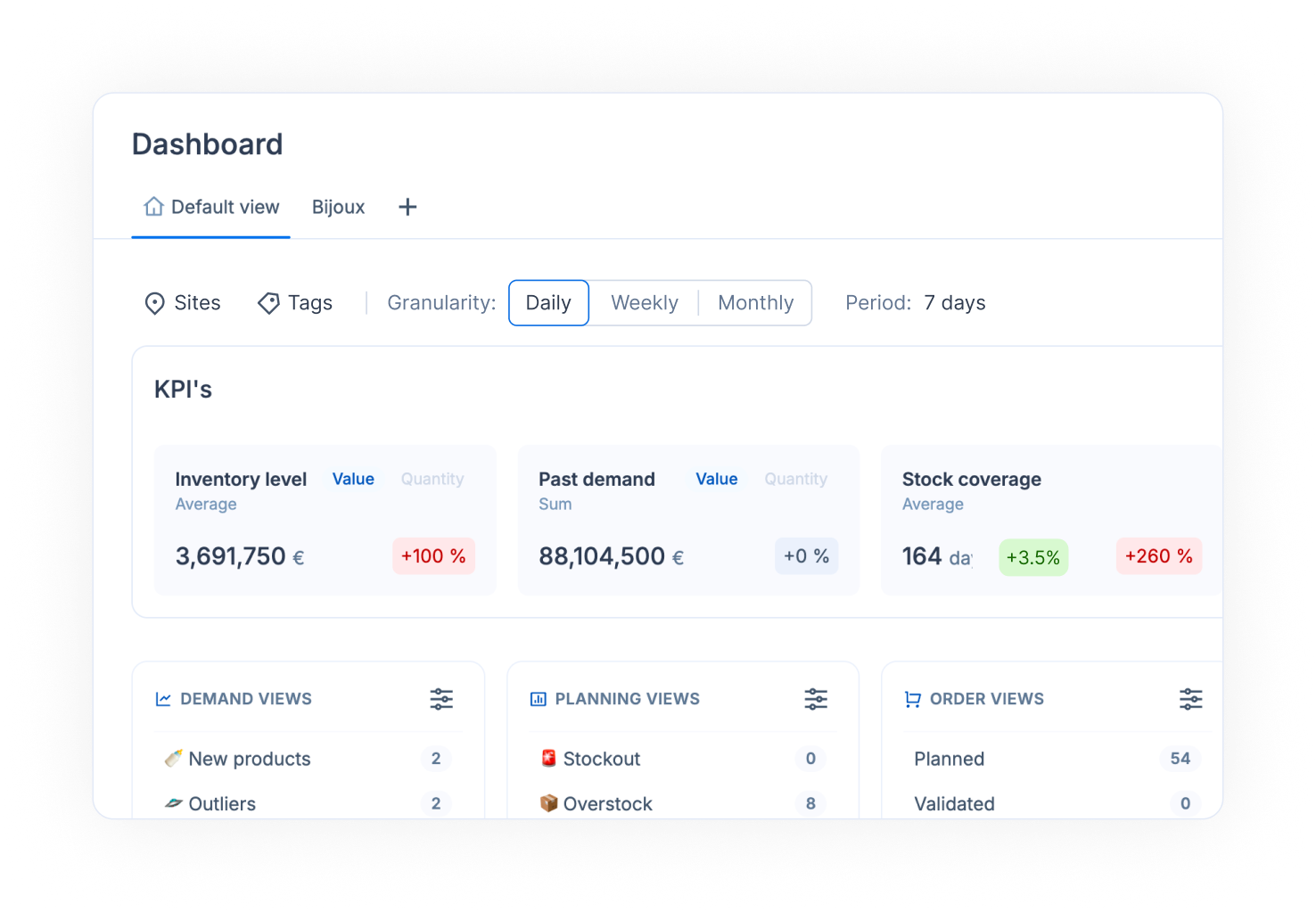
* **KPI cards**: **Inventory level** (average), **Past demand** (sum), **Stock coverage** (average, in days) and **Zero stock days** (average share of days without stock). Each card compares the period with a reference period.
* **Workflow views**: the number of products or orders in each of your views, in four columns: **Demand views**, **Planning views**, **Order views** and **Order lines views**.
* **Charts**: inventory level, zero stock days, stock coverage, forecast accuracy, supply plan and demand plan over time.
See the [Metrics glossary](/concepts/concepts/metrics-glossary.md) for what each figure means.
## How to read your KPIs for a period
{% stepper %}
{% step %}
### Choose the granularity
Next to **Granularity**, pick **Daily**, **Weekly** or **Monthly**. Daily and weekly are useful for short replenishment cycles, such as store replenishment.
{% endstep %}
{% step %}
### Choose the period
Open the period selector and pick a preset, or **Custom** to set your own dates. The same period drives the KPI cards and the charts. Charts go up to 24 months.
{% endstep %}
{% step %}
### Choose what to compare with
On the KPI cards, open **Compare with** and pick **Previous period**. In monthly granularity you can also pick **Same period last year**; in daily granularity, **Same day last week**.
{% endstep %}
{% step %}
### Switch between value and quantity
On the **Inventory level** and **Past demand** cards, switch between **Value** (in your currency) and **Quantity**.
{% endstep %}
{% endstepper %}
## How to focus on some sites or product families
{% stepper %}
{% step %}
### Select the sites
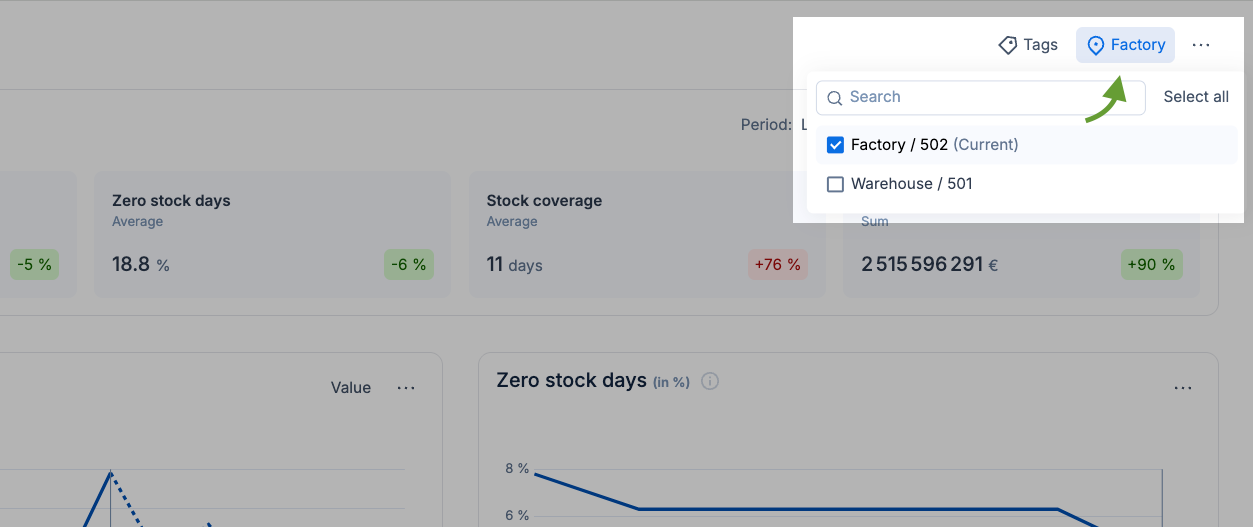
Open the sites filter and tick one or more sites. The site you are on is marked "(Current)". With several sites, KPIs are consolidated.
{% endstep %}
{% step %}
### Filter by tags
Open **Tags**. In **Default**, tick the tags you want. In **Advanced**, combine tags with "and" / "or" rules, for example (Blue or Red) and Large.
{% endstep %}
{% step %}
### Read the result
All cards, workflow counts and charts now show only the selected sites and tags.
{% endstep %}
{% endstepper %}
## How to save your dashboard setup as a view
{% stepper %}
{% step %}
### Set your filters
Choose your sites, tags, granularity and period. **Save view** and **Reset view** appear as soon as you change something.
{% endstep %}
{% step %}
### Save it
Click **Save view** to update the view you are on. To keep the setup as a new tab instead, click **+** (**Add a new view**), enter a name and save.
{% endstep %}
{% step %}
### Switch between views
Click a view tab to load its filters. Click **Reset view** to go back to the saved version of the current view.
{% endstep %}
{% endstepper %}
## How to jump to the products that need work
{% stepper %}
{% step %}
### Find the workflow views
Below the KPI cards, the workflow section lists your views per module, with the number of products (or orders) in each.
{% endstep %}
{% step %}
### Open a view
Click a count. The matching list opens in Demand, Planning or Supply orders, on that view.
{% endstep %}
{% endstepper %}
## How to compare sites on a chart
{% stepper %}
{% step %}
### Select several sites
Tick two or more sites in the sites filter.
{% endstep %}
{% step %}
### Read the chart per site
Charts break the data down per site: stacked areas for inventory, demand and supply, separate curves for stock coverage and zero stock days. Hover a point to see the figure for each site.
{% endstep %}
{% endstepper %}
## How to export the dashboard or one chart
{% stepper %}
{% step %}
### Open the download menu
Click the three dots next to the page title for the whole dashboard, or next to a card section or chart for that part only.
{% endstep %}
{% step %}
### Pick a format
Choose **Download in PDF** or **Download in JPEG** for a picture, or **Download in CSV**, **Download in XLSX** or **Download in TSV** for the data.
{% endstep %}
{% endstepper %}
## Good to know
* The forecast accuracy chart is monthly. It shows the error of the Flowlity forecast at 1, 3 and 6 months ahead, as **Aggregated**, **Weighted** or **Unweighted average**. See [Forecast accuracy metrics](/concepts/concepts/metrics-glossary.md#forecast-accuracy-metrics).
* The inventory level chart shows the stock at month end, in value or in quantity.
* Your filters and display choices are kept between sessions and devices.
* To see KPIs per product family, use the **Tag** dimension of the Demand or Planning list. See [KPIs](/concepts/concepts/kpis.md).
## Related
* [Metrics glossary](/concepts/concepts/metrics-glossary.md): what each Dashboard figure means.
* [Set up and manage views](/everyday-tasks/how-tos/set-up-views.md): build the views counted in the workflow section.
* [Analytics](/overview/analytics.md): reporting dashboards set up for your company.