> For the complete documentation index, see [llms.txt](https://docs.flowlity.com/llms.txt). Markdown versions of documentation pages are available by appending `.md` to page URLs; this page is available as [Markdown](https://docs.flowlity.com/inventory-and-supply/supply-orders/review-validate-orders.md).
# Review and validate supply orders
Review the orders Flowlity recommends, check them against supplier constraints, adjust them, validate them, and send them.
Go from Flowlity's recommended orders to orders sent to your suppliers or your ERP, starting with the ones that are due first.
## Before you start
* You need access to **Planning** and **Supply orders**, with the right to edit orders.
* Flowlity recomputes the planned orders every night, so start your review after the nightly update.
{% stepper %}
{% step %}
### Check the plan in Planning
In [Planning](/inventory-and-supply/planning.md), open a product and look at the chart. Light bars are **Planned supply orders** (recommended by Flowlity, not validated yet), dark bars are **Firm supply orders**. Check that the **Stock** line stays between **Flowlity Min** and **Flowlity Max**. If it drops below Flowlity Min, the planned orders may be too small or too late. If it goes far above Flowlity Max, you may be ordering too much.
{% endstep %}
{% step %}
### Filter the orders that are due
In the sidebar, go to **Inventory & supply** > **Supply orders** and open the **Planned** tab. Click **Date range**, choose **Placement deadline**, then **Today** or **This week**, to start with the orders you must place first.
{% endstep %}
{% step %}
### Find the lines that need attention
Click **Alerts** and choose, for example, **Below net requirement**, **Above net requirement**, **Supplier constraints issue** or **Stockout response**. Hover the **Alerts** cell of a row to see all its alerts.
{% endstep %}
{% step %}
### Check the supplier constraints
On the **Orders** view, click an order. The **Order details** panel shows the **Order Placement Deadline** under **Dates**, and the **Full truck quantity**, **Supplier MOQ** and **Order frequency** under **Supplier constraints**. A warning icon shows when the order does not respect one of them. Flowlity already takes these constraints into account, but a manual change can break them.
{% endstep %}
{% step %}
### Adjust the order if needed
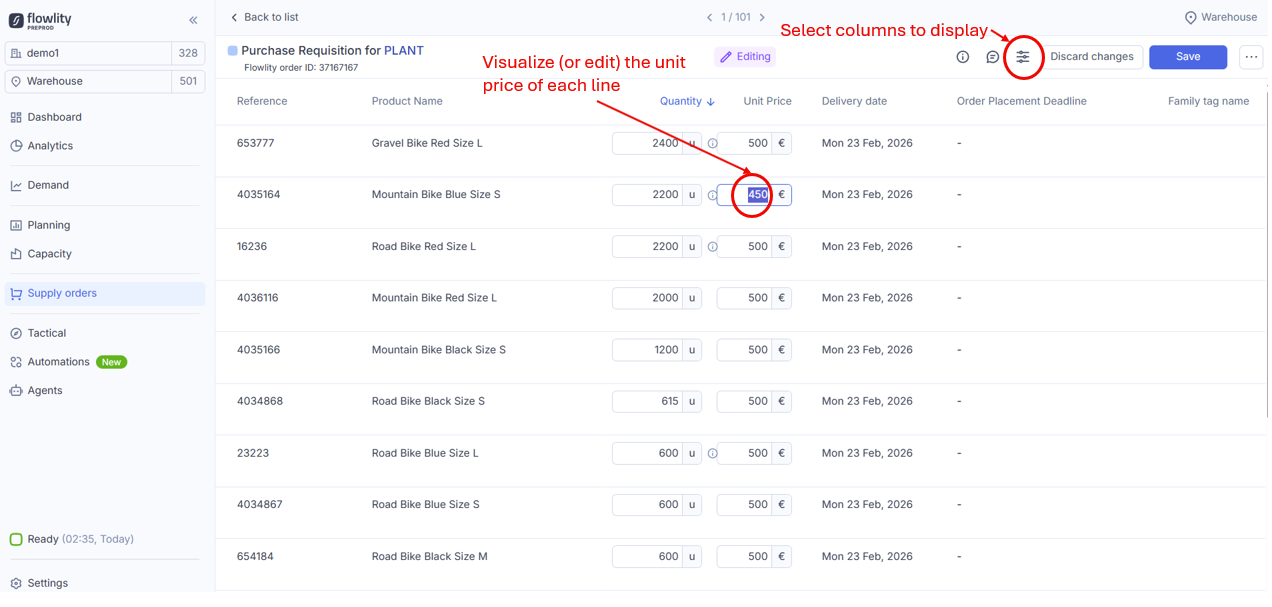
Change the quantity, the **Unit Price** or the delivery date in the cells. To move several lines, select them and click **Change delivery date**. Add a **Comment** to explain why. Then click **Save**.
Adjust an order, for example, to fill a full truck, to follow information from a customer, or to apply what you know about the market.
{% endstep %}
{% step %}
### Validate
Select the orders, or the order lines inside an order. When you select order lines, check the **Total** in the selection bar: the value of the selection and its quantity in each unit. Click **Validate** (or **Validate Order Lines** inside an order) and confirm. The orders move to **Validated**, and Flowlity no longer changes them when it recomputes the plan.
{% endstep %}
{% step %}
### Send the validated orders
Open the **Validated** tab and select the orders. Depending on how your site is connected, click **Export to SFTP** or **Export API**. Or, on **Order lines**, click **Download**, then **Standard order export** or **Displayed columns**, and choose a file format.
{% endstep %}
{% endstepper %}
## Result
Your validated orders are sent. They stay in **Validated** until your ERP sends the purchase orders back to Flowlity: they then appear in **Released**, and in **Delivered** once received. In Planning, validated orders show a lock in the **Planned Orders** cells.
{% hint style="info" %}
* Click **Review** in the Planning page of a product to mark it as reviewed in the current cycle.
* On an order line, Ctrl+click **Open planning** to open the product's plan in a new tab.
* When supplier collaboration is active, **Send request** sends planned orders to the supplier for confirmation. See [Supplier collaboration portal](/inventory-and-supply/supply-orders/supplier-collaboration.md).
{% endhint %}
## Related pages
* [Supply orders](/inventory-and-supply/supply-orders.md)
* [Supplier constraints and order management](/concepts/concepts/supplier-constraints.md)
* [Planning](/inventory-and-supply/planning.md)
* [KPIs](/concepts/concepts/kpis.md)