> For the complete documentation index, see [llms.txt](https://docs.flowlity.com/llms.txt). Markdown versions of documentation pages are available by appending `.md` to page URLs; this page is available as [Markdown](https://docs.flowlity.com/inventory-and-supply/supply-orders.md).
# Supply orders
Review the orders Flowlity recommends, adjust them, validate them, and send them to your suppliers or your ERP.
Supply orders is where you turn Flowlity's recommendations into real orders: you review them, adjust quantities and dates, validate them, and send them to your suppliers or your ERP. Changes you make to planned orders in [Planning](/inventory-and-supply/planning.md) show up here too.
**Where to find it**: in the sidebar, go to **Inventory & supply** > **Supply orders**.
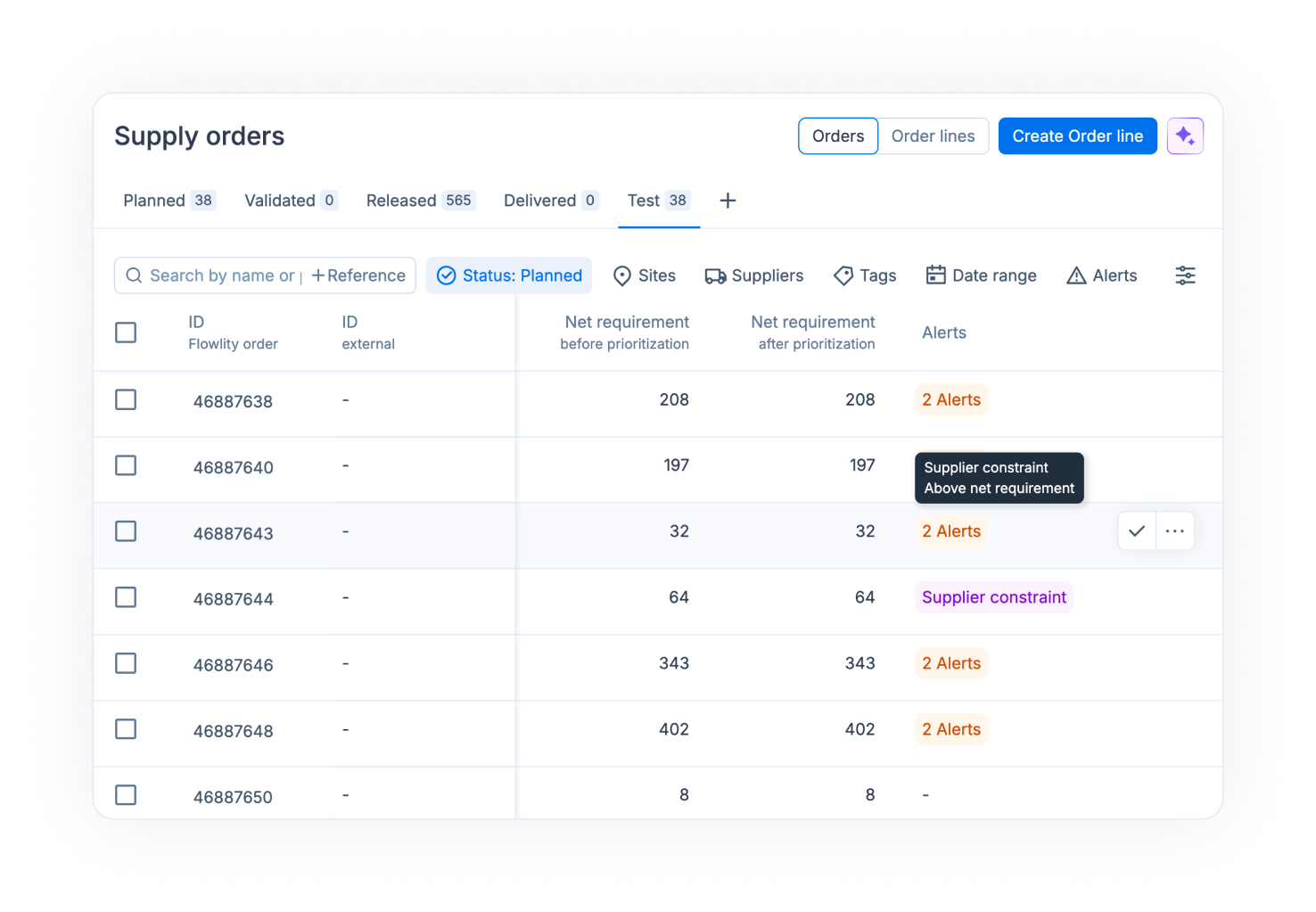
The tabs follow the life of an order:
* **Planned**: orders recommended by Flowlity, or created by hand, not validated yet. Flowlity recomputes them every night.
* **Validated**: orders you validated. Flowlity no longer changes them when it recomputes the plan.
* **Released**: firm purchase orders coming from your ERP. They are read-only in Flowlity.
* **Delivered**: orders that have been received.
## How to review the orders to place this week
{% stepper %}
{% step %}
### Open the planned orders
In **Supply orders**, open the **Planned** tab. Use the switch at the top right to work on **Orders** (one row per supplier and delivery date) or **Order lines** (one row per product).
{% endstep %}
{% step %}
### Filter on the placement deadline
Click **Date range**, choose **Placement deadline**, then a preset such as **Today**, **This week** or **In 2 weeks**. Choose **Delivery date** instead to see what arrives in a given period. **Past year** looks back over the last year, for example to find missed deadlines.
{% endstep %}
{% step %}
### Narrow down the list
Filter by **Sites**, **Suppliers**, **Tags** or **Components**. To focus on a set of products, paste their references in the **Search by name or paste references** box.
{% endstep %}
{% endstepper %}
## How to find the lines that need attention
{% stepper %}
{% step %}
### Filter on alerts
Click **Alerts** and choose the alerts to show, for example **Above net requirement**, **Below net requirement**, **Stockout response**, **Out of stock**, **Product constraints issue**, **Supplier constraints issue**, **No unit price** or **Above reference price**.
{% endstep %}
{% step %}
### Read the alerts of a line
Hover the **Alerts** cell of a row to see every alert on it.
{% endstep %}
{% step %}
### Open the product's plan
To understand a line, click **Open planning** on the row. Ctrl+click (Cmd+click on Mac) opens it in a new tab.
{% endstep %}
{% endstepper %}
## How to check an order against supplier constraints
{% stepper %}
{% step %}
### Open the order
On the **Orders** view, click an order to open its order lines.
{% endstep %}
{% step %}
### Read the order details
The **Order details** panel shows:
* **Dates**: the **Order Placement Deadline**, the **Delivery date** and the **Est. Delivery Date**.
* **Supplier constraints**: **Full truck quantity**, **Supplier MOQ** and **Order frequency**. A warning icon shows when the order does not respect one of them.
* **Order Quantity**: the **Total quantity**, the number of **Products** and the **Order Price**.
{% endstep %}
{% endstepper %}
## How to change quantities, prices and delivery dates
{% stepper %}
{% step %}
### Edit the cells
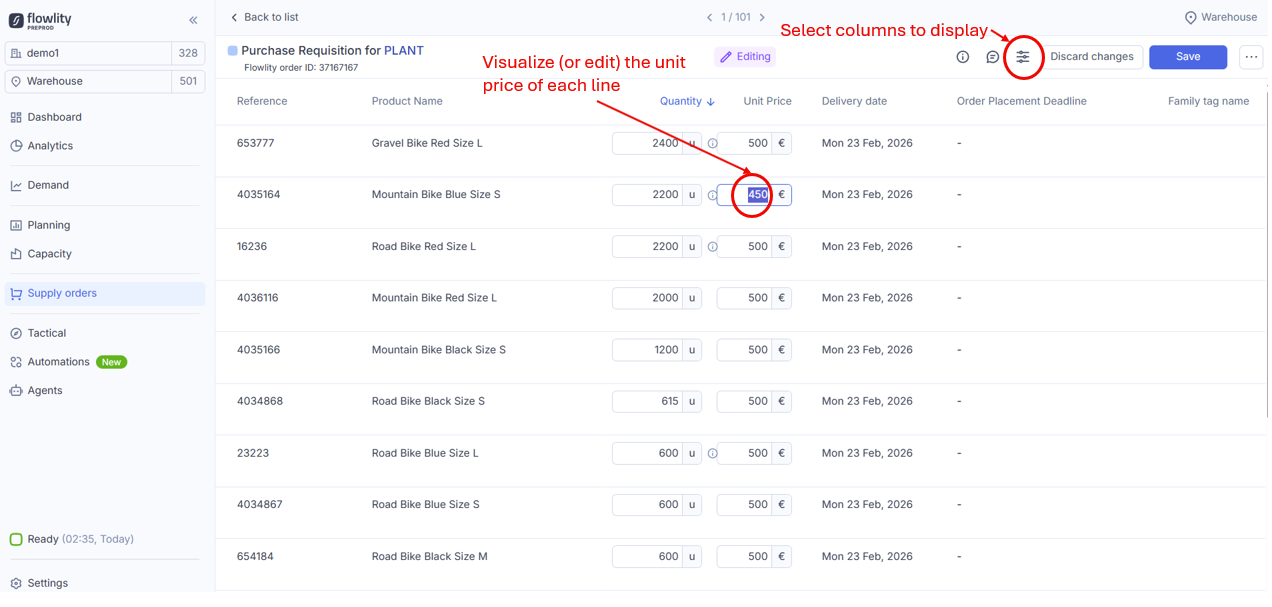
In an order, or in the **Order lines** view, change the quantity, the **Unit Price** or the delivery date directly in the cells. The page shows **Editing** while you have unsaved changes.
{% endstep %}
{% step %}
### Move several lines at once
Select the lines, click **Change delivery date**, and pick the new date.
{% endstep %}
{% step %}
### Explain the change
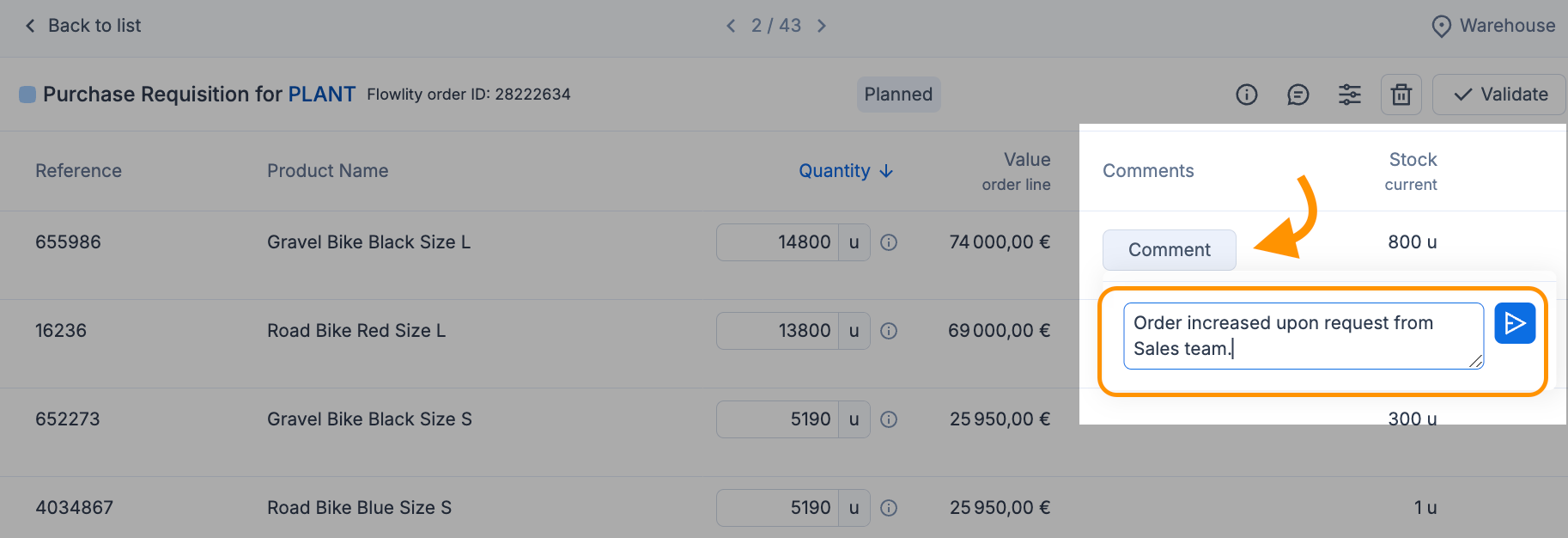
Click **Comment** on a line and write why you changed it. Other planners see the comment.
{% endstep %}
{% step %}
### Save
Click **Save**, or **Discard changes**.
{% endstep %}
{% endstepper %}
## How to validate orders
{% stepper %}
{% step %}
### Select the orders or lines
On the **Planned** tab, tick the orders or order lines to validate. When you select order lines, the selection bar shows the **Total** value of the selection and its quantity in each unit.
{% endstep %}
{% step %}
### Validate
Click **Validate** and confirm. Inside an order, select lines and click **Validate Order Lines**. When every line of an order is validated, the order is validated too.
{% endstep %}
{% step %}
### Undo a validation if needed
On the **Validated** tab, select the orders and click **Discard validation**.
{% endstep %}
{% endstepper %}
## How to send validated orders
{% stepper %}
{% step %}
### Select the validated orders
Open the **Validated** tab and tick the orders to send.
{% endstep %}
{% step %}
### Export them
Depending on how your site is connected, click **Export to SFTP** or **Export API**. Orders stay in **Validated** after an SFTP export. The **Exported to SFTP** column shows which ones are already sent.
{% endstep %}
{% step %}
### Or download a file
On **Order lines**, click **Download**, then **Standard order export** (the full file) or **Displayed columns** (only the columns you show), and choose XLSX, CSV or TSV.
{% endstep %}
{% endstepper %}
Once your ERP sends the purchase order back to Flowlity, the order moves to **Released**.
## How to add an order line
{% stepper %}
{% step %}
### Create the line
Click **Create Order line**. If your site uses supply agreements, click **Create**, then **Create Order line**.
{% endstep %}
{% step %}
### Fill in the line
Choose the product and the supplier, enter the quantity and the delivery date, add a comment if you want, and click **Create**. The line appears in **Planned**.
{% endstep %}
{% endstepper %}
## How to plan the finished goods of a component
{% stepper %}
{% step %}
### Filter on the component
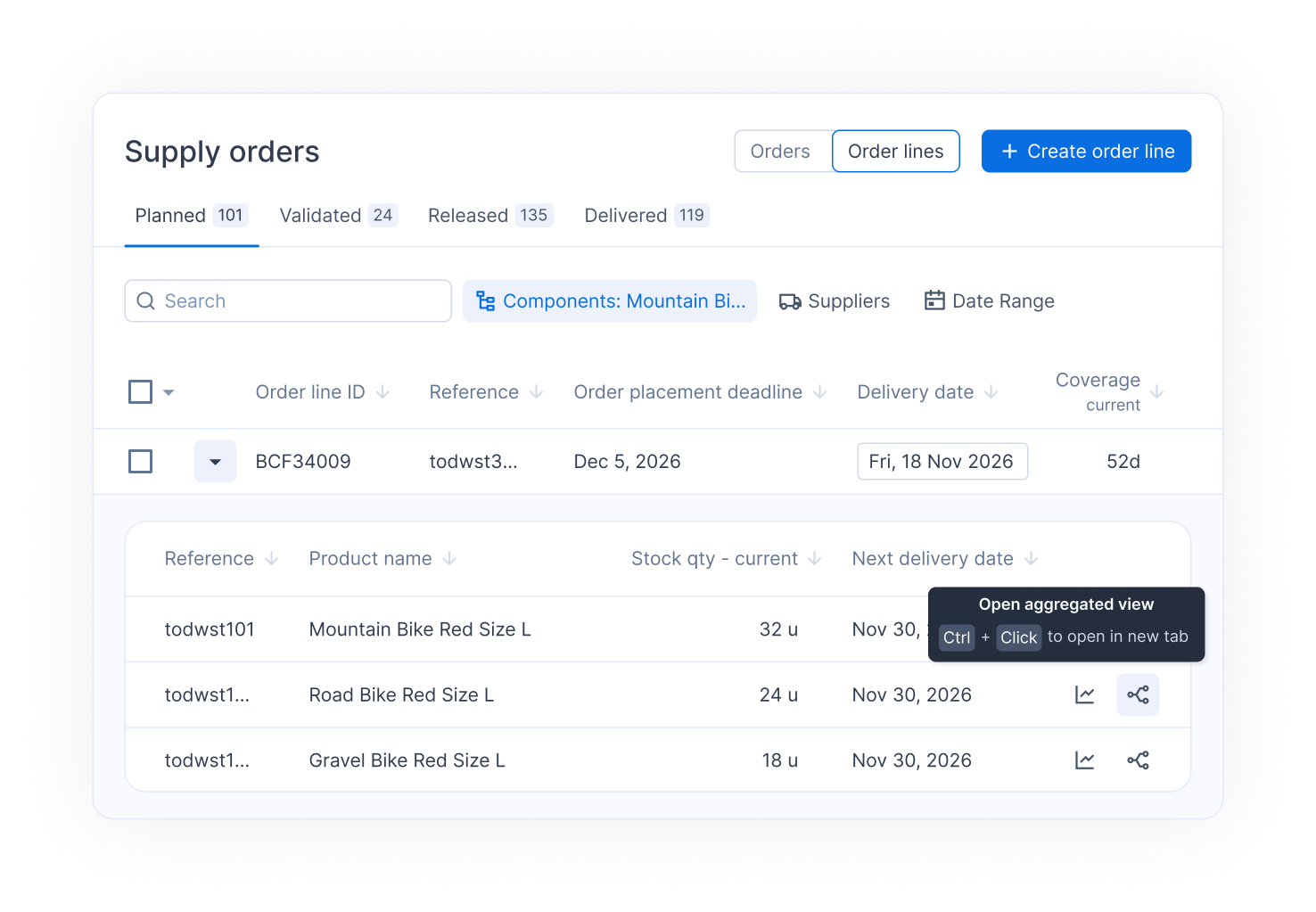
On **Order lines**, use the **Components** filter to pick the component.
{% endstep %}
{% step %}
### Open all its finished goods
Expand the line, then click **Open aggregated view** to open the Planning of every finished good that uses this component. Ctrl+click opens it in a new tab.
{% endstep %}
{% endstepper %}
## Good to know
* **Units**: on **Order lines**, pick the unit in the header of the **Qty (secondary unit)** column. On **Orders**, hover a quantity to see it in every unit.
* **Columns**: you can add columns such as past demand over the last 12 months, firm orders over the next 12 months, or the order placement deadline.
* **Net requirement before and after prioritization**: these columns show which sites a central warehouse cannot fully serve. Ask your Customer Success Manager to activate warehouse-prioritized supply.
* **Order type**: with the emergency supplier option, the **Order type** column shows **Standard** or **Emergency**. Ask your Customer Success Manager to activate it.
* **Supply agreements**: when your site uses them, a third view, **Supply agreements**, has its own tabs: **Planned**, **Validated**, **Firm** and **Activated**.
* **Supplier collaboration**: when it is active, **Send request** sends planned orders to the supplier. See [Supplier collaboration portal](/inventory-and-supply/supply-orders/supplier-collaboration.md).
* **Views**: save your filters, columns and sorting as custom views, as in Planning. See [Views and filtering](/concepts/concepts/views-and-filtering.md).
## Related
* [Review and validate supply orders](/inventory-and-supply/supply-orders/review-validate-orders.md)
* [Supplier constraints and order management](/concepts/concepts/supplier-constraints.md)
* [Planning](/inventory-and-supply/planning.md)
* [Alerts](/concepts/concepts/alerts.md)
* [Comments](/concepts/concepts/comments.md)
* [KPIs](/concepts/concepts/kpis.md)