> For the complete documentation index, see [llms.txt](https://docs.flowlity.com/llms.txt). Markdown versions of documentation pages are available by appending `.md` to page URLs; this page is available as [Markdown](https://docs.flowlity.com/inventory-and-supply/planning/configure-inventory-strategy.md).
# Configure your inventory strategy
Set the strategy, the source and the safety stock settings of one product or many products, preview the new minimum, and apply it.
Set how Flowlity replenishes a product: its strategy, the source of its minimum stock, and its safety stock settings.
## Before you start
* Read [Inventory strategies](/concepts/concepts/inventory-strategies.md) to choose the right strategy, and [Safety stock settings](/concepts/concepts/buffer-policies.md) for the buffer level, lower limit, supply buffer policy and My stock max.
* To see the **Product strategy** button, your user needs the right to edit products. To apply a change, it also needs the right to edit product strategies. Changing many products at once needs the right to edit strategies in bulk.
## Set the strategy of one product
{% stepper %}
{% step %}
### Open the product in Planning
In the sidebar, go to **Inventory & supply** > **Planning**, click the product, then the **Planning** tab.
{% endstep %}
{% step %}
### Open the Product strategy panel
Click **Product strategy** in the bar under the tabs, then the **Inventory** tab.
{% endstep %}
{% step %}
### Choose the strategy and the source
Under **Strategy**, choose **Make to stock**, **Make to order** or **No replenishment**. For **Make to stock**, choose the **Source**: **Demand-based - Flowlity AI**, **Flowlity AI + My min**, **Reorder point** or **Reorder point + AI**.
{% endstep %}
{% step %}
### Set the level
The field depends on the source:
* **Demand-based - Flowlity AI** or **Reorder point + AI**: move the **Buffer level** slider or type a percentage.
* **Flowlity AI + My min**: enter the **My Stock Min level** as a **Quantity** or a **Coverage** in days.
* **Reorder point**: enter the **Order point value**.
{% endstep %}
{% step %}
### Add the optional settings
Open the sections below if you need them: **Lower limit** (turn on **Add lower limit**), **Supply buffer policy** (turn off **Use default policy** to set a policy for this product), and **My stock max**. **Supplier closures** lists the closures of the product's suppliers.
{% endstep %}
{% step %}
### Preview and apply
Click **Compute new min** to preview the result: the chart shows a **New stock min** line, and **Stock Min Coverage** compares the **Next 6m avg.** with the **Simulated next 6m avg.** Click **Apply** to keep the change, or **Discard**.
{% endstep %}
{% endstepper %}
## Set the strategy of many products
{% stepper %}
{% step %}
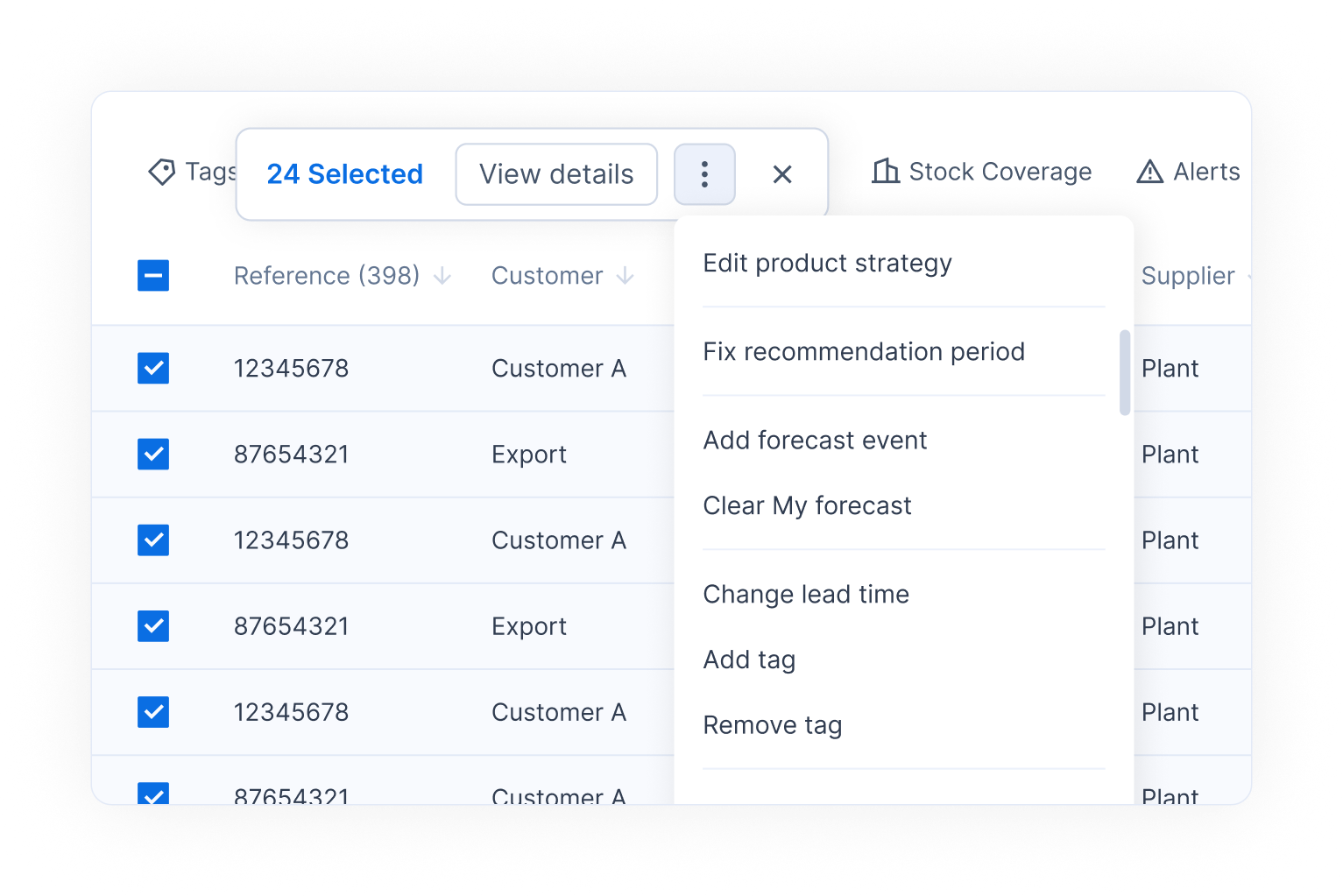
### Select the products
In the Planning or Demand list, tick the products, or tick a group header to select a whole group.
{% endstep %}
{% step %}
### Open Edit product strategy
In the selection bar, open the actions menu and click **Edit product strategy**, or press S.
{% endstep %}
{% step %}
### Choose what to change
Pick **Strategy type**, **Lower limit**, **Supply buffer policy** or **My stock max**.
{% endstep %}
{% step %}
### Set the values
Fill in the values. For the buffer level, choose **Adjust by** to shift the current value of each product, or **Exact value** to set the same value everywhere. The lower limit only applies to products with the **Demand-based - Flowlity AI** or **Reorder point + AI** source: Flowlity tells you how many selected products it will ignore.
{% endstep %}
{% step %}
### Apply
Click **Apply**.
{% endstep %}
{% endstepper %}
## Stop replenishing a product
Set its **Strategy** to **No replenishment** and click **Apply**. Flowlity keeps forecasting the product, but no longer recommends orders for it.
## Result
After you apply, the message "You will see changes after the next computation" appears: Flowlity updates the **Flowlity Min**, the planned orders and the strategy tags of the Planning header (for example **MTS** and **Flowlity AI**) during its next computation.
To see the result right away, click **Optimize** in the Planning page of the product. Optimize uses credits. Contact your Customer Success Manager to get more credits.
{% hint style="info" %}
A field marked **This data is integrated from an external system** comes from your ERP or data feed, and a field marked **Locked by tactical changes** is controlled by the [Tactical](/strategy/tactical.md) module. You cannot change them in the panel.
{% endhint %}
You can also change strategies on a schedule with an automation. See [Set up an automation](/ai-and-automations/automations/set-up-automation.md).
## Related pages
* [Inventory strategies](/concepts/concepts/inventory-strategies.md)
* [Safety stock settings](/concepts/concepts/buffer-policies.md)
* [How Flowlity calculates Stock Min](/concepts/concepts/stock-min.md)
* [Buffer policy settings](/settings/settings/buffer-policy.md)
* [Planning](/inventory-and-supply/planning.md)