> For the complete documentation index, see [llms.txt](https://docs.flowlity.com/llms.txt). Markdown versions of documentation pages are available by appending `.md` to page URLs; this page is available as [Markdown](https://docs.flowlity.com/inventory-and-supply/planning.md).
# Planning
See how the stock of each product will evolve, change planned orders, and simulate a different stock level before you order.
Planning shows how the stock of each product will evolve and which orders Flowlity recommends to keep it between its minimum and maximum. Use it to check the plan, change planned orders, and test "what if" scenarios before the orders reach [Supply orders](/inventory-and-supply/supply-orders.md).
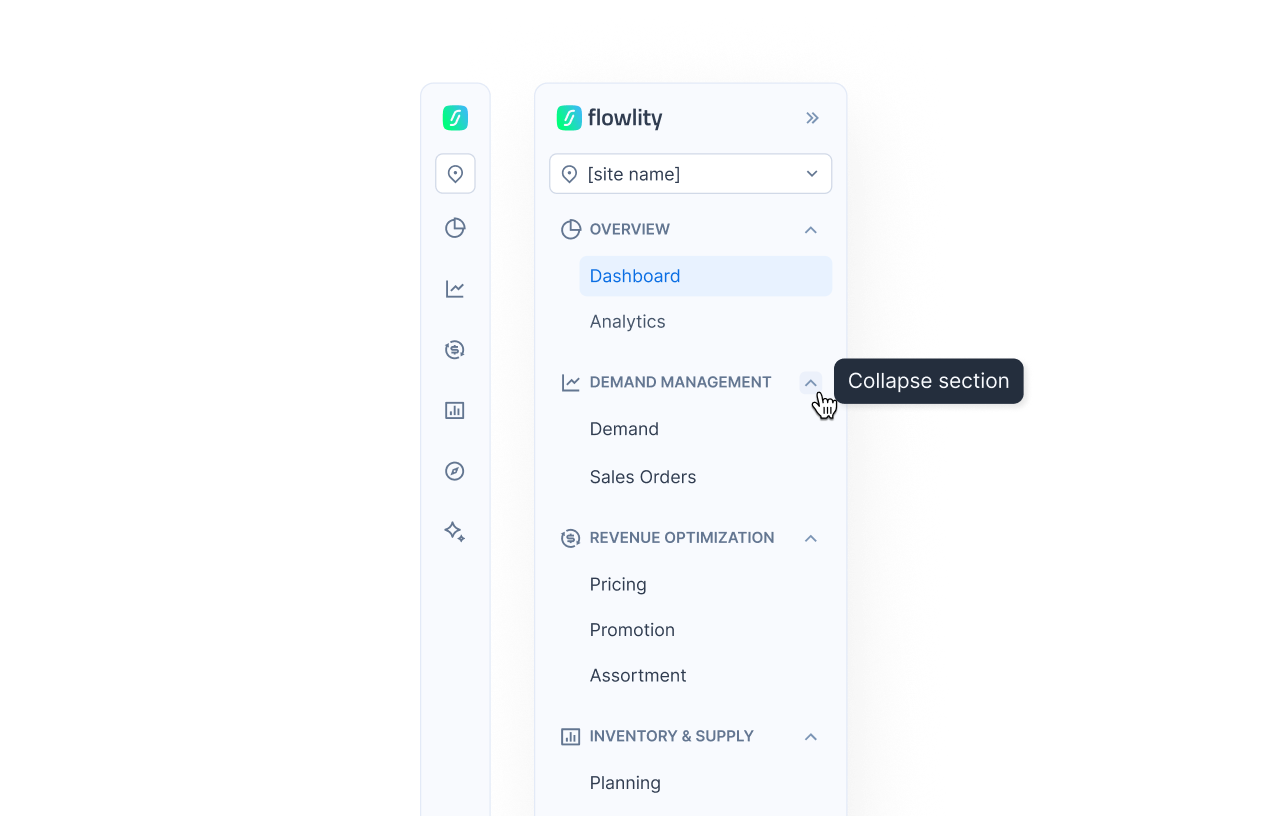
**Where to find it**: in the sidebar, go to **Inventory & supply** > **Planning**.
## How to find products at risk
{% stepper %}
{% step %}
### Open Planning
In the sidebar, go to **Inventory & supply** > **Planning**. The product list opens on the **Default view**.
{% endstep %}
{% step %}
### Open a ready-made view
Click **🚨 Stockout** to see products with an **Out of stock** alert, or **📦 Overstock** to see products **Above Flowlity max** or **Above My stock max**.
{% endstep %}
{% step %}
### Filter on the alerts you care about
Click **Alerts** and tick the alerts to show:
* **Stock alerts**: **Expiring Stocks**, **Out of stock**, **Below Flowlity min**, **Above Flowlity max**, **Above My stock max**.
* **Demand alerts**: **Possible outlier**, **Possible shortage**.
* **External forecast alerts** (when your site receives an external forecast): **Decreasing MRP**, **Possible end of life**.
{% endstep %}
{% step %}
### Limit the alerts to a time window
For stock alerts, choose **Days to act** (time left to fix the problem, lead time included) or **Alert date** (when the problem happens). Then pick a preset, for example **Overdue**, the next 14 days, or **Whole horizon**.
{% endstep %}
{% endstepper %}
## How to read a product's plan
{% stepper %}
{% step %}
### Open the product
Click a product in the list, then the **Planning** tab. Use the arrows at the top of the page to move to the next product without going back to the list.
{% endstep %}
{% step %}
### Read the chart
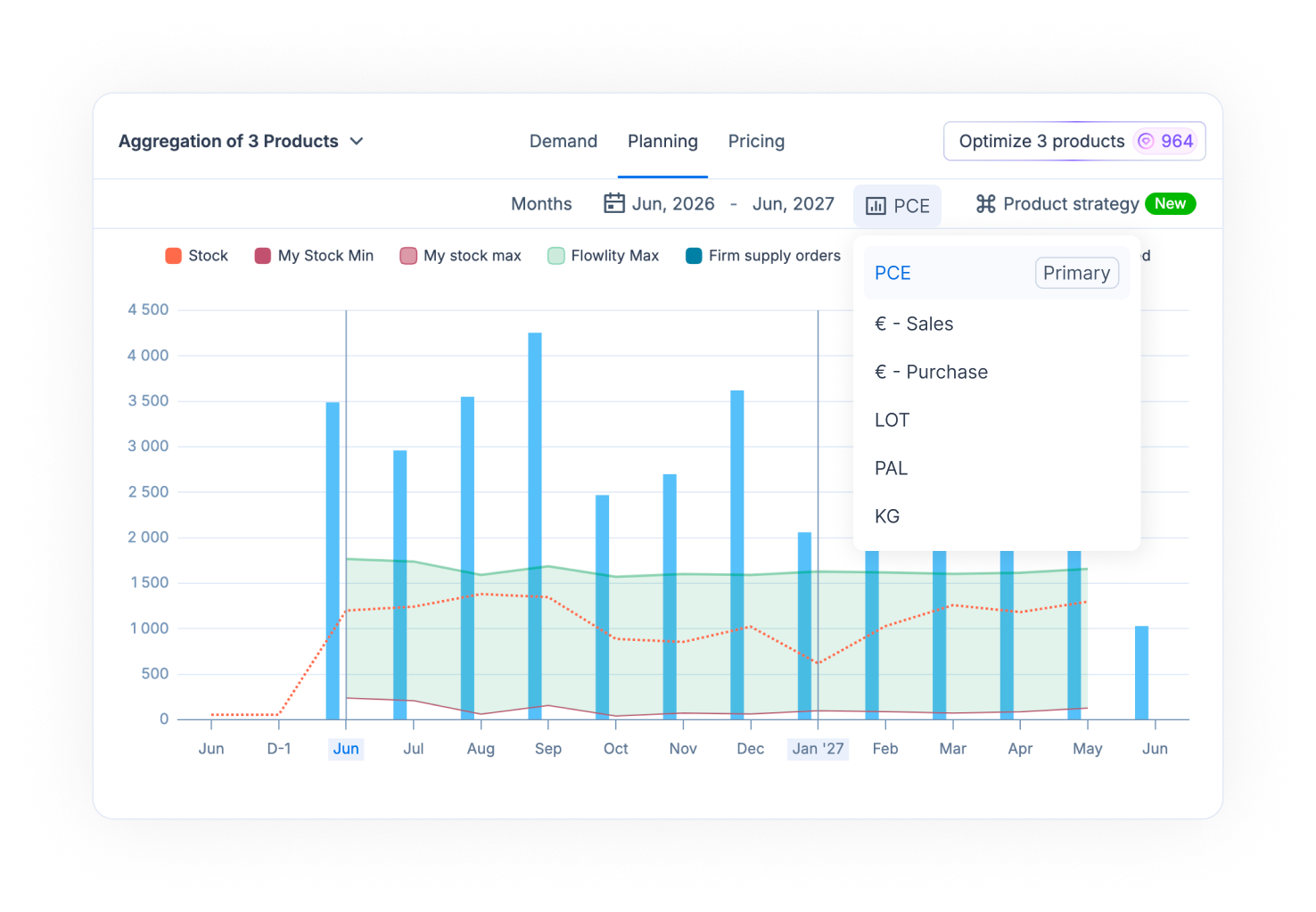
The dotted line is the projected **Stock**. Dark bars are **Firm supply orders**, light bars are **Planned supply orders** (recommended by Flowlity, not yet validated). The green band between **Flowlity Min** and **Flowlity Max** is the range where your stock should stay.
Click a legend item to hide or show it. Depending on the product, the legend can also show **Similar products stock**, **Reorder point**, **My Stock Min**, **My stock max**, **New stock min** and **Expired**.
{% endstep %}
{% step %}
### Read the grid
Below the chart, each column is a period. **My Supply** splits into **Firm Orders** (read-only, from your ERP) and **Planned Orders**, with one line per supplier. A small icon in a **Planned Orders** cell tells you where the value comes from:
* Flowlity logo: the value is recommended by Flowlity.
* Lock: the order is validated.
* Pencil: you changed the value and have not saved it yet.
{% endstep %}
{% step %}
### Choose the rows to display
Click **Table settings** (the icon above the grid) and set each row to **Shown in table** or **Hidden in table**, for example **Firm demand**, **Stock Adjustments**, **My Stock Min** or **Stock coverage**.
{% endstep %}
{% step %}
### Check the product's constraints
Click **Show details** (the **(i)** icon at the top right of the page) to open **Product Details**, then the **Constraints** tab. It lists the lead time, lot size, MOQs, order frequencies, fixed delivery days and delay coverage that apply to the product.
{% endstep %}
{% endstepper %}
## How to change a planned order
{% stepper %}
{% step %}
### Edit the Planned Orders cell
Click a **Planned Orders** cell and type the new quantity. The stock line on the chart updates right away, so you see the effect before you save.
{% endstep %}
{% step %}
### Use the cell menu if needed
Open the menu of the cell to **Restore initial** (go back to the previous value), **Apply to all periods**, or **Apply to specific periods**. Hover the cell to see which order lines will be created or modified.
{% endstep %}
{% step %}
### Save
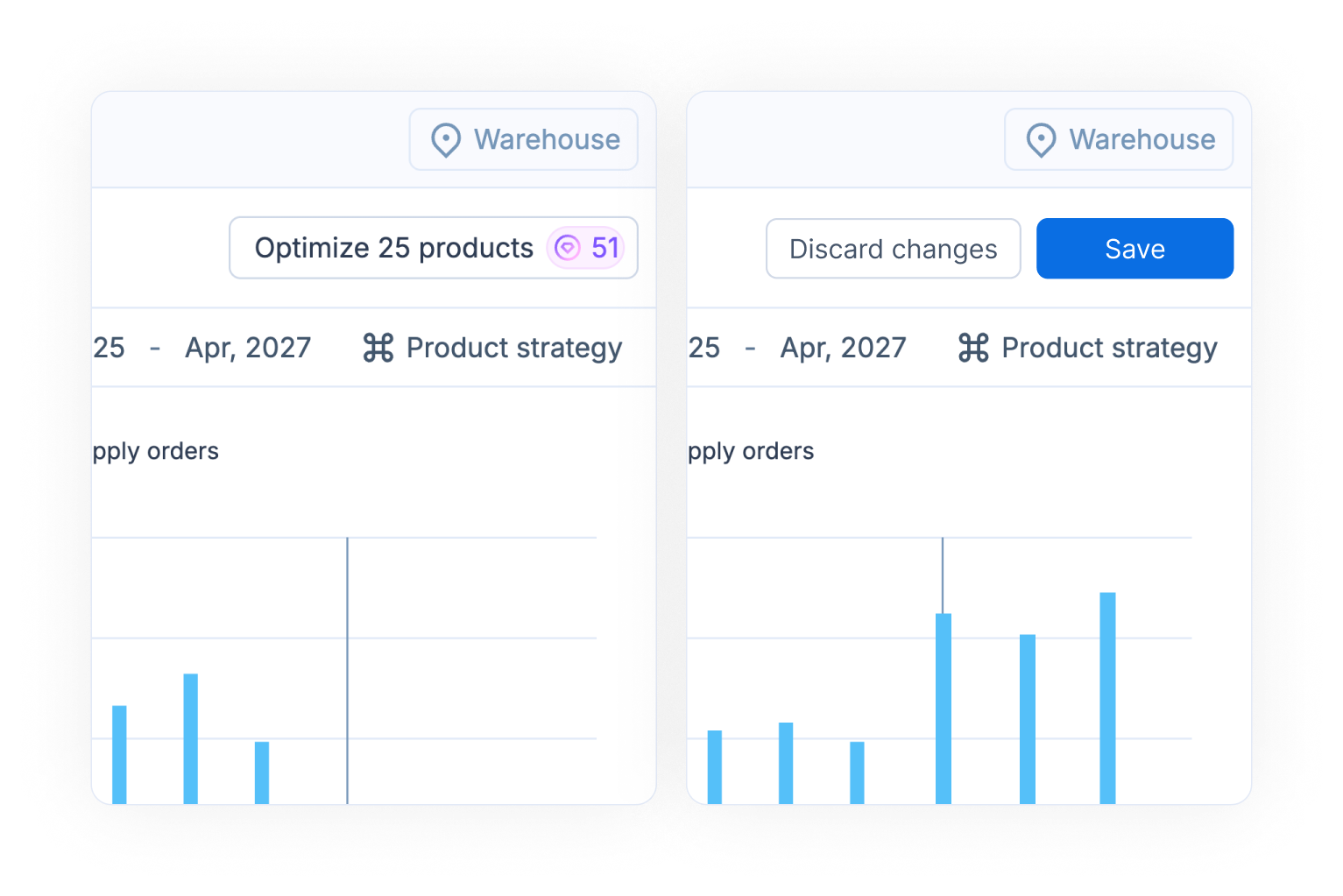
Click **Save**, then confirm **Apply changes and update order(s)?**. Flowlity updates the order lines and the stock projection. The lines stay in the **Planned** tab of Supply orders until you validate them. Click **Discard changes** instead to cancel your edits.
{% endstep %}
{% endstepper %}
## How to simulate a different stock level
Use this when the stock in your system is not the stock you can count on, for example when part of it is damaged, reserved or blocked in quality control.
{% stepper %}
{% step %}
### Show the Stock Adjustments row
If you do not see the **Stock Adjustments** row in the grid, show it from **Table settings**.
{% endstep %}
{% step %}
### Enter the adjustment
In the period you want, type the quantity to add to or remove from the stock, for example -50 for 50 damaged units. The projected stock changes from that period on. Your real stock data does not change.
{% endstep %}
{% step %}
### Recompute the recommendations
Click **Optimize** in the page header. Flowlity recomputes the planned orders from the adjusted stock, so you see whether you need to order more, or earlier.
{% endstep %}
{% step %}
### Save or discard
Click **Save** to keep the adjustment, or **Discard changes**. Stock adjustments are for simulation only: they do not change anything else, and Flowlity clears them overnight.
{% endstep %}
{% endstepper %}
## How to freeze the recommendations for a period
{% stepper %}
{% step %}
### Fix the period
In the grid, hover the header of the last period you want to freeze and click **FIX PERIOD**. Flowlity keeps the recommendations of every period up to this one. The header shows **Fixed recommendations, Until** and the date.
{% endstep %}
{% step %}
### Cancel the fixation
To let Flowlity change these periods again, hover the period header and click **Cancel fixation**.
{% endstep %}
{% step %}
### Do it for several products
In the product list, select the products, open the actions menu and choose **Fix recommendations period** or **Discard recommendations period**.
{% endstep %}
{% endstepper %}
## How to group the list and read subtotals
{% stepper %}
{% step %}
### Add a group
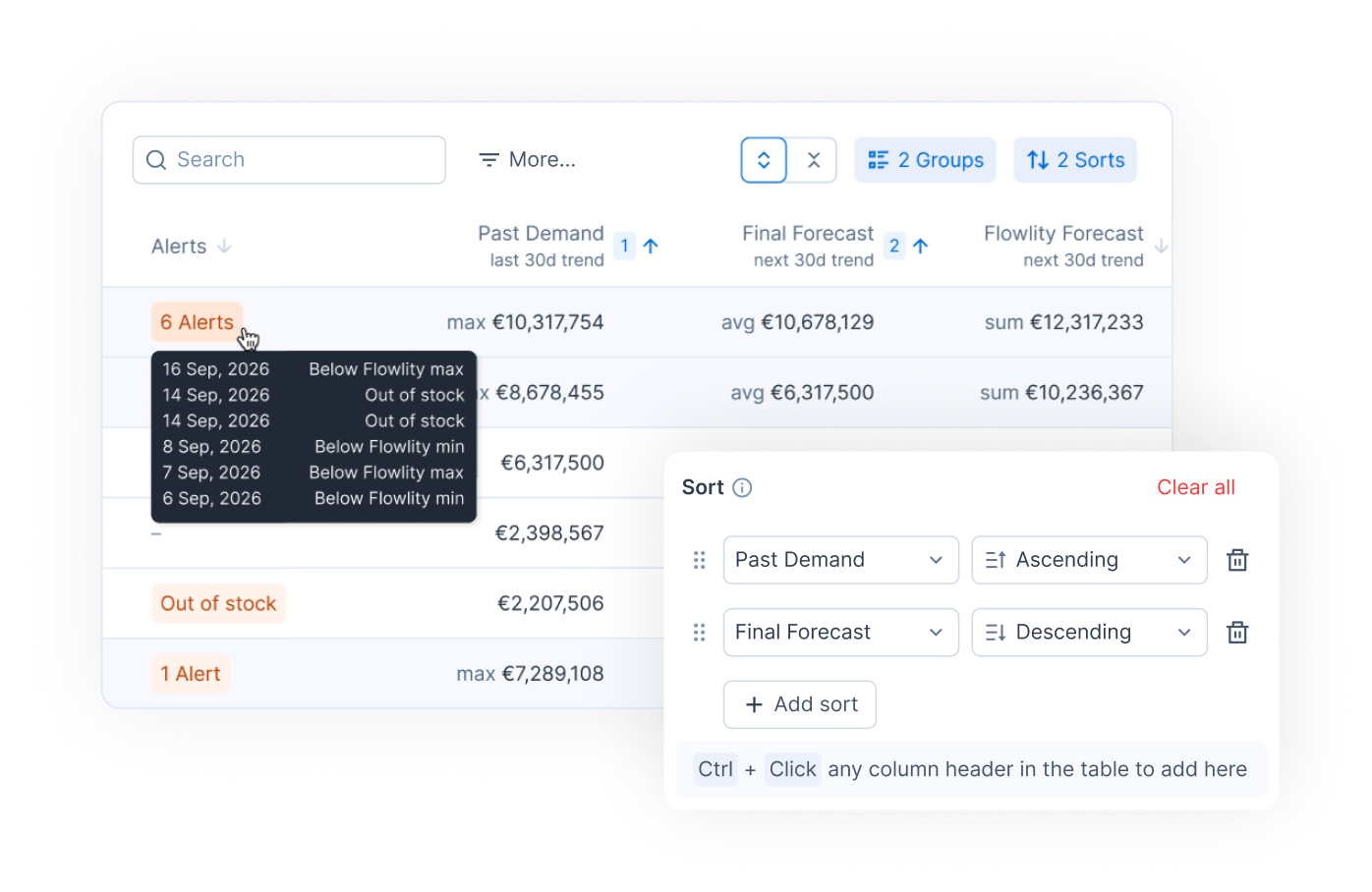
Above the list, click **Group**, then **Add group**. Choose a tag category, supplier, customer or site, and the order. Add a second group to nest them.
{% endstep %}
{% step %}
### Read the subtotals
Each group shows its subtotal per column, and the **Grand total** sits at the bottom of the list. Hover the alerts of a group to see the alerts it contains. Use **Expand all** or **Collapse all** to open or close every group.
{% endstep %}
{% step %}
### Sort on several columns
Click **Sort**, then **Add sort**, or hold Ctrl (Cmd on Mac) and click column headers. A number on each sorted column shows the order in which the sorts apply.
{% endstep %}
{% step %}
### Save it in a view
Groups and sorts are saved in your custom views, like filters and columns. See [Set up and manage views](/everyday-tasks/how-tos/set-up-views.md).
{% endstep %}
{% endstepper %}
## How to optimize several products at once
{% stepper %}
{% step %}
### Select the products
Tick the products in the list. Tick a group header to select the whole group.
{% endstep %}
{% step %}
### Open the aggregated view
Click **View Aggregated Details**, then the **Planning** tab. Switch between **Combined** (one plan for all the products) and **Separated** (one plan per product).
{% endstep %}
{% step %}
### Optimize
Click **Optimize {count} products**, for example **Optimize 25 products**. A confirmation shows how many credits the operation uses and how many you have left.
{% endstep %}
{% step %}
### Save every change at once
Review the new plans, then click **Save all**, or **Discard all changes**.
{% endstep %}
{% endstepper %}
## How to update many products at once
{% stepper %}
{% step %}
### Select the products and open the actions menu
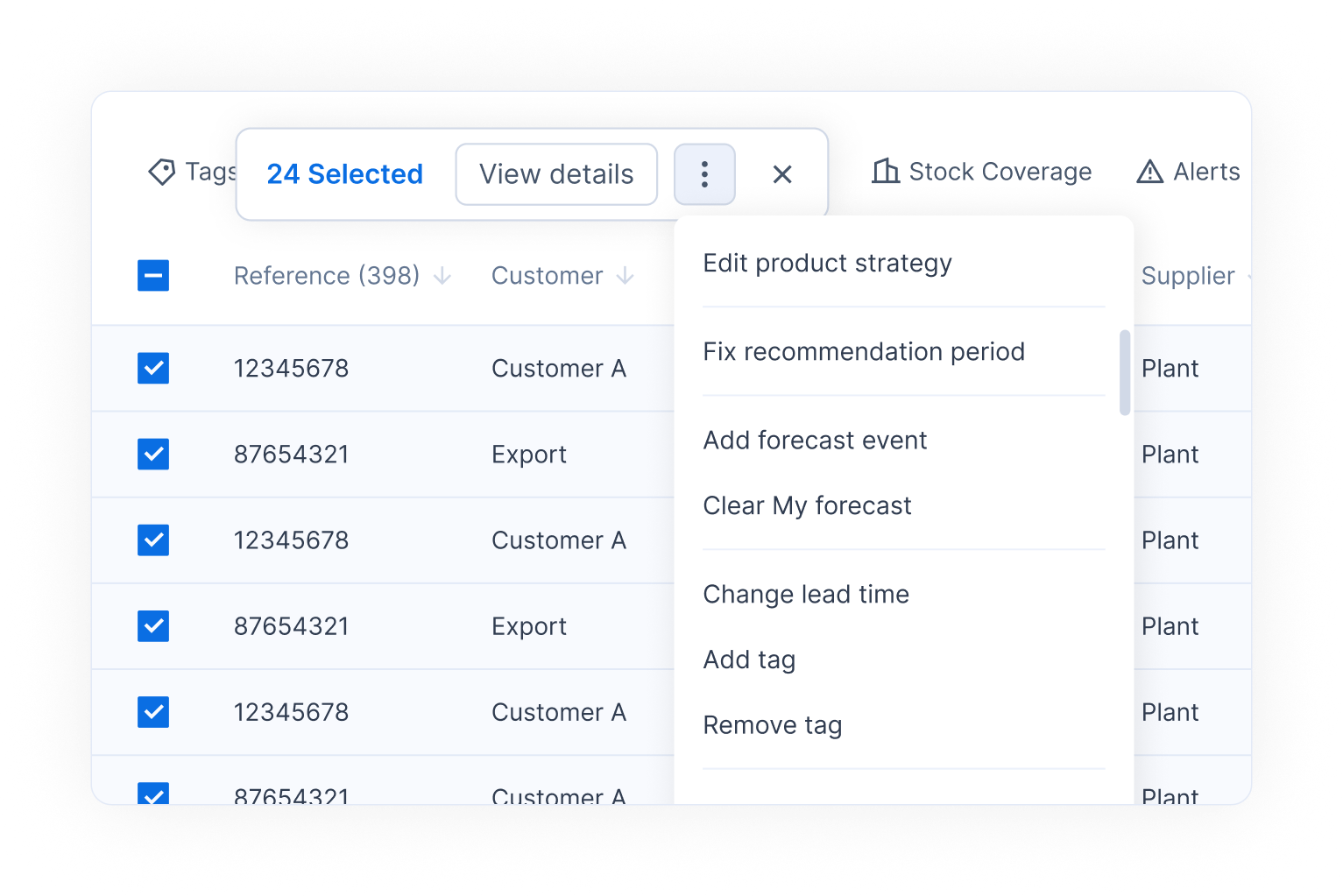
Tick the products in the list, then click the actions menu (the three dots) in the selection bar.
{% endstep %}
{% step %}
### Choose the action
The menu offers **Edit product strategy** (shortcut S), **Discard inventory strategy changes**, **Fix recommendations period**, **Discard recommendations period**, **Create new forecast event**, **Add to existing forecast event**, **Clear My forecast**, **Change lead time**, **Add tag**, **Remove tag**, and downloads of the list in XLSX, CSV or TSV.
{% endstep %}
{% step %}
### Change a lead time
With **Change lead time**, pick the **Supplier**, enter the **Lead time** in days, and click **Change**.
{% endstep %}
{% endstepper %}
## How to view quantities in another unit
{% stepper %}
{% step %}
### Open the unit menu
In a product or an aggregated view, click the unit button in the bar under the tabs.
{% endstep %}
{% step %}
### Pick a unit
Choose any unit configured for the product, for example pallets. **Primary** marks the product's main unit. The chart and the grid switch to the chosen unit.
{% endstep %}
{% endstepper %}
## How to check similar products stock before ordering
When a new product replaces an older one, the old product may still have stock that covers near-term demand.
{% stepper %}
{% step %}
### Show the similar products stock
In **Table settings**, show **Similar products stock**. The chart also shows it as a line next to **Stock**.
{% endstep %}
{% step %}
### Adjust your orders
If the similar products still have stock, reduce or postpone the planned orders of the new product to avoid over-ordering.
{% endstep %}
{% endstepper %}
## Good to know
* **Optimize** recomputes the supply plan of a product right away, instead of waiting for the nightly computation. Optimize uses credits. Contact your Customer Success Manager to get more credits.
* **Optimize** does not take these constraints into account yet: **Supplier MOQ**, **Full truck**, **Supplier order frequency**, and **MOQ & lot size per group of products**.
* **Optimize** is not available while you have unsaved changes in the **Inventory** tab of the **Product strategy** panel.
* **Product strategy** (in the bar under the tabs) opens the panel where you set the strategy and buffers of the product. See [Configure your inventory strategy](/inventory-and-supply/planning/configure-inventory-strategy.md).
* **Review** marks the product as reviewed. The button then shows when it was last reviewed.
* Supplier closures appear in the tooltip of the **Planned Orders** cells of the closed periods, and in the **Supplier closures** section of the **Product strategy** panel.
* Select several sites in the site menu to plan across sites from one list.
* Similar products stock needs similar-product links between your products. See [Product similarities](/concepts/concepts/product-similarities.md).
## Related
* [Configure your inventory strategy](/inventory-and-supply/planning/configure-inventory-strategy.md)
* [Review and validate supply orders](/inventory-and-supply/supply-orders/review-validate-orders.md)
* [Inventory strategies](/concepts/concepts/inventory-strategies.md)
* [Safety stock settings](/concepts/concepts/buffer-policies.md)
* [How Flowlity calculates Stock Min](/concepts/concepts/stock-min.md)
* [Supplier constraints and order management](/concepts/concepts/supplier-constraints.md)
* [Alerts](/concepts/concepts/alerts.md)
* [Views and filtering](/concepts/concepts/views-and-filtering.md)
* [KPIs](/concepts/concepts/kpis.md)
* [Supply orders](/inventory-and-supply/supply-orders.md)