> For the complete documentation index, see [llms.txt](https://docs.flowlity.com/llms.txt). Markdown versions of documentation pages are available by appending `.md` to page URLs; this page is available as [Markdown](https://docs.flowlity.com/everyday-tasks/how-tos/set-up-views.md).
# Set up and manage views
Save your filters, columns, sorting and grouping as a view, share it with your team, and use it as an automation scope.
This guide shows you how to save the way you look at a list as a view, so you get back to it in one click, share it with colleagues, or use it as the scope of an automation.
## Before you start
* Views work the same way in **Demand**, **Planning**, **Pricing**, **Supply orders**, **Sales orders**, **Assortment** and on the **Dashboard**. The steps below use a product list.
* A view saves your filters, columns, sorting and grouping. To set them, see [Filter, sort and group a list](/everyday-tasks/how-tos/filter-sort-and-group-lists.md).
* Built-in views, made by Flowlity, cannot be edited. You save your changes as a new view.
## Save your current setup as a new view
{% stepper %}
{% step %}
### Set up the list
Start from any view, for example **Default view**, and change the filters, columns, sorting or grouping. **Save view** and **Reset view** appear next to the filters.
{% endstep %}
{% step %}
### Click Save view
On a built-in view, the **Add new view** window opens and reminds you that a default view cannot be edited.
{% endstep %}
{% step %}
### Name the view
Enter a **Name**. Tick **Make public** if every user of the page should see it.
{% endstep %}
{% step %}
### Confirm
Click **Confirm**. The new view appears as a tab, with your filters, columns, sorting and grouping.
{% endstep %}
{% endstepper %}
## Update a view
{% stepper %}
{% step %}
### Open your view and change it
Click the view tab and change what you need.
{% endstep %}
{% step %}
### Click Save view
On your own private view, the change is saved right away.
{% endstep %}
{% step %}
### Choose how to save a public view
On a public view, the **Save view?** window tells you how many users have it. Choose **Update the public view for everyone** or **Save as new view**, then click **Confirm**.
{% endstep %}
{% endstepper %}
If you leave a view with unsaved changes, Flowlity asks **Discard view changes?** so you do not lose them by mistake.
## Create a blank view
{% stepper %}
{% step %}
### Click +
Click **+** (**Add a new view**) at the end of the view tabs.
{% endstep %}
{% step %}
### Choose Create new
Choose **Create new**, enter a **Name** and tick **Make public** if needed.
{% endstep %}
{% step %}
### Save and set it up
Click **Save**. The view opens empty of filters: set it up, then click **Save view**.
{% endstep %}
{% endstepper %}
## Add a colleague's view
{% stepper %}
{% step %}
### Click +
Click **+** (**Add a new view**) at the end of the view tabs.
{% endstep %}
{% step %}
### Choose Select from existing
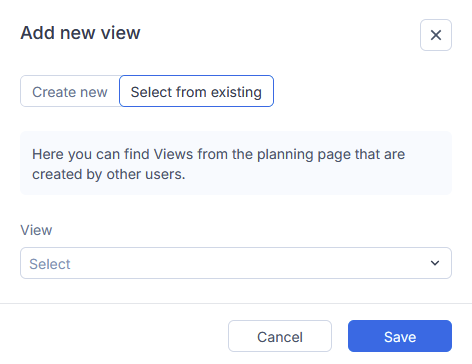
Choose **Select from existing**. You see the views created by other users on this page, with who created them and how many products they contain.
{% endstep %}
{% step %}
### Add the view
Select a view and save. It appears in your tabs. A built-in view you removed earlier comes back the same way.
{% endstep %}
{% endstepper %}
## Share a view with everyone
{% stepper %}
{% step %}
### Open the view menu
Hover the view tab and open its menu.
{% endstep %}
{% step %}
### Make it public
Choose **Edit**, tick **Make public** and click **Save**. The view now appears for every user of the page. Each user can remove it from their own tabs or duplicate it.
{% endstep %}
{% endstepper %}
## Rename, duplicate, reorder or delete a view
{% stepper %}
{% step %}
### Open the view menu
Hover the view tab and open its menu.
{% endstep %}
{% step %}
### Pick an action
* **Edit**: change the name, or make the view public.
* **Duplicate**: make a copy you can change. This is how you start from a built-in view.
* **Reorder**: drag your views into the order you want. Built-in views always come first.
* **Delete**: remove the view. For a public view, choose **Remove from my environment only** or **Delete the public view for everyone**. On a built-in view, **Delete** only hides it from your tabs.
{% endstep %}
{% endstepper %}
{% hint style="warning" %}
If a view is used by an automation, deleting the view also deletes the automation.
{% endhint %}
## Use a view as an automation scope
{% stepper %}
{% step %}
### Save the view
Save a Demand, Planning or Pricing view with the filters that define the products to act on.
{% endstep %}
{% step %}
### Create the automation
In **AI & automations** > **Automations**, create an automation and pick the view as its scope. See [Set up an automation](/ai-and-automations/automations/set-up-automation.md).
{% endstep %}
{% step %}
### Keep the view stable
The automation acts on the products in the view each time it runs. If you change the view's filters, the automation follows.
{% endstep %}
{% endstepper %}
## Result
Your views sit as tabs at the top of the list. When there are too many to fit, the last ones go into a "more" menu, for example "3 more". The Dashboard counts the products in each of your views in its workflow section.
## Related
* [Views and filtering](/concepts/concepts/views-and-filtering.md): how views, filters, sorting and grouping work.
* [Filter, sort and group a list](/everyday-tasks/how-tos/filter-sort-and-group-lists.md): set up the list before you save it.
* [Set up an automation](/ai-and-automations/automations/set-up-automation.md): use a view as the scope of an automation.
* [Dashboard](/overview/dashboard.md): save dashboard filters as views.