> For the complete documentation index, see [llms.txt](https://docs.flowlity.com/llms.txt). Markdown versions of documentation pages are available by appending `.md` to page URLs; this page is available as [Markdown](https://docs.flowlity.com/everyday-tasks/how-tos/filter-sort-and-group-lists.md).
# Filter, sort and group a list
Find the products you need in a Demand or Planning list, sort them on several columns and group them with subtotals.
This guide shows you how to narrow a product list to the products you need, sort it, and group it by family, supplier, customer or site with subtotals.
## Before you start
* You need access to **Demand** or **Planning**. The search, filters, sorting and grouping also work in **Pricing**.
* To filter on a metric, add it as a column first. See [Add KPI columns](/everyday-tasks/how-tos/add-kpi-columns.md).
* Everything you set here can be saved in a view. See [Set up and manage views](/everyday-tasks/how-tos/set-up-views.md).
## Find products by name or reference
{% stepper %}
{% step %}
### Open the list
In the sidebar, go to **Demand management** > **Demand**, or **Inventory & supply** > **Planning**.
{% endstep %}
{% step %}
### Search
Click **Search by name or paste references** and type part of a product name or reference.
{% endstep %}
{% step %}
### Paste a list of references (optional)
Paste several references copied from a spreadsheet or an email. The list shows only those products.
{% endstep %}
{% endstepper %}
## Filter by tags with "and" / "or" rules
{% stepper %}
{% step %}
### Open the tag filter
Click **Tags** in the filter bar.
{% endstep %}
{% step %}
### Pick tags in Default
In the **Default** tab, tick the tags you want.
{% endstep %}
{% step %}
### Build rules in Advanced
For finer selections, open the **Advanced** tab and combine tags with "and" / "or" logic, for example products that are (Blue or Red) and Large.
{% endstep %}
{% endstepper %}
## Filter on any column or KPI value
{% stepper %}
{% step %}
### Open More...
Click **More...** at the end of the filter bar. The list shows every attribute and numeric column you can filter on. Type in the search field to find one.
{% endstep %}
{% step %}
### Set the condition
Pick the attribute and choose the values, or enter a range for a number. Use **Is empty** to find products with no value, for example no purchase price.
{% endstep %}
{% step %}
### Or filter from the column header
Hover a column header and click the filter icon to set the same filter right there.
{% endstep %}
{% step %}
### Include or exclude
For most filters, choose whether to keep the matching products ("Include products that match this filter") or hide them ("Exclude products that match this filter").
{% endstep %}
{% endstepper %}
## Sort on several columns
{% stepper %}
{% step %}
### Sort on one column
Click a column header. Click again to reverse the order.
{% endstep %}
{% step %}
### Add more sort columns
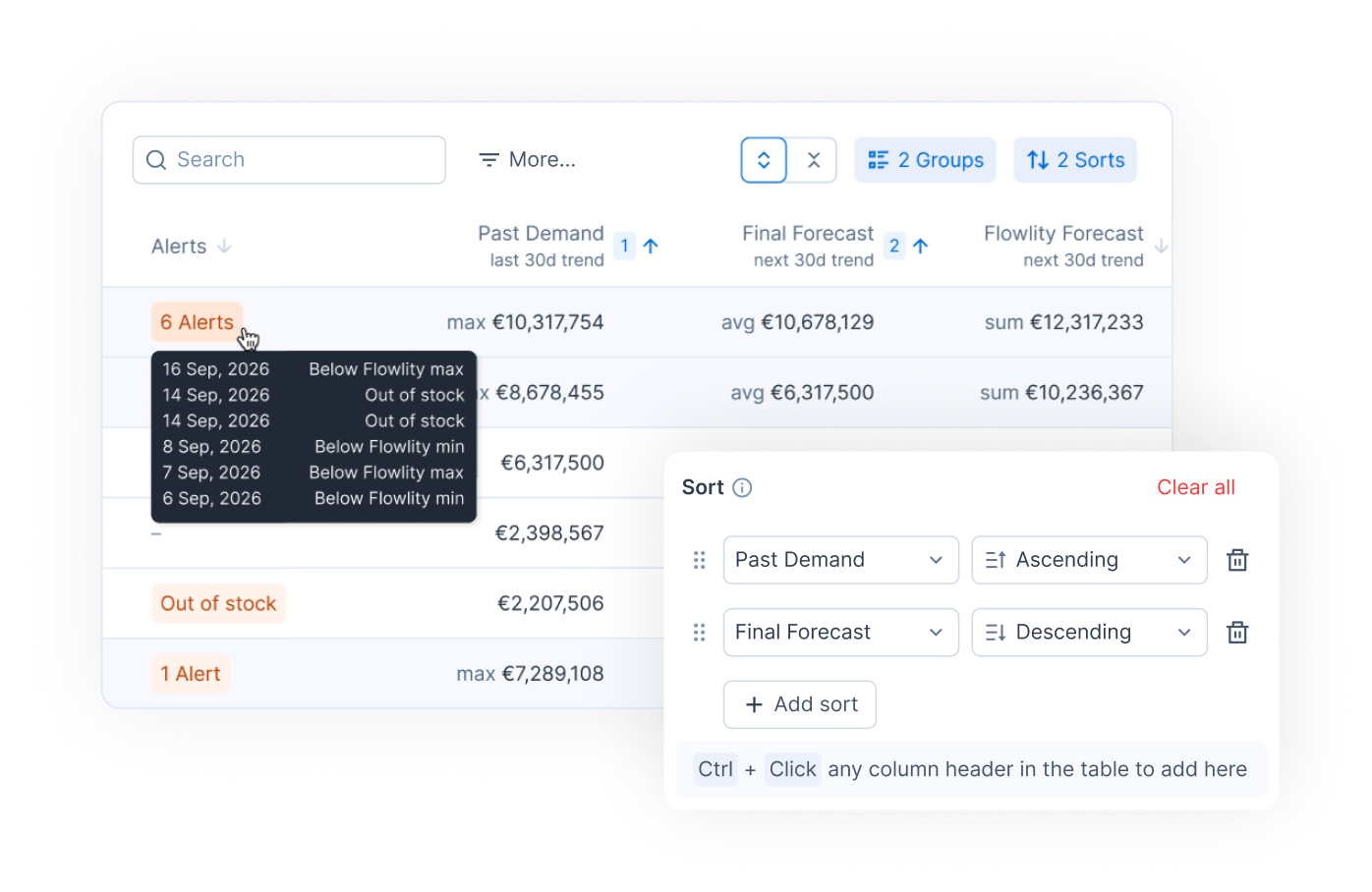
Hold Ctrl (Cmd on Mac) and click another header. A number on each sorted column shows its priority.
{% endstep %}
{% step %}
### Manage sorts in the Sort panel
Click **Sort** to see all sorts in order. Use **Add sort** to add one, or remove one you no longer need.
{% endstep %}
{% endstepper %}
## Group the list and read subtotals
{% stepper %}
{% step %}
### Add a group
Click **Group** > **Add group** and choose a tag category, supplier, customer or site. Add a second group to nest it, for example supplier, then family.
{% endstep %}
{% step %}
### Read the subtotals
Each group shows subtotals for its columns. **Grand total**, at the bottom, sums up the whole list.
{% endstep %}
{% step %}
### Change how a subtotal is calculated
Click a subtotal (**Click to change aggregation method**) and pick another method, for example an average instead of a sum.
{% endstep %}
{% step %}
### Open or fold all groups
Use **Expand all** or **Collapse all** next to **Group**. Hover a group header to see how many alerts the group contains.
{% endstep %}
{% endstepper %}
## Act on a whole group
{% stepper %}
{% step %}
### Select the group
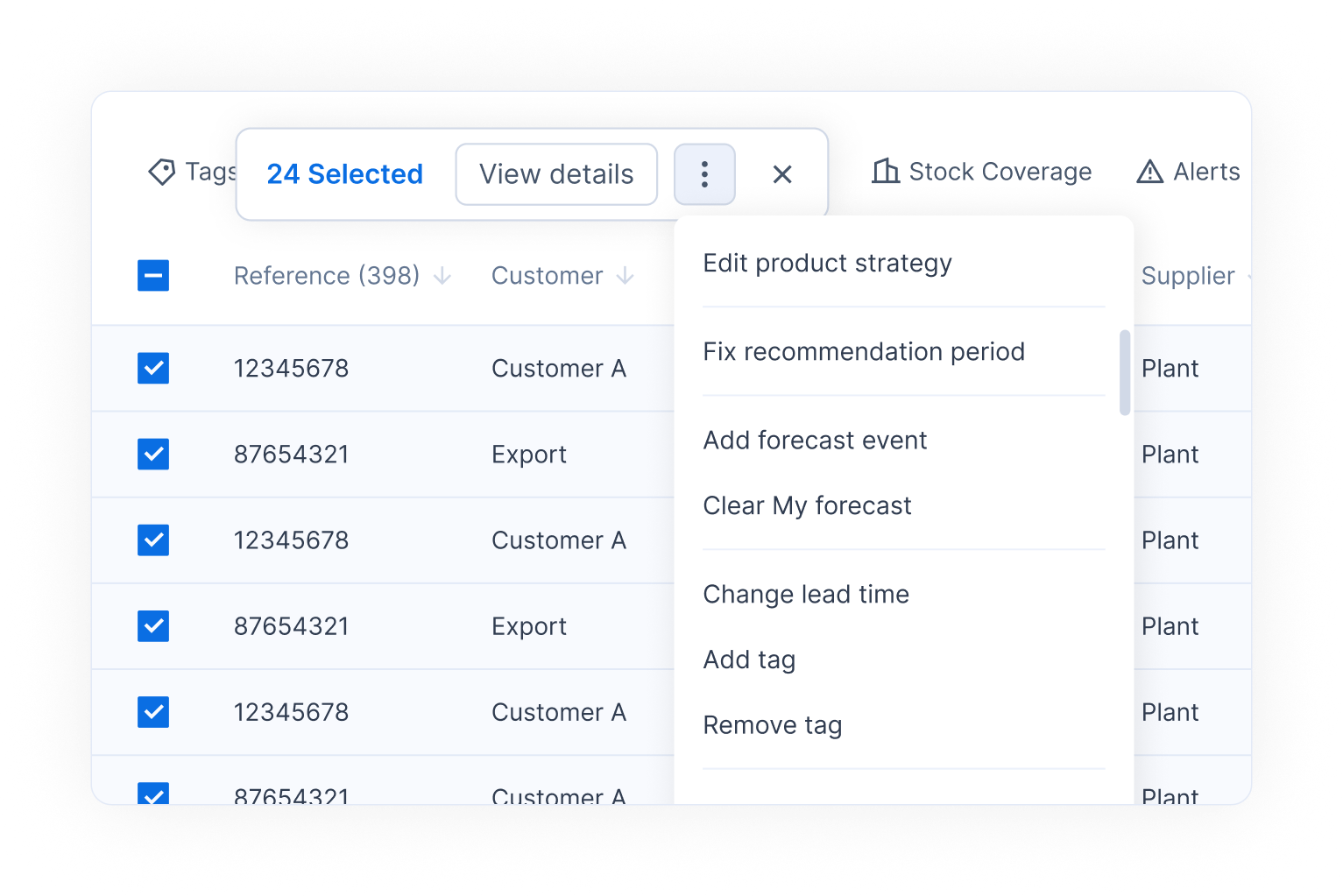
Tick the checkbox of the group header. All products of the group are selected.
{% endstep %}
{% step %}
### Run a bulk action
Use the action bar that appears to run a bulk action on the selection, for example assign a tag or change the lead time.
{% endstep %}
{% endstepper %}
## Result
Your list shows only the products you need, in the order you want, with subtotals per group. Click **Save view** to keep this setup, or **Reset view** to go back to the saved view.
## Related
* [Views and filtering](/concepts/concepts/views-and-filtering.md): how filters, sorting and grouping work.
* [Set up and manage views](/everyday-tasks/how-tos/set-up-views.md): save your setup as a view.
* [Add KPI columns](/everyday-tasks/how-tos/add-kpi-columns.md): add the metrics you want to filter and sort on.
* [Alerts](/concepts/concepts/alerts.md): filter on stock and demand alerts.