> For the complete documentation index, see [llms.txt](https://docs.flowlity.com/llms.txt). Markdown versions of documentation pages are available by appending `.md` to page URLs; this page is available as [Markdown](https://docs.flowlity.com/everyday-tasks/how-tos/add-kpi-columns.md).
# Add KPI columns
Show a KPI column in the Demand or Planning list, create your own KPI, and edit or delete it.
This guide shows you how to add a metric, such as past demand over 12 months or stock coverage, as a column in your product list, so you can sort and filter on it.
## Before you start
* You need access to **Demand** or **Planning**.
* KPIs are shared by your whole company. A KPI you create appears for every user, in every view and site.
* To understand each choice in the KPI window, see [KPIs](/concepts/concepts/kpis.md).
## Show a KPI column
{% stepper %}
{% step %}
### Open the Columns drawer
In the Demand or Planning list, click the columns button on the right of the filter bar. The **Columns** drawer opens.
{% endstep %}
{% step %}
### Go to the KPI tab
Click the **KPI** tab. It lists the KPIs created in your company. Type in the search field to find one by name.
{% endstep %}
{% step %}
### Turn the column on
Switch the KPI on. It moves to **Shown in table** and appears as a column in the list.
{% endstep %}
{% endstepper %}
## Create your own KPI
{% stepper %}
{% step %}
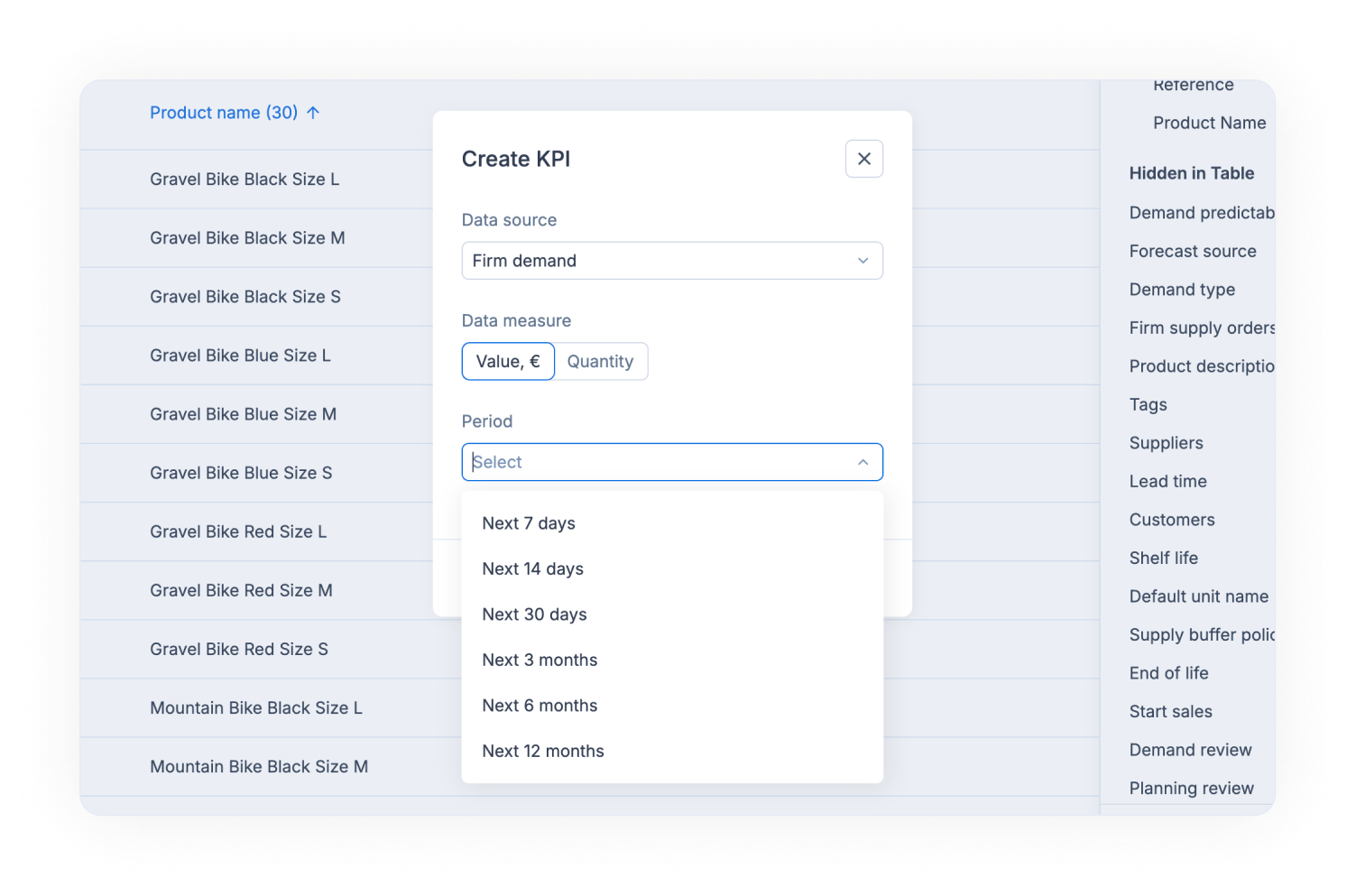
### Open the KPI window
Click **Create KPI** at the bottom of the **Columns** drawer. You can also find **Create KPI** in the **More...** filter list.
{% endstep %}
{% step %}
### Pick the data source
Choose a **Data source**, for example **Past demand**, **Final forecast** or **Stock coverage**.
{% endstep %}
{% step %}
### Pick the measure and the period
Choose the **Data measure** (value or quantity), then the **Period**, for example last 12 months or next 30 days.
{% endstep %}
{% step %}
### Pick the formula and the unit
When asked, choose the **Formula** (**Sum** or **Trend**). For a quantity, pick the **Unit of measure**; for a value, pick the **Price type**.
{% endstep %}
{% step %}
### Save
Click **Save**. The KPI is added to the **KPI** tab for everyone, and shown in your list.
{% endstep %}
{% endstepper %}
## Edit or delete a KPI
{% stepper %}
{% step %}
### Open the KPI
In the **KPI** tab of the **Columns** drawer, hover the KPI and click its edit icon. The KPI window opens.
{% endstep %}
{% step %}
### Change it or delete it
Change the choices and click **Save**, or click **Delete**.
{% endstep %}
{% step %}
### Confirm the deletion
The **Delete KPI** window reminds you that the KPI will be removed from all views and sites, for every user. This cannot be undone.
{% endstep %}
{% endstepper %}
## See KPIs per product family
{% stepper %}
{% step %}
### Switch to the Tag dimension
At the top of the Demand or Planning list, set **Dimension** to **Tag**.
{% endstep %}
{% step %}
### Read the KPIs per tag
Each row is now a tag, for example a product family, with its KPIs.
{% endstep %}
{% endstepper %}
## Result
Your KPI columns sit next to the product columns. Click a header to sort on a KPI, filter its values from the column header or **More...**, then click **Save view** to keep the layout. See [Filter, sort and group a list](/everyday-tasks/how-tos/filter-sort-and-group-lists.md).
## Related
* [KPIs](/concepts/concepts/kpis.md): what a KPI is made of and who sees it.
* [Metrics glossary](/concepts/concepts/metrics-glossary.md): what each metric means.
* [Set up and manage views](/everyday-tasks/how-tos/set-up-views.md): save your column layout in a view.