> For the complete documentation index, see [llms.txt](https://docs.flowlity.com/llms.txt). Markdown versions of documentation pages are available by appending `.md` to page URLs; this page is available as [Markdown](https://docs.flowlity.com/demand-management/demand/run-forecast-review.md).
# Run a forecast accuracy review
Decide what to measure and who is involved, then build a review view, shortlist SKUs, fix inputs, and record decisions.
This guide walks you through one review cycle in the [Demand](/demand-management/demand.md) module.
### Set up a forecast accuracy review process
A forecast accuracy review is the recurring moment where your planning team checks where the forecast was wrong, understands why, and corrects what the model learns from. Forecast accuracy drives both inventory (too much buffer when the forecast is noisy or too high) and availability (stock-outs when it is too low), so a short, disciplined review usually pays back quickly.
#### 1. What do we measure?
Use two metrics, each for a different job. Both are available as KPI columns in the Demand product list (see [KPIs](/concepts/concepts/kpis.md) and the [Metrics glossary](/concepts/concepts/metrics-glossary.md)).
| Metric | Use it to | Watch out for |
| ----------------------------------------- | ------------------------------------------------------------------------------------------------------------ | --------------------------------------------------------------------------------------------------------------------------------------------- |
| **MAE** (Mean Absolute Error) | **Rank** products by the size of the error. Combine it with past demand in value to see the business impact. | MAE is in quantity units, so compare products with similar units. |
| **MAPE** (Mean Absolute Percentage Error) | **Communicate** accuracy as a percentage, on high-volume, regularly selling products. | MAPE explodes on low-volume and intermittent products: selling 1 unit against a forecast of 3 shows 200 % error while costing almost nothing. |
A few rules make the numbers trustworthy:
* **Rank with MAE, not MAPE.** A list sorted by MAPE is dominated by small, sporadic products. A list sorted by MAE puts the products where the error costs most at the top.
* **Measure at the level you plan.** Review at SKU level, but also look at the product family or model level. When a new variant takes sales from an older one, each SKU looks wrong while the family total can be accurate.
* **Compare against your previous method.** If you load an External forecast (budget, legacy system), add it next to the Final forecast. It shows whether Flowlity improves on the old way of working.
* **Check your value KPIs use the right price.** Demand in value should reflect the price at which the demand is sold. If in doubt, ask your Flowlity contact which price your value KPIs use.
{% hint style="info" %}
There is no universal "good" MAPE. Track the trend over time and compare product groups against each other rather than chasing an absolute target.
{% endhint %}
#### 2. Which items come first?
Nobody can review thousands of forecasts. Review by exception, starting from business impact:
* **Top contributors**: the products that make up roughly 80 % of demand value, typically ABC class A.
* **Recent launches**: products with less than about six months of history, often with Low or No [Demand predictability](/concepts/concepts/metrics-glossary.md).
* **Alerted products**: products already flagged by a Flowlity alert or by the Demand anomaly agent.
Before looking at individual SKUs, **group the product list by hierarchy** (product family, category, or any tag category) to see which groups carry the largest error. Then drill down into those groups only. Aim for a shortlist of **10 to 20 products per planner per review**, ranked by impact.
Skip products reviewed in the last four weeks, unless something new has happened since. The **Demand review** column shows when each product was last reviewed.
#### 3. Who is involved?
| Role | Responsibility |
| -------------------------------- | ------------------------------------------------------------------------------------------------------------------------------------------------ |
| **Planning / supply chain team** | Owns the review. Prepares the shortlist, diagnoses each product, decides the Final forecast, and records the decision. |
| **Commercial team** | Consultative. Brings market knowledge (promotions, large one-off orders, launches, phase-outs, price changes) with the reason behind each input. |
| **Management** | Reviews the accuracy KPIs monthly and holds owners accountable. |
Keep the decision with one team. When everybody can change the number, nobody owns the error.
#### 4. What cadence?
Match the review rhythm to how fast your business moves:
* **Start weekly** for the first one to two months. Changes applied in one review become visible the following week, so the team learns quickly what works.
* **Move to monthly** once the process is stable.
* **Align with your ordering cycle.** Business lines with different lead times or ordering rhythms can run on different cadences. A review only matters if it happens before the next ordering decision.
* **Place the review after the forecast run** and before supply planning, so orders are built on the reviewed forecast.
#### 5. How do we act?
Two rules keep the review effective:
* **Name the root cause before changing anything.** Most bad forecasts come from a small number of causes; see [Diagnose forecast errors](/demand-management/demand/diagnose-forecast-errors.md).
* **Fix the input, not the number.** A manual change to My forecast fixes one number for one run; the next run reproduces the same error because the history did not change. Cleaning the history, linking a similar product, applying an expert model or creating a forecast event corrects every future run.
Use a manual override only for genuinely new information the model cannot know, and always add a comment explaining why.
#### 6. What does success look like?
Track a small set of KPIs in your monthly review. Baseline them during the first weeks, then agree targets.
| KPI | Why it matters |
| ------------------------------------------- | ----------------------------------------------- |
| Error (MAE) on A products, by product group | The volume of error where it matters most |
| MAPE on A products with regular demand | A readable accuracy figure for management |
| Review coverage | Share of shortlisted products actually reviewed |
| Overrides with a documented reason | Every manual change can be explained later |
| Launches without a similar product | New products forecast from nothing |
{% hint style="info" %}
A forecast accuracy review only shows part of the picture until the whole planning loop runs in Flowlity. Forecast adjustments, validated orders and stock all feed back into what Flowlity projects, so run the review alongside supply planning in the app, not in isolation.
{% endhint %}
{% hint style="info" %}
A high error does not automatically mean stock-outs. Flowlity's probabilistic forecast feeds the safety stock, and the buffer grows with forecast uncertainty and lead time. See [Safety stock settings](/concepts/concepts/buffer-policies.md).
{% endhint %}
### Run the review, step by step
{% stepper %}
{% step %}
#### Create a forecast review view
In **Demand management** > **Demand**, start from the **🎯 Forecast accuracy** view and add these columns from the **Columns** drawer (see [KPIs](/concepts/concepts/kpis.md)):
* **Past demand** in value, last 12 months: the business weight of each product.
* **Past demand trend**: to spot products that are rising or falling.
* **Final forecast** for the coming months.
* **External forecast**, if you load one: to compare with your previous method.
* **Final forecast MAE** and **Final forecast MAPE** for the lookback period you review (last 30 days for a weekly review, last 90 days for a monthly one).
* Your **ABC** tag and **hierarchy** tags (product family, category, model).
* **Demand review**: the date of the last review.
* **Expert models applied**: to see which products already use an expert model.
Filter on active products and ABC class A to start. You can filter on a KPI from its column header. Save it as a custom view and check **Make public** so the whole team uses the same list (see [Set up and manage views](/everyday-tasks/how-tos/set-up-views.md)).
{% endstep %}
{% step %}
#### Group by hierarchy to find where the error sits
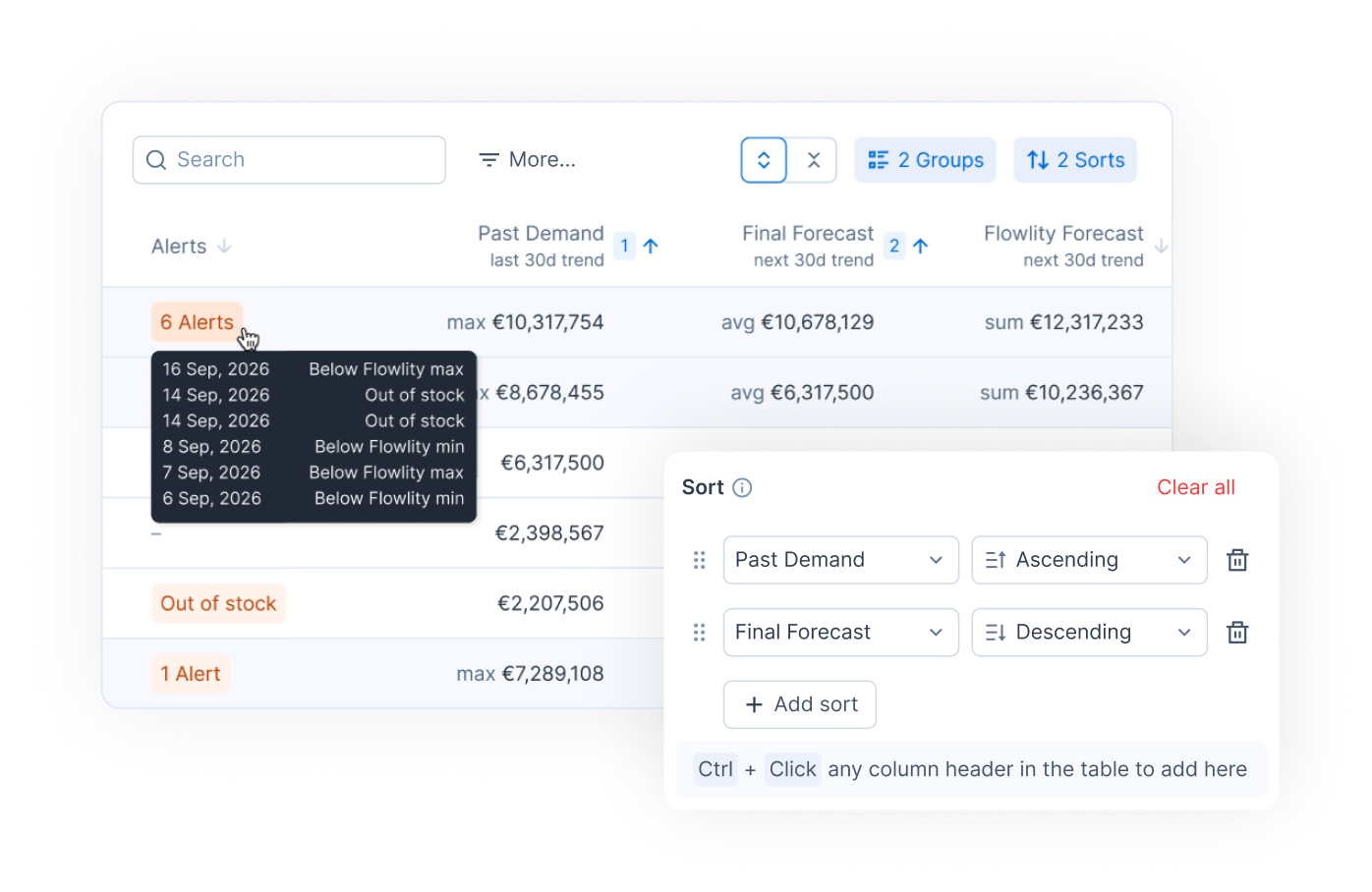
Click **Group** > **Add group** and group by a hierarchy tag category, such as product family. You can also group by supplier, customer or site. Each group shows subtotals (weighted averages for MAE and MAPE) plus a **Grand total**.
Read the groups top-down:
* Start with the groups that combine **high demand and high MAE**.
* Treat a very high MAPE on a group with very little demand as low priority.
* A large group with no hierarchy tag is itself a finding: complete the tags so every product lands in a group.
Add a second grouping level at model or family level (for example, the level that holds all colors or versions of one model) so that discontinued and replacement products appear together.
Save the grouping in the view so it is ready for the next review.
{% endstep %}
{% step %}
#### Build the shortlist
Click **Sort** > **Add sort** to rank by **MAE**, descending, then by past demand in value. You can also hold Ctrl (Cmd on Mac) and click column headers to stack sorts.
Expand the priority groups and pick **10 to 20 products per planner**, ranked by impact. Add recent launches and products from the **🛸 Outliers** view, even if they rank lower.
Skip products whose **Demand review** date is less than four weeks old, unless a new anomaly appeared since.
{% endstep %}
{% step %}
#### Diagnose each product
Open each product's detail view and compare past demand, the **Final forecast** and, if available, the **External forecast**. Turn on **Raw past demand (N-1)** and **Raw past demand (N-2)** from the legend to compare with previous years. Name the root cause before changing anything; see [Diagnose forecast errors](/demand-management/demand/diagnose-forecast-errors.md).
When the cause is not visible in the data, such as a sharp drop without a stock-out, note it and ask the commercial team.
{% endstep %}
{% step %}
#### Fix the input, not the number
Apply the fix that matches the cause:
| Cause | Fix |
| ------------------------------------------------------- | ------------------------------------------------------------------------------------------------------------------------------------------------------------------------ |
| Stock-out, outlier or past promotion in the history | Check Flowlity's correction: keep it, change its value or delete it ([Investigate and fix demand anomalies](/demand-management/demand/investigate-demand-anomalies.md)). |
| Replacement product with little history | Link the product it replaces ([Product similarities](/concepts/concepts/product-similarities.md)). |
| Brand-new product | Apply the **Launch model** expert model ([Demand](/demand-management/demand.md)). |
| Lasting change in level or trend | Apply an expert model such as **Average of recent periods model** or **Average + Trend model** ([Demand](/demand-management/demand.md)). |
| Not enough history for a reliable forecast | Set **Forecast source** to your External forecast in **Product strategy** until history builds up. |
| Known future event (promotion, disruption, large order) | Create a forecast event ([Create and apply forecast events](/revenue-optimization/promotions/create-forecast-events.md)). |
| Discontinued product still forecast | Set its **End of life** in **Product strategy** > **Forecast**. For many products: **⋮** > **Edit product strategy** > **Edit lifecycle**. |
| Genuinely new information the model cannot know | Adjust My forecast and add a comment with the reason. |
| {% endstep %} | |
{% step %}
#### Hold the review meeting
A 45-minute meeting is usually enough:
| Minutes | Block | What good looks like |
| ------- | ---------------------- | ------------------------------------------------------------- |
| 30 | Shortlist walk-through | For each product: cause named, fix accepted or rejected |
| 10 | Commercial input | Each input heard, sized and commented |
| 5 | Close | Decisions recorded; every open action has an owner and a date |
The planning team leads and decides. The commercial team is consulted for market input.
{% endstep %}
{% step %}
#### Record decisions
Click **Review** in the product detail to stamp the review date, and log each decision in the product's [Comments](/concepts/concepts/comments.md) panel so the next reviewer sees what was done and why. After changing an input, click **Compute forecast** to see the new forecast before the next weekly run (it uses credits).
Keep a simple review log (product, cause, action, owner) across sessions. After a few reviews it shows whether a problem is isolated or systemic. For example, repeated end-of-life cases point to a master-data process to fix rather than individual forecasts.
{% endstep %}
{% step %}
#### Review the KPIs monthly
Once a month, look at the accuracy KPIs by product group, review coverage, and the share of overrides with a documented reason. Use the trend to decide where to focus next and when to move from a weekly to a monthly cadence.
{% endstep %}
{% endstepper %}
{% hint style="info" %}
The **Forecast audit** skill can prepare the shortlist for you. In an AI assistant connected to Flowlity, ask *"Run a forecast audit"*. It returns a ranked list of products with the reason each was flagged and a suggested fix to the forecast input. It only reads data; the planner accepts or rejects each suggestion in the app. See [Skills](/ai-and-automations/co-planner/mcp/skills.md).
{% endhint %}
### Related pages
* [Diagnose forecast errors](/demand-management/demand/diagnose-forecast-errors.md): common root causes and their fixes.
* [Set up and manage views](/everyday-tasks/how-tos/set-up-views.md): save the review view with its columns, filters and grouping.
* [Investigate and fix demand anomalies](/demand-management/demand/investigate-demand-anomalies.md): clean shortages, outliers and past promotions.
* [Create and apply forecast events](/revenue-optimization/promotions/create-forecast-events.md): add known future events to the forecast.
* [Demand](/demand-management/demand.md): expert models, My forecast and Compute forecast.
* [Comments](/concepts/concepts/comments.md): record review decisions on a product.
* [Demand forecasting explained](/concepts/concepts/demand-forecasting.md): how the forecast is generated.