> For the complete documentation index, see [llms.txt](https://docs.flowlity.com/llms.txt). Markdown versions of documentation pages are available by appending `.md` to page URLs; this page is available as [Markdown](https://docs.flowlity.com/demand-management/demand/investigate-demand-anomalies.md).
# Investigate and fix demand anomalies
Find the products with suggested corrections of past demand, then keep, change or remove each correction.
Check the corrections Flowlity made to your demand history (outliers, shortages, past promotions, launch peaks) and decide for each one whether it reflects what really happened.
### Before you start
* You need access to the Demand module and the right to edit events.
* The Demand anomaly agent looks for **Outliers**, **Shortage** (**0 stock and 0 demand** or **stock < lot size**), **Smooth past promotions** and **Launch detection**. See [Forecast events and demand adjustments](/concepts/concepts/forecast-events.md).
{% stepper %}
{% step %}
### List the products with suggested corrections
In **Demand management** > **Demand**, open the **🛸 Outliers** view: it lists products with a possible outlier in the last 90 days. For shortages too, click **Alerts** > **Demand alerts** and tick **Possible outlier** or **Possible shortage**. These alerts point to corrections you have not checked yet.
To rank stock-outs by their cost, add the **Estimated lost sales** column and sort on it.
{% endstep %}
{% step %}
### Compare cleaned and raw demand
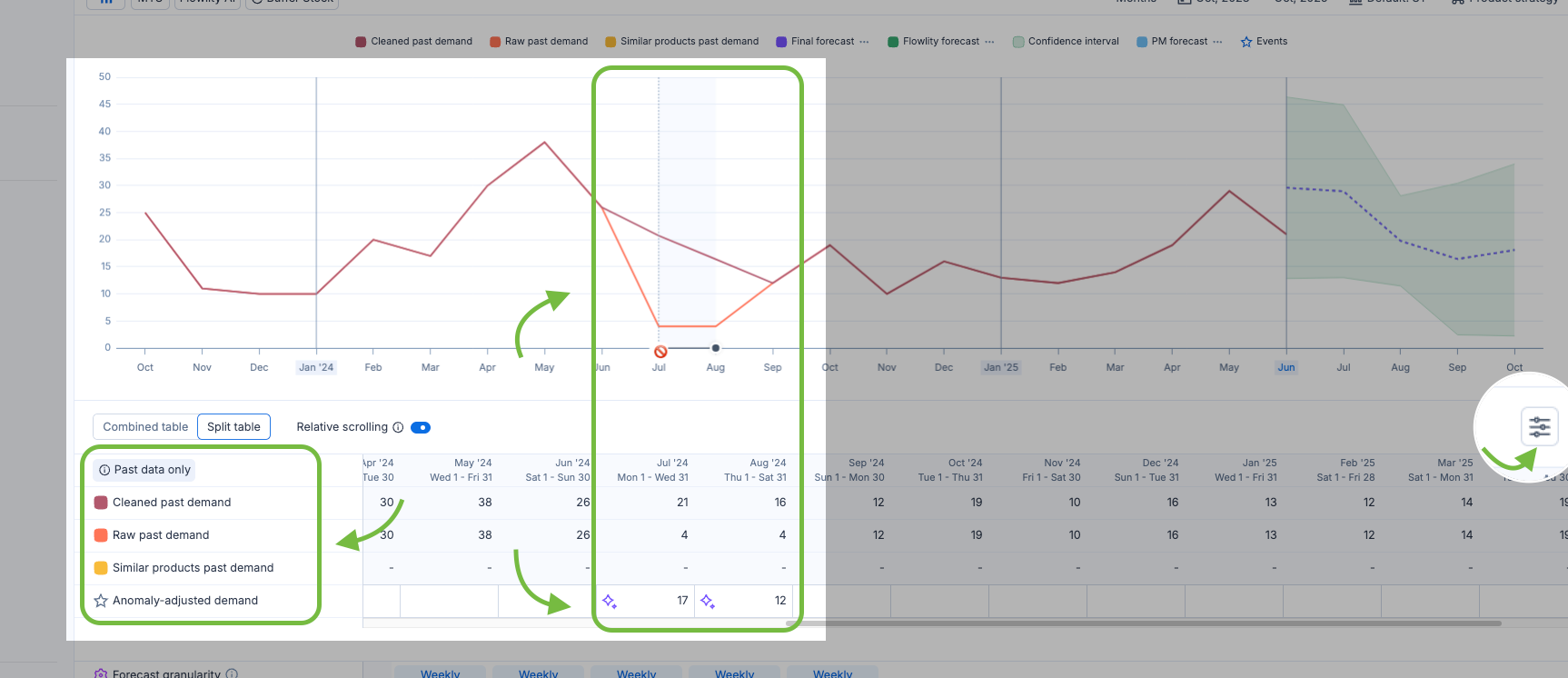
Open a product. On the chart, periods where **Cleaned past demand** moves away from **Raw past demand** are the corrected ones. The **Anomaly adjustments impact** row of the table shows the corrected values. If you don't see it, turn it on in **Table settings**.
Turn on **Raw past demand (N-1)** and **Raw past demand (N-2)** from the legend to check whether the same months were unusual in earlier years.
{% endstep %}
{% step %}
### Open a correction
Hover a cell of the **Anomaly adjustments impact** row. Corrections made by Flowlity carry an AI icon, and their detail says **Created by Flowlity**. Click one to open the **Past demand adjustment** window.
{% endstep %}
{% step %}
### Keep, change or remove it
* The correction is right: click **Mark as read** under it in the list.
* The value is wrong: change the **Past demand value** and click **Save**.
* The demand was real, for example a genuine one-off order: click the bin icon (**Delete adjustment**). The raw value is used again.
{% endstep %}
{% step %}
### Add your own correction
If Flowlity missed an anomaly, click **+** under that past period of the chart and choose **Add past demand adjustment**. Enter the dates and the **Past demand value**, then click **Save**. A day can hold only one adjustment.
{% endstep %}
{% step %}
### Check how the agent is set up
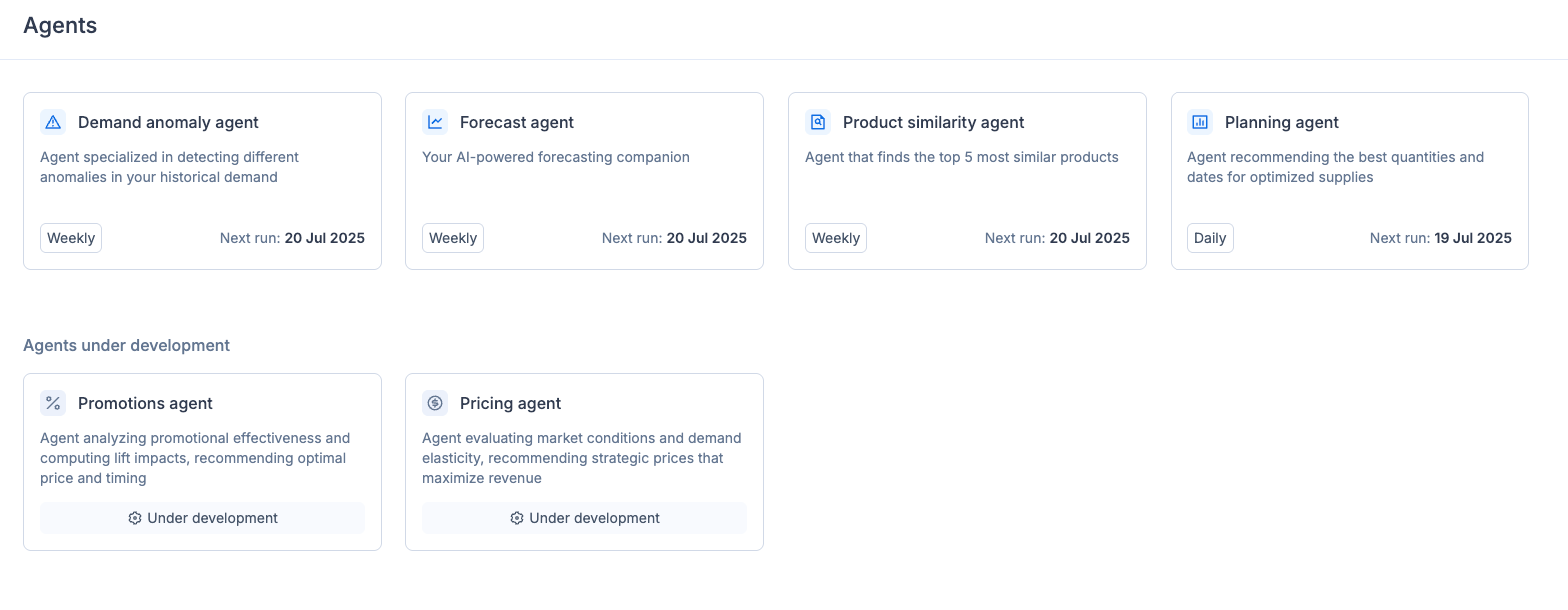
In **AI & automations** > **Agents**, open the **Demand anomaly agent** and its **Configuration** tab. It shows which anomaly types are active and how their corrections are accepted. Your Customer Success Manager can change it for you.
{% endstep %}
{% endstepper %}
{% hint style="info" %}
For a product with little history, a corrected history is not enough. Link the product it replaces in **Product strategy** > **Forecast** > **Similar products**, or apply the **Launch model** to a brand-new product. See [Product similarities](/concepts/concepts/product-similarities.md).
{% endhint %}
### Result
**Cleaned past demand** reflects your decisions, the corrections you marked as read no longer count as unread in the demand alerts, and the next forecast computation learns from the corrected history. Use **Compute forecast** in the product detail to see the effect straight away.
### Related pages
* [Diagnose forecast errors](/demand-management/demand/diagnose-forecast-errors.md)
* [Forecast events and demand adjustments](/concepts/concepts/forecast-events.md)
* [Create and apply forecast events](/revenue-optimization/promotions/create-forecast-events.md)
* [Demand forecasting explained](/concepts/concepts/demand-forecasting.md)
* [Demand](/demand-management/demand.md)
* [Agents](/ai-and-automations/agents.md)