> For the complete documentation index, see [llms.txt](https://docs.flowlity.com/llms.txt). Markdown versions of documentation pages are available by appending `.md` to page URLs; this page is available as [Markdown](https://docs.flowlity.com/demand-management/demand.md).
# Demand
Review the demand forecast of your products, adjust it, and choose the forecasting models.
Demand is where you check the forecast of each product, correct it when you know something the model does not, and decide which forecasting models it uses. The final forecast you validate here feeds Planning.
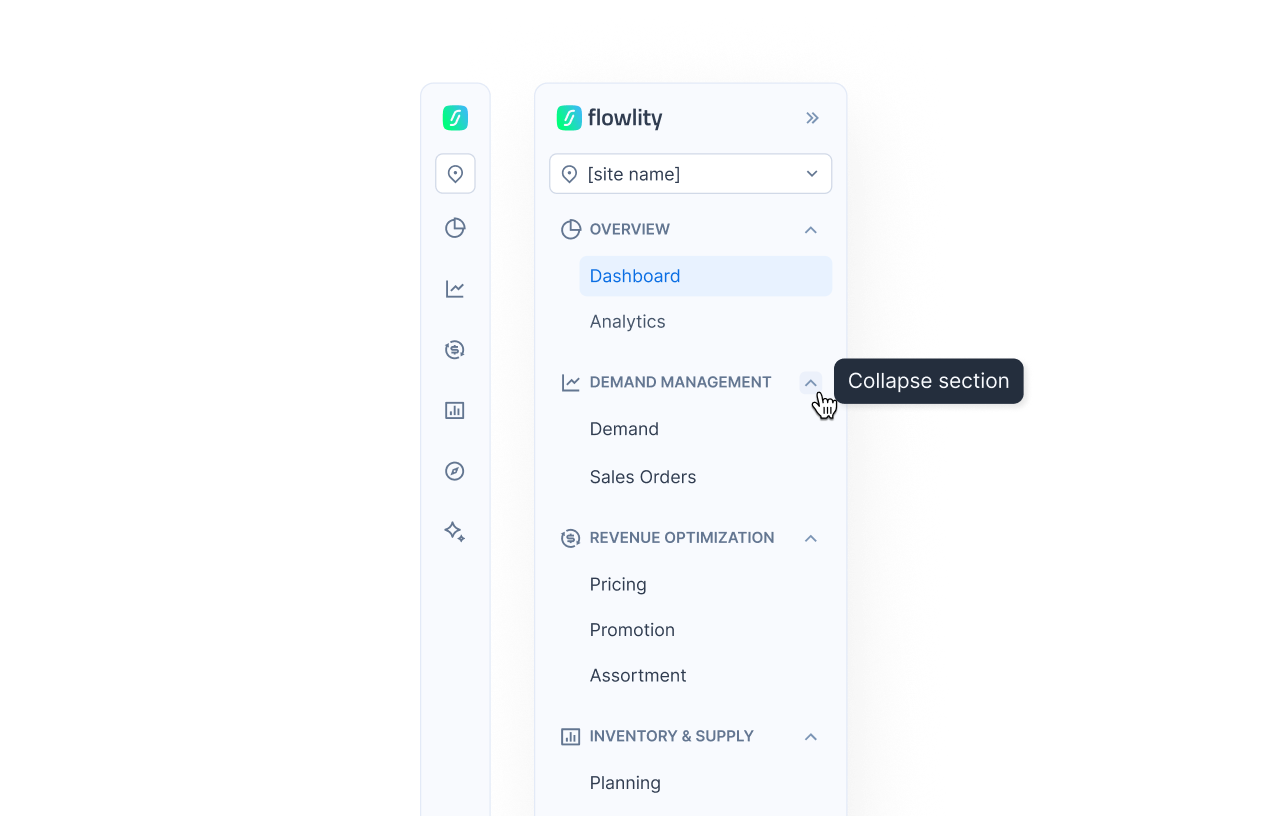
In the sidebar, go to **Demand management** > **Demand**.
## How to find the products that need attention
{% stepper %}
{% step %}
### Pick a built-in view
Click a view tab at the top of the list: **🎯 Forecast accuracy** to check forecast errors (MAE and MAPE), **🍼 New products** for products with no or little history, or **🛸 Outliers** for products with a possible outlier in the last 90 days.
{% endstep %}
{% step %}
### Narrow the list
Type a name in the search field or paste a list of references. Then filter with **Tags**, **Suppliers**, **Customers** or **Alerts**.
{% endstep %}
{% step %}
### Combine tags with AND / OR (optional)
Click **Tags** > **Advanced** > **Add filter**. Choose a tag category, an operator such as **has any of** or **has none of**, and the tags. Link rules with **AND** or **OR**, or use **Add nested filter** for a sub-group.
{% endstep %}
{% step %}
### Add more filters
Click **More...** to filter on events, **Demand type**, **Demand predictability**, **Forecast source**, **Expert models**, **Similar products** or any KPI.
{% endstep %}
{% step %}
### Save the view
Click **Save view** to keep your filters, columns, sorting and grouping. **Reset view** brings back the saved version. See [Set up and manage views](/everyday-tasks/how-tos/set-up-views.md).
{% endstep %}
{% endstepper %}
## How to review a product's forecast
{% stepper %}
{% step %}
### Open the product
Click a row in the list. Use the arrows at the top, or the left and right arrow keys, to move to the next product.
{% endstep %}
{% step %}
### Read the chart
Compare **Cleaned past demand** (the history the model learns from) with **Raw past demand** (the history as received). Then check the **Final forecast**, the **Flowlity forecast** and its **Confidence interval**.
{% endstep %}
{% step %}
### Compare with previous years
Click **...** next to **Raw past demand** in the legend and turn on **Raw past demand (N-1)** or **Raw past demand (N-2)**.
{% endstep %}
{% step %}
### Read the table
Below the chart, each row shows one series per period: **Final forecast**, **My forecast**, **Flowlity forecast**, **External forecast** (if you load one) and **Forecast events**. Your site may show the external forecast under its own name.
{% endstep %}
{% step %}
### Mark it as reviewed
Click **Review** in the header. The button then shows the date of your last review, and the **Demand review** column of the list shows it too. Sort on that column to find the products reviewed least recently.
{% endstep %}
{% endstepper %}
## How to adjust the forecast with My forecast
{% stepper %}
{% step %}
### Edit the My forecast row
Click a future cell of the **My forecast** row and type a quantity. On a tag or an aggregation of products, the value is split across the products.
If your site uses the customer axis, expand the **My forecast** row of a product to edit one row per customer.
{% endstep %}
{% step %}
### Save
Click **Save** in the header, or **Discard changes** to cancel. The **Final forecast** updates for the periods you changed.
{% endstep %}
{% step %}
### Clear My forecast in bulk (optional)
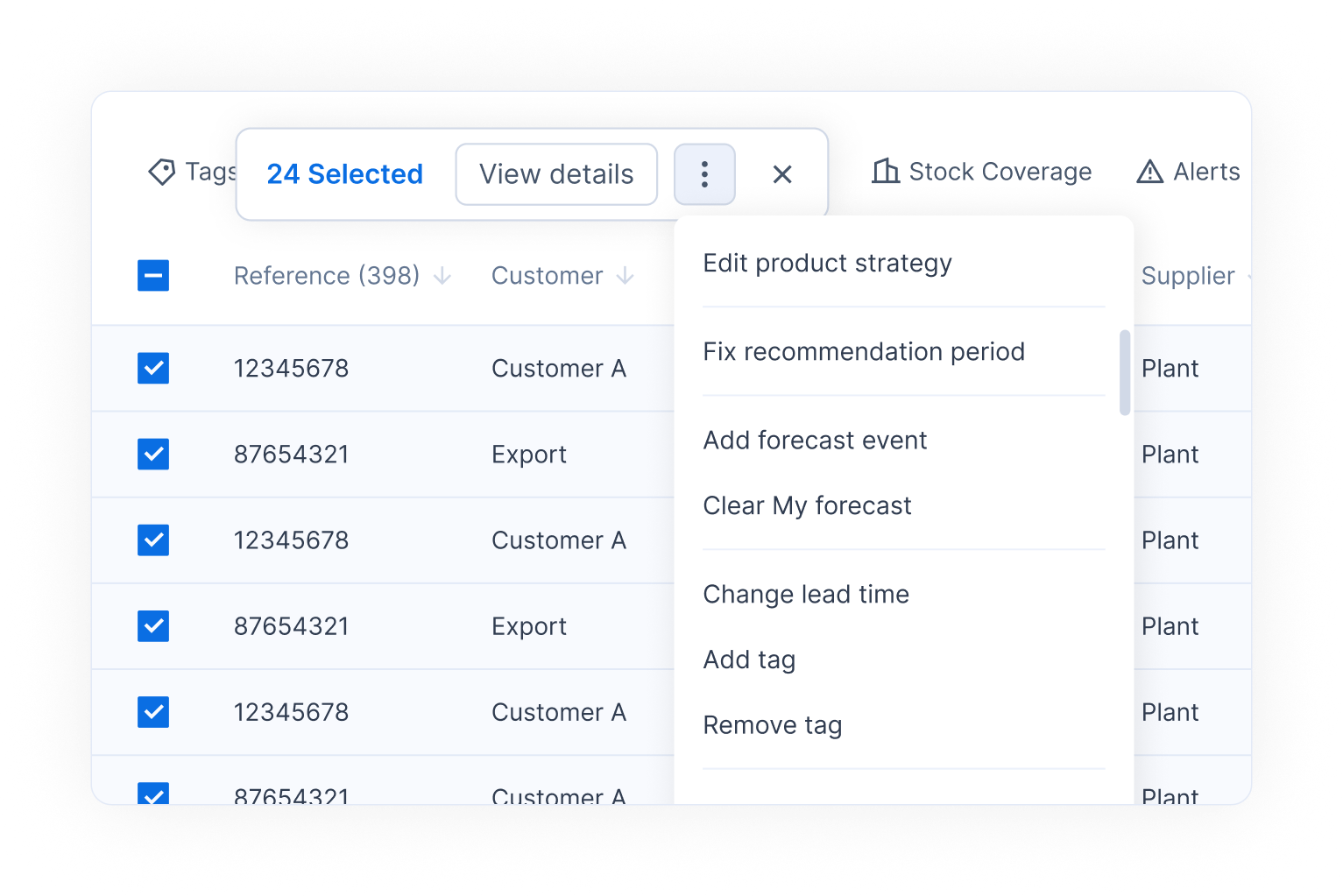
To go back to the Flowlity forecast, select products in the list, click **⋮** and choose **Clear My forecast**. This cannot be undone.
{% endstep %}
{% endstepper %}
## How to apply an expert model
Expert models (the Forecast Studio feature) refine the AI foundation model for one product, based on what you know about it.
{% stepper %}
{% step %}
### Open Forecasting models
In the product detail, click **Product strategy**, open the **Forecast** tab, then the **Forecasting models** section. The **AI foundation model** is always active.
{% endstep %}
{% step %}
### Add a model
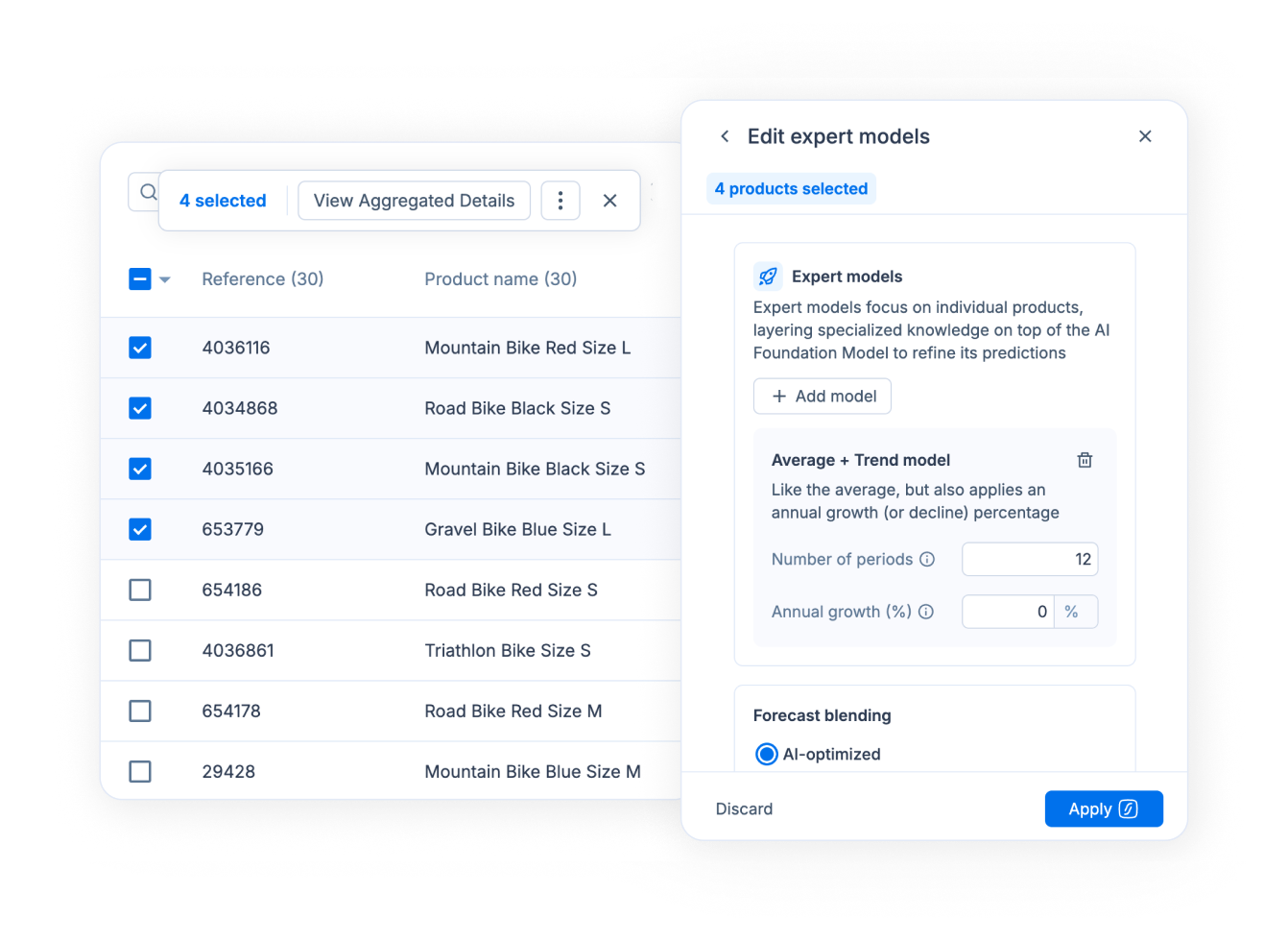
Under **Expert models**, click **Add model** and pick one: **Average of recent periods model**, **Average + Trend model**, **Seasonality model**, **Manual Seasonal model**, **Intermittent demand model**, **Auto model** or **Launch model**. Set its parameters.
{% endstep %}
{% step %}
### Simulate, then apply
Click **Simulate forecast** to see the result on the chart, then **Apply** to keep it, or **Discard**. Simulations use credits.
{% endstep %}
{% step %}
### Apply to many products (optional)
Select products in the list, click **⋮** > **Edit product strategy**, then **Edit expert models**. Set the model and click **Apply**.
{% endstep %}
{% endstepper %}
## How to recompute a forecast now
{% stepper %}
{% step %}
### Click Compute forecast
Open a product, a tag, or several products with **View Aggregated Details**. Click **Compute forecast** in the header. The confirmation shows how many credits it uses and how many you have left.
{% endstep %}
{% step %}
### Check the result
The chart and the table refresh with the new Flowlity forecast. Without this, the forecast updates at the next weekly run.
{% endstep %}
{% endstepper %}
## How to group and sort the list
{% stepper %}
{% step %}
### Group the rows
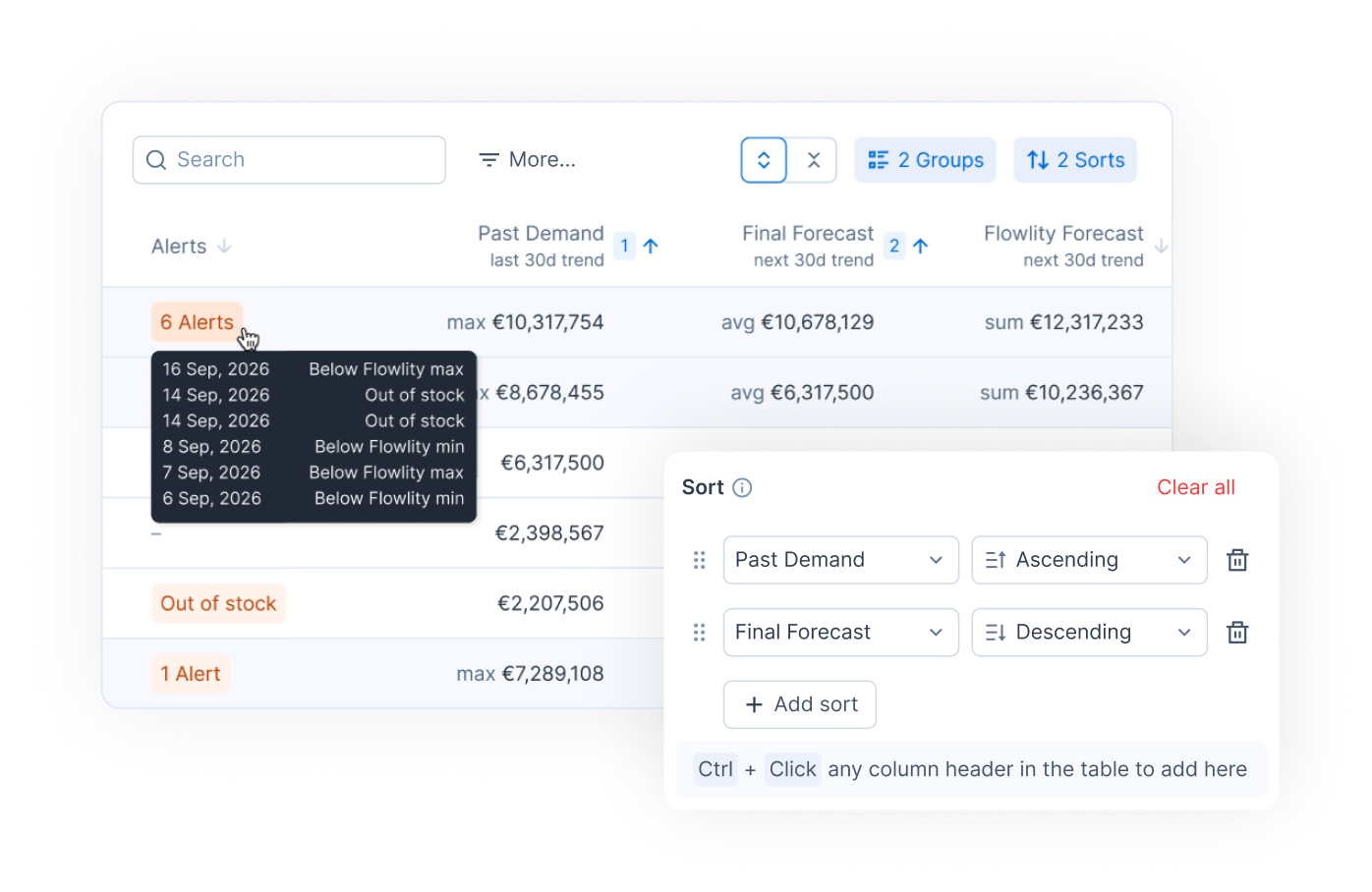
Click **Group** > **Add group** and pick a tag category, the supplier, the customer or the site. Each group shows its subtotals, and a **Grand total** sits at the bottom. Tick a group's checkbox to select all its products, and hover a group header to see its alerts.
{% endstep %}
{% step %}
### Sort on several columns
Click **Sort** > **Add sort**, or hold Ctrl (Cmd on Mac) and click column headers. A number on each header shows the order of the sorts.
{% endstep %}
{% step %}
### Save the view
Click **Save view**. Grouping and sorting are saved with the view. Use **Expand all** or **Collapse all** to open or close every group.
{% endstep %}
{% endstepper %}
## How to read the figures in another unit
{% stepper %}
{% step %}
### Hover a value
In the product list, hover a quantity to see it in every unit configured for the product, and in purchase and sales value.
{% endstep %}
{% step %}
### Switch the unit of an aggregation
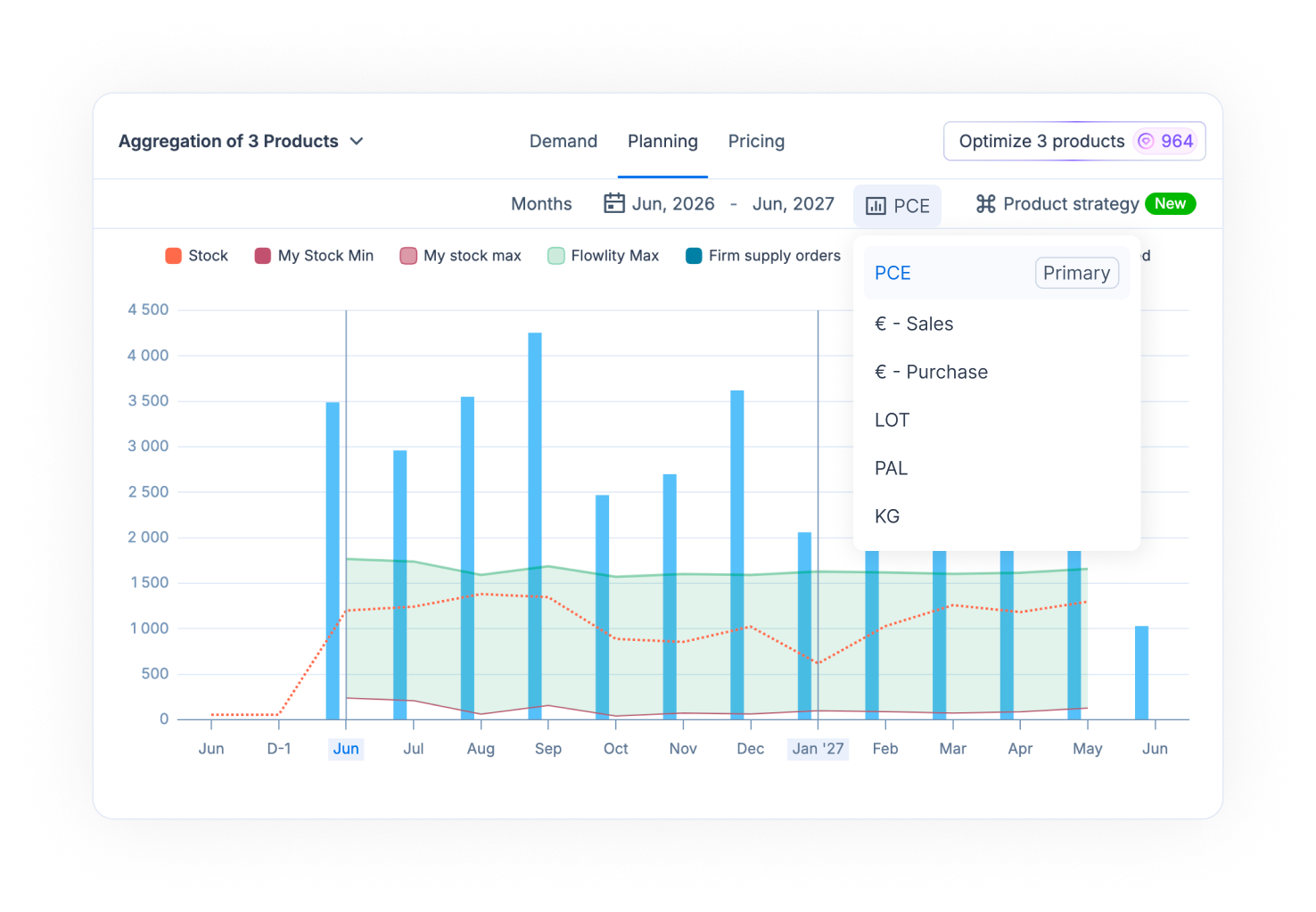
Open several products together, then pick a unit in the unit dropdown above the chart. The value modes (sales or purchase price) multiply each product's quantity by its own price, so editing is turned off.
{% endstep %}
{% endstepper %}
## How to act on many products at once
{% stepper %}
{% step %}
### Select the products
Tick the products in the list, or tick a whole group.
{% endstep %}
{% step %}
### Pick an action
Click **⋮** and choose an action, for example **Edit product strategy**, **Create new forecast event**, **Add to existing forecast event**, **Clear My forecast**, **Change lead time**, **Add tag**, **Remove tag** or **Download the list in XLSX**.
{% endstep %}
{% endstepper %}
## How to choose the rows of the table
{% stepper %}
{% step %}
### Open Table settings
In the product detail, click the sliders icon on the right, above the table, to open **Table settings**.
{% endstep %}
{% step %}
### Show or hide rows
Turn rows such as **Raw past demand**, **Raw past demand (N-1)**, **Similar products past demand** or **Anomaly adjustments impact** on or off. They move between **Shown in table** and **Hidden in table**.
{% endstep %}
{% step %}
### Change the layout
Choose **Combined table** or **Split table** (past and future apart). With **Relative scrolling** on, both parts scroll together with a one-year gap.
{% endstep %}
{% endstepper %}
## Good to know
* **Final forecast**: it uses My forecast where you entered one, otherwise the baseline (Flowlity forecast, or External forecast when **Forecast source** is set to it). Confirmed future demand acts as a floor. See [Demand forecasting explained](/concepts/concepts/demand-forecasting.md).
* **Promotions**: planned and in-review promotions appear on the chart but do not change the final forecast until they are confirmed.
* **Dimension**: switch the list between **Product**, **Tag** and, on sites with the customer axis, **Customer**.
* **Sites**: use the sites dropdown in the filter bar to work on several sites at once. Each product then shows its site.
* **Chart series**: click a legend item to hide it. Click **...** next to a forecast series to show only its past or future data.
* **Export**: the selection menu downloads the list in XLSX, CSV or TSV. The product detail has its own button to export the grid data.
* **Co-planner**: ask questions about your demand from the Co-planner button in the page header.
* **Credits**: forecast computations and simulations use credits. Contact your Customer Success Manager to get more credits.
* **Units**: to configure more units for your products, contact your Customer Success Manager.
### Depending on your setup
* **Firm demand**: confirmed orders from your customers.
* **Planned demand**: demand planned but not yet confirmed.
* **Future demand**: firm and planned demand added together.
* **Future shipments**: all shipments planned to your customer, on supplier-portal sites.
* **Firm shipments**: confirmed shipments to your customer, on supplier-portal sites.
* **Planned shipments**: shipments not yet confirmed, on supplier-portal sites.
* **Actual customer consumption**: your customer's consumption, on supplier-portal sites.
## Related
* [Demand forecasting explained](/concepts/concepts/demand-forecasting.md)
* [Forecast events and demand adjustments](/concepts/concepts/forecast-events.md)
* [Product similarities](/concepts/concepts/product-similarities.md)
* [Create and apply forecast events](/revenue-optimization/promotions/create-forecast-events.md)
* [Investigate and fix demand anomalies](/demand-management/demand/investigate-demand-anomalies.md)
* [Run a forecast accuracy review](/demand-management/demand/run-forecast-review.md)
* [Sales orders](/demand-management/sales-orders.md)
* [Views and filtering](/concepts/concepts/views-and-filtering.md)
* [KPIs](/concepts/concepts/kpis.md)
* [Comments](/concepts/concepts/comments.md)