> For the complete documentation index, see [llms.txt](https://docs.flowlity.com/llms.txt). Markdown versions of documentation pages are available by appending `.md` to page URLs; this page is available as [Markdown](https://docs.flowlity.com/ai-and-automations/co-planner.md).
# Co-planner
Ask Flowlity's AI assistant about your demand, stock, orders and forecasts in plain language, directly in the app.
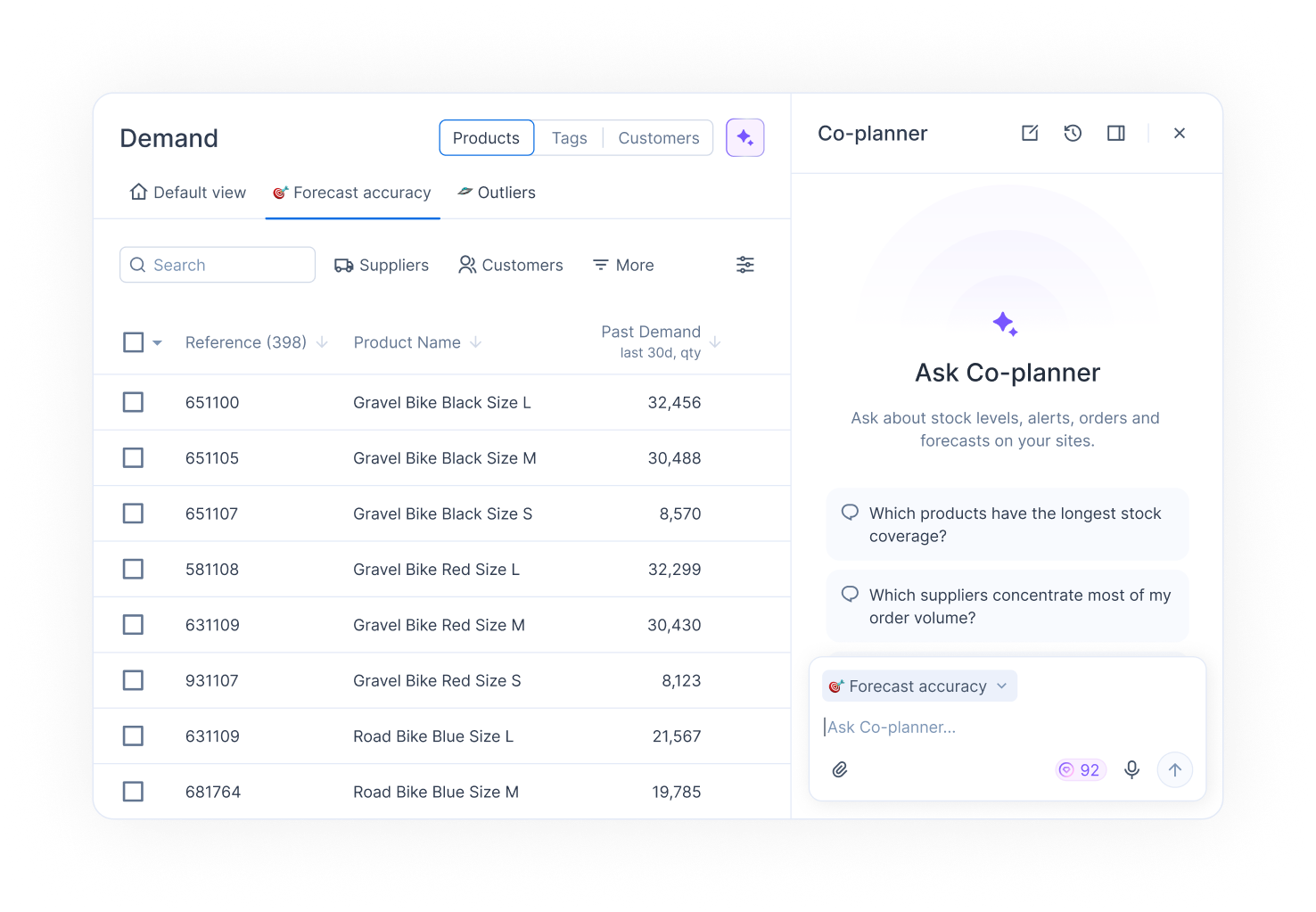
The Co-planner is Flowlity's AI assistant. Ask a question about your demand, orders, inventory or forecasts in plain language, and get an answer built from your own data, without leaving the page you are on.
Open it with the **Open Co-planner** button in the header of every page, or in the sidebar go to **AI & automations** > **Co-planner** to open it as a full page.
{% hint style="info" %}
The Co-planner needs to be enabled for your account. If it says "Contact your Flowlity account manager to get access.", ask your Customer Success Manager, who can also set up a 2-week trial.
{% endhint %}
## How to ask the Co-planner a question
{% stepper %}
{% step %}
### Open the Co-planner
Click **Open Co-planner** in the page header.
{% endstep %}
{% step %}
### Pick a starter or type your question
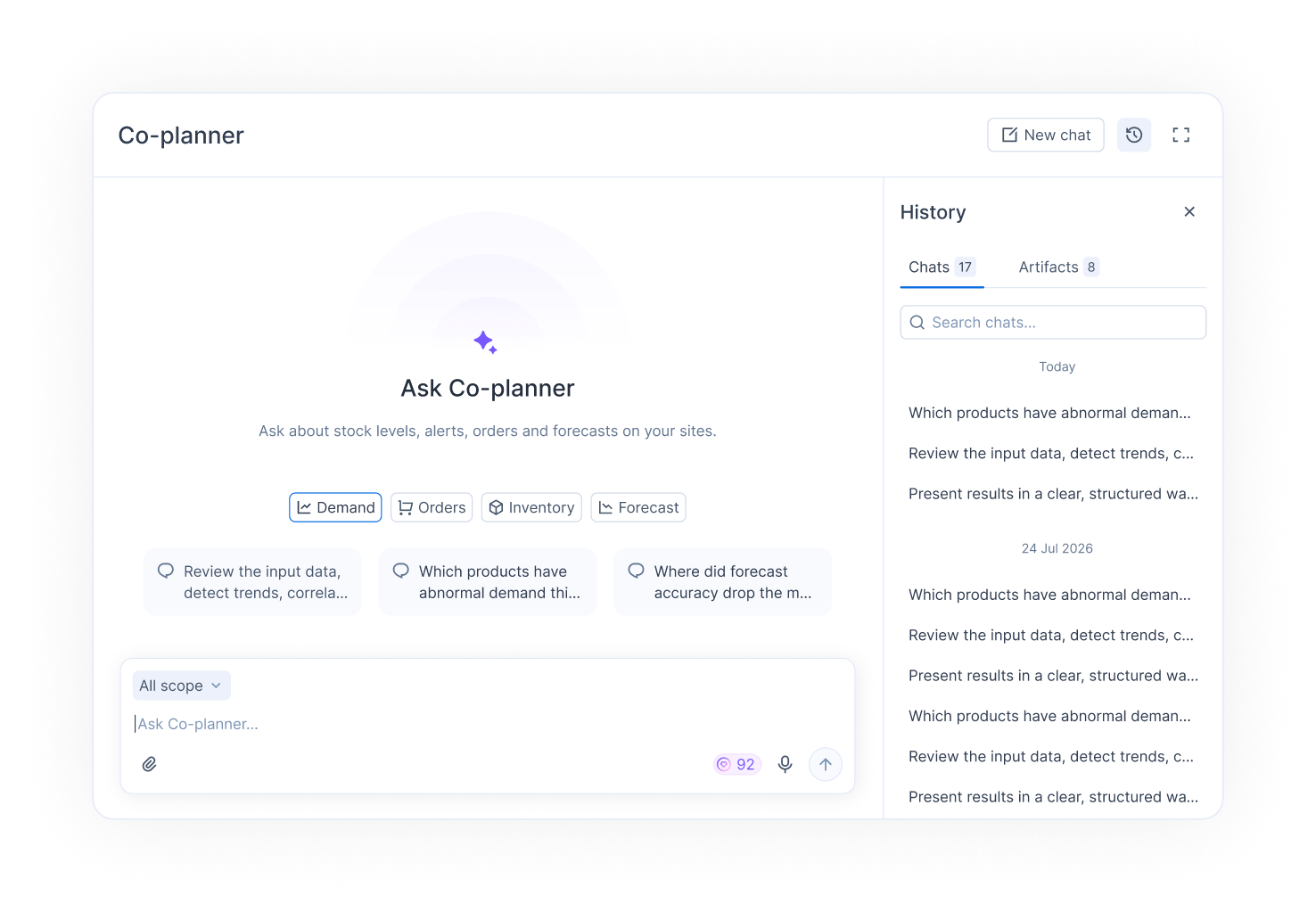
Click one of the suggested questions, or type your own in **Ask Co-planner…**, for example "Which products are at risk of stockout in the coming weeks?". In full page, pick a topic first: **Inventory**, **Demand**, **Forecast** or **Orders**.
{% endstep %}
{% step %}
### Send it
Click **Send**. The Co-planner shows what it is reading while it works. Click **Stop** to interrupt it, or **Retry** if an answer fails.
{% endstep %}
{% step %}
### Follow up
Ask a follow-up question in the same chat: the Co-planner keeps the context of the conversation. Click **New chat** to start on another topic.
{% endstep %}
{% endstepper %}
## How to ask about the page you are looking at
{% stepper %}
{% step %}
### Keep your page attached
Above the message field, the Co-planner shows the page you are on. It is told which page and site you are viewing, so you do not have to repeat them. For example, on a product, ask "Why is the forecast higher than last year?".
{% endstep %}
{% step %}
### Or leave it out
To ask a general question, click **Don't send my current page**. Click **Send my current page** to attach it again.
{% endstep %}
{% endstepper %}
## How to choose how the chat is displayed
{% stepper %}
{% step %}
### Open the display options
In the Co-planner header, open **Chat display**.
{% endstep %}
{% step %}
### Pick a display
* **Floating window**: a window above the page. Drag its header to move it and its corner to resize it.
* **Docked to the side**: the chat sits next to the page, which makes room for it.
* **Full page**: the chat takes the whole screen.
The Co-planner remembers your choice.
{% endstep %}
{% endstepper %}
## How to find, resume or delete a past conversation
{% stepper %}
{% step %}
### Open the history
In the Co-planner header, click **History**. Every conversation is saved, newest first.
{% endstep %}
{% step %}
### Search it
Type a keyword in **Search chats...** to find a conversation.
{% endstep %}
{% step %}
### Resume or delete it
Click a conversation to pick it up where you left off. To remove it, click its bin icon and confirm: the conversation is deleted for good.
{% endstep %}
{% endstepper %}
## How to create a promotion or a forecast event from the chat
{% stepper %}
{% step %}
### Ask in plain language
For example:
* "Create a promotion for all products tagged Summer, +30% from July 1 to August 31."
* "Add a -20% forecast adjustment on product ABC-123 during the store renovation next month."
{% endstep %}
{% step %}
### Check the result in the app
The Co-planner tells you what it created. Events are created as **Confirmed**: they change the final forecast. Check them in [Promotions](/revenue-optimization/promotions.md), and use **Discard** there if you want to hold one back.
{% endstep %}
{% endstepper %}
## Good to know
* **What it can change**: the Co-planner reads the same data you see in the app, for your sites only. The only changes it can make to your data are creating promotions and forecast events. It can also publish a result as a web page and give you its link.
* **Usage limits**: messages use AI credits. If you see "Not enough AI credits to send a message.", click **Get more credits**. A monthly usage limit also applies: when it is reached, it resets the next month.
* **Procedures**: for recurring jobs such as a weekly replenishment review, Flowlity publishes written procedures the Co-planner can follow. Ask "Which procedures can you walk me through?". See [Skills](/ai-and-automations/co-planner/mcp/skills.md).
* **Your data stays with Flowlity**: in the app, the conversation, the data and the model all run on Flowlity's side. The model is hosted on Microsoft Azure within Flowlity's cloud, and your data is not used to train models. See [Where does your data go?](/ai-and-automations/co-planner/mcp.md#where-does-your-data-go).
* **Check before you act**: the figures come from your data, but the assistant's summary can be imprecise. Check important decisions in the app.
## Related
* [Co-planner in your AI tools](/ai-and-automations/co-planner/mcp.md): use the Co-planner from Claude, ChatGPT or Microsoft Copilot Studio.
* [Skills](/ai-and-automations/co-planner/mcp/skills.md): Flowlity's written procedures.
* [Promotions](/revenue-optimization/promotions.md): review the events the Co-planner creates.