> For the complete documentation index, see [llms.txt](https://docs.flowlity.com/llms.txt). Markdown versions of documentation pages are available by appending `.md` to page URLs; this page is available as [Markdown](https://docs.flowlity.com/ai-and-automations/automations/set-up-automation.md).
# Set up an automation
Create an automation from a saved view, set its schedule and actions, and check its first run.
This guide sets up an automation that applies a strategy change to the products of a saved view, on a schedule, and checks that it ran.
## Before you start
* The Automations module is active on your site, and you have the permission to edit product strategies in mass.
* You have a saved view in Demand, Planning or Pricing that selects the products to change. Built-in views such as the **Default view** cannot be used.
## Steps
{% stepper %}
{% step %}
### Prepare the view
In Demand, Planning or Pricing, create a view, set its filters and save it. For example, a view of the products with no or poor demand history, to switch them to an external forecast. See [Set up and manage views](/everyday-tasks/how-tos/set-up-views.md).
{% endstep %}
{% step %}
### Create the automation from the view
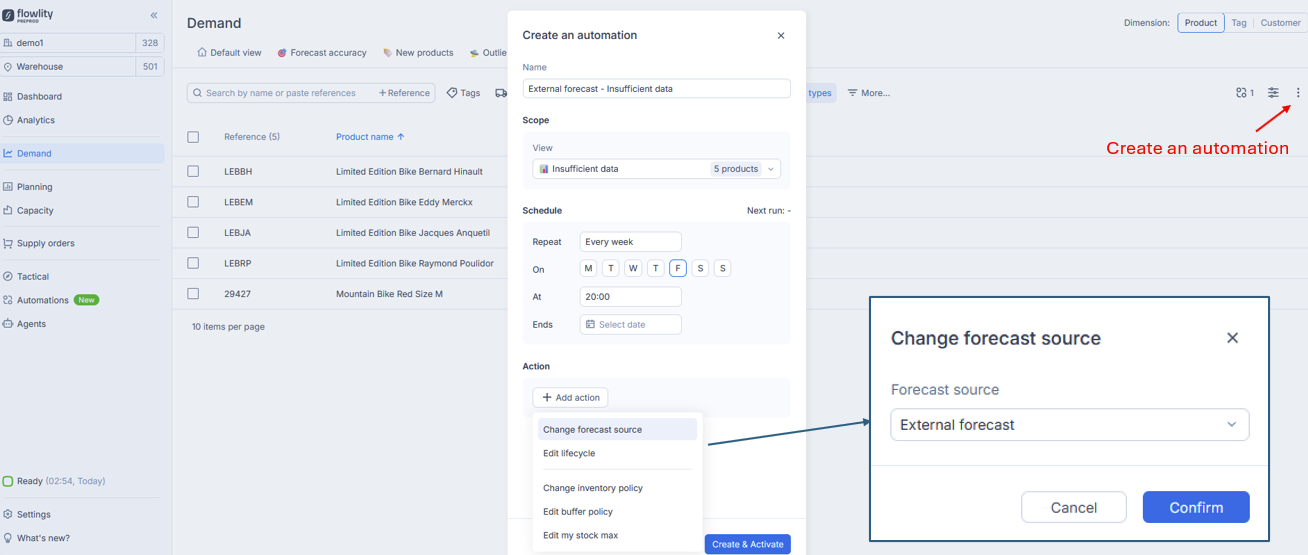
With the view open, click the three-dot menu at the top right of the list, then **Create an automation**. The view is filled in for you.
You can also start from **AI & automations** > **Automations** and click **Create one automation**, then pick the **Site** and the **View**.
{% endstep %}
{% step %}
### Name it and check the scope
Enter a **Name** that says what it does, for example "Weekly external forecast for new products". Under **Scope**, check the **Site** and the **View**: the number of products in the view is shown next to it.
{% endstep %}
{% step %}
### Set the schedule
* **Repeat**: **Every day**, **Every week** or **Every month**.
* **On**: the days of the week, or the day of the month (or **Last** for the last day).
* **At**: the time of day. The time zone is shown next to it.
* **Ends**: an optional end date. After it, the automation is **Expired**.
The **Next run** date at the top of the section confirms your choice.
{% endstep %}
{% step %}
### Add the actions
Click **Add action**, pick an action (for example **Change forecast source** or **Edit buffer policy**), fill in its value and click **Confirm**. Add more actions if needed.
{% endstep %}
{% step %}
### Activate it
Click **Create & Activate**.
{% endstep %}
{% endstepper %}
## Result
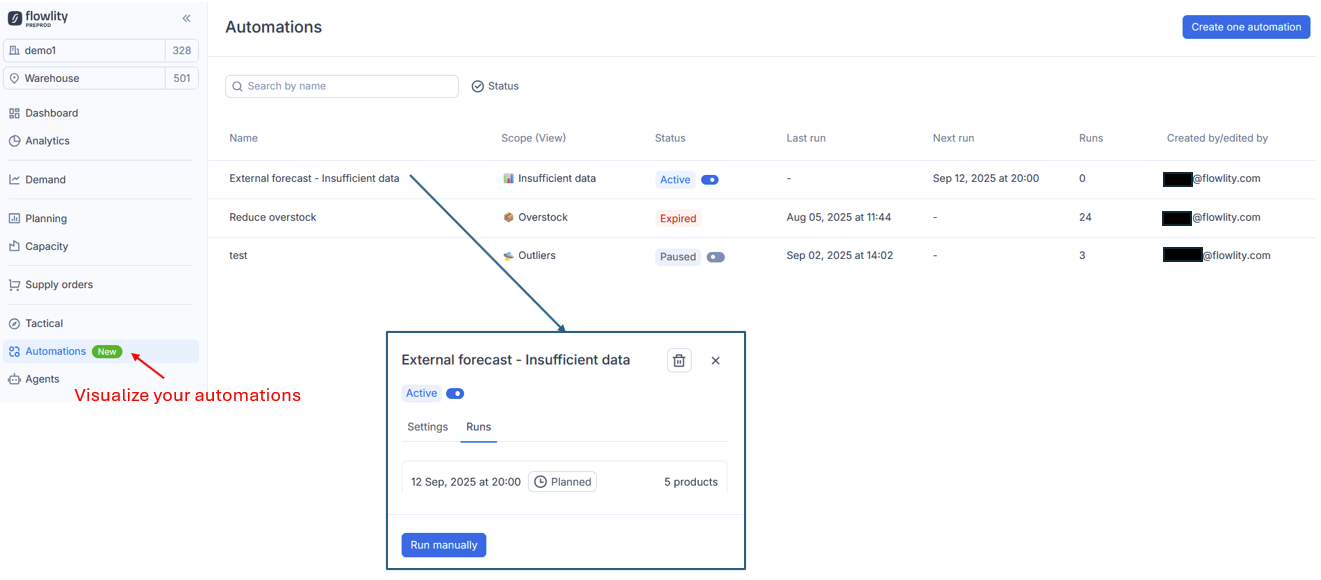
The automation appears in **Automations** as **Active**, with its **Next run**. To check it straight away, open it, click **Run manually**, and look at the **Runs** tab: the run shows **Manual** with the number of products it changed.
{% hint style="info" %}
Start with a narrow view and one action, check the first run, then widen the view. If you change the view's filters later, the next runs act on the new set of products.
{% endhint %}
## Related
* [Automations](/ai-and-automations/automations.md): all actions, statuses and options.
* [Set up and manage views](/everyday-tasks/how-tos/set-up-views.md): create the view used as scope.
* [Views and filtering](/concepts/concepts/views-and-filtering.md): how views select products.