> For the complete documentation index, see [llms.txt](https://docs.flowlity.com/llms.txt). Markdown versions of documentation pages are available by appending `.md` to page URLs; this page is available as [Markdown](https://docs.flowlity.com/ai-and-automations/automations.md).
# Automations
Apply strategy changes to the products of a saved view on a schedule, without editing them by hand each time.
An automation applies one or more bulk actions to the products of a saved view, on a schedule. Use it for changes you would otherwise repeat by hand, for example switching new products to an external forecast every Friday, or adjusting the buffer policy of overstocked products every month.
In the sidebar, go to **AI & automations** > **Automations**. You need the permission to edit product strategies in mass.
{% hint style="info" %}
On [Flowlity Lite](/flowlity-lite.md), Automations are a paid add-on and are switched off by default. Ask your Customer Success Manager to activate them.
{% endhint %}
## What an automation does
An automation has three parts:
* **Scope**: a site and a saved **View** from Demand, Planning or Pricing. The automation acts on the products in that view at the time it runs.
* **Schedule**: how often it runs (**Every day**, **Every week** or **Every month**), at what time, and until when.
* **Actions**: what it changes on those products:
* **Change forecast source**
* **Edit lifecycle**
* **Apply expert models**
* **Change inventory policy**, including the "No replenishment" strategy
* **Edit buffer policy**
* **Edit my stock max**
* **Change lead time**
* **Change similar products**
* **Assign tags** and **Unassign tags**
## How to create an automation
{% stepper %}
{% step %}
### Prepare the view
In Demand, Planning or Pricing, save a view whose filters select the products to change. See [Set up and manage views](/everyday-tasks/how-tos/set-up-views.md).
{% endstep %}
{% step %}
### Start the automation
From that view, open the three-dot menu at the top right of the list and click **Create an automation**: the view is filled in for you. You can also click **Create one automation** in **Automations**.
{% endstep %}
{% step %}
### Set the scope, the schedule and the actions
Give the automation a **Name**, check the **Site** and the **View**, set the **Schedule**, then click **Add action** and pick what to change.
{% endstep %}
{% step %}
### Activate it
Click **Create & Activate**.
{% endstep %}
{% endstepper %}
The [Set up an automation](/ai-and-automations/automations/set-up-automation.md) guide goes through each field.
## How to pause or resume an automation
{% stepper %}
{% step %}
### Open the automation
In **Automations**, click its row.
{% endstep %}
{% step %}
### Switch it off or on
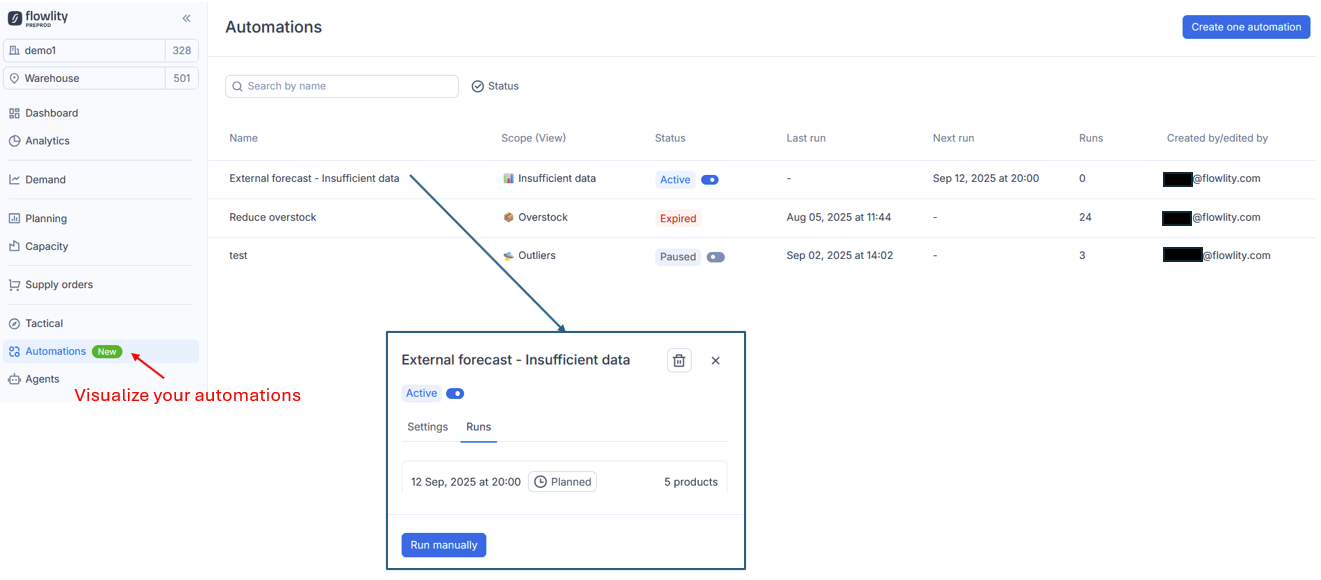
Use the switch next to **Active** / **Paused** at the top of the dialog. A paused automation keeps its settings and stops running until you switch it back on.
{% endstep %}
{% endstepper %}
## How to run an automation now
{% stepper %}
{% step %}
### Open the automation
Click its row in the list.
{% endstep %}
{% step %}
### Run it
Click **Run manually**. The dialog switches to the **Runs** tab, where the run appears.
{% endstep %}
{% endstepper %}
## How to check what an automation did
{% stepper %}
{% step %}
### Open the Runs tab
Open the automation and click **Runs**.
{% endstep %}
{% step %}
### Read each run
Each run shows its date and time, the number of products, and a status: **Planned** (scheduled), **Successfully**, **Failed**, or **Manual** (a successful run started with **Run manually**).
{% endstep %}
{% endstepper %}
## How to change or delete an automation
{% stepper %}
{% step %}
### Open the automation
Click its row. The **Settings** tab shows its scope, schedule and actions.
{% endstep %}
{% step %}
### Edit it
Change the name, the view, the schedule or the actions, then click **Save**. The site cannot be changed once the automation exists.
{% endstep %}
{% step %}
### Or delete it
Click the bin icon at the top of the dialog and confirm.
{% endstep %}
{% endstepper %}
## How to find an automation
{% stepper %}
{% step %}
### Search the list
The list shows each automation's **Name**, **Site**, **Scope (View)**, **Status**, **Last run**, **Next run**, number of **Runs**, and who created or last edited it. Search by name.
{% endstep %}
{% step %}
### Filter it
Filter by **Status** (**Active**, **Paused** or **Expired**) or by site. An automation is **Expired** once its end date has passed.
{% endstep %}
{% endstepper %}
## Good to know
* **The scope moves with the view**: if you change the filters of a view, the next runs act on the new set of products. Keep this in mind when you edit a shared view.
* **Not the Default view**: built-in views such as the **Default view** cannot be used as a scope. Save your own view first.
* **Automations on a view**: in Demand, Planning and Pricing, a view that has automations shows a counter at the top of the list. Click it to see them.
* **Price-based scopes**: purchase price and sales price are available as list columns, so a view can select products by value.
* **Time zone**: the schedule time is shown with its time zone, next to **At**.
* **Start small**: test a new automation on a narrow view, check its first run, then widen the view.
## Related
* [Set up an automation](/ai-and-automations/automations/set-up-automation.md): the step-by-step guide.
* [Set up and manage views](/everyday-tasks/how-tos/set-up-views.md): create the view used as scope.
* [Views and filtering](/concepts/concepts/views-and-filtering.md): how views select products.
* [Inventory strategies](/concepts/concepts/inventory-strategies.md): what the inventory actions change.